

“You can do what the classical composer couldn’t: you can infinitely extend the timbre of any instrument.”
Patcher is a free FL Studio plugin that lets you wire instruments and effects together with cables inside one mixer slot or channel. Here’s how to use Patcher in FL Studio: load it, right-click the Map to add plugins, drag yellow cables from From FL Studio through your effects to To FL Studio, then add Surface knobs and save the chain as a preset.
You watch someone open one plugin in FL Studio and it does five things at once. The reverb ducks when the vocal sings, the highs get dirty while the lows stay clean, and one big knob runs the whole thing. You assume it’s an expensive plugin. Most of the time it’s Patcher, and you already own it.
Patcher looks scary because it’s a blank grid with cables. It isn’t. This guide walks you through it click by click, with real screenshots from Mix Elite’s Patcher tutorials, taught by Max, the founder of Mix Elite. New to the program itself? Start with our beginner guide to FL Studio.
Table of Contents
What is Patcher in FL Studio?
Patcher is a free plugin in FL Studio that lets you connect instruments and effects with cables, in any order, inside one mixer slot or one Channel Rack channel. You build a chain once, put its main controls on a few knobs, and save it as a preset you can drop into any song.
Image-Line’s Patcher manual sums it up as a way to add unlimited effects or instruments in a single channel or effect slot. It comes with every edition, from Fruity to All Plugins, so you don’t need to buy anything. It loads two ways: as an effect on a mixer track, or as an instrument in the Channel Rack.
“What if I told you that Patcher is actually Minecraft?” Max asks at the start of his 8-minute Patcher video. It sounds odd at first. It’s a great picture, though. Each chain you build is like a house you only build once. After that, you place the finished house in every new city, or in this case every new song, instead of starting from bricks again.
Why use Patcher instead of the mixer’s effect slots?
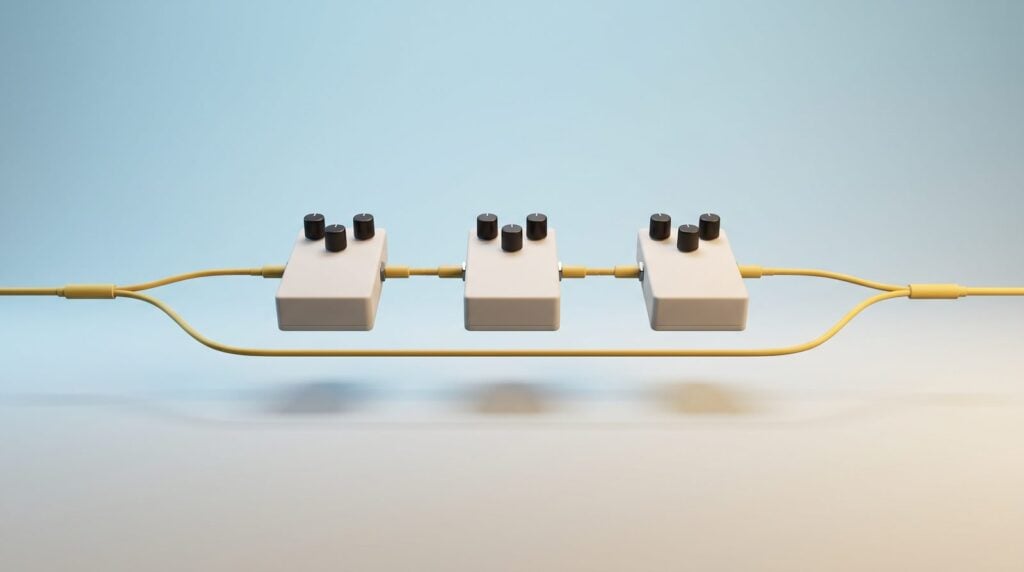
A mixer track has 10 effect slots, and the sound runs through them in one fixed line, top to bottom. Patcher has no slot limit, lets you run plugins side by side instead of in a row, and saves the whole setup, knobs included, as one preset.
Max describes Patcher as a mixer channel that runs from left to right instead of top to bottom. The big difference is freedom. You aren’t stuck with the order of the slots, so the sound can skip a plugin, split in two, or go through three chains at once. Here’s what that gives you.
- No slot limit. Load as many plugins as your computer can handle in one slot.
- Parallel chains. Send one copy of the sound through a reverb and keep a clean copy beside it.
- Wet and dry on separate paths. You can EQ or squash only the reverb, which a normal mixer slot can’t do.
- Multiband effects. Split the sound into lows, mids and highs, and treat each one differently.
- Your own knobs. One knob on the Surface can turn several controls in several plugins at once.
- One preset for everything. Routing, plugins and knobs load together, in one drag.
- Layered instruments. Stack three synths on one channel, each with its own effects.
Max’s favorite way to say it comes from his custom plugin video. “Patcher is one of those things that open up your creative mind and let you do stuff that are not possible anywhere else, even in different DAWs,” Max says. That’s no exaggeration.
How to open Patcher in FL Studio
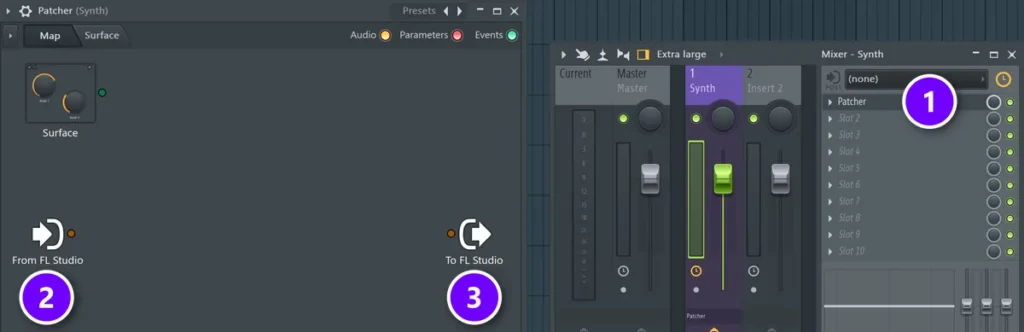
For effects, open the Mixer with F9, click an empty slot on a track and choose Patcher. For instruments, click the plus at the bottom of the Channel Rack and pick Patcher. Inside, the Map tab shows From FL Studio on the left and To FL Studio on the right.
- Press F9 to open the Mixer and select the track you want to process, like your vocal or drum bus.
- Click an empty effect slot and pick Patcher from the list.
- Patcher opens on the Map tab. That’s your workspace.
- To use it as an instrument instead, click + at the bottom of the Channel Rack and choose Patcher.
Patcher sits in the first slot of the mixer track (1). On the Map, From FL Studio (2) is where the sound from that track comes in, and To FL Studio (3) is where it goes back out to the mixer. Everything you build lives between those two icons.
Already have a plugin on a slot and want it inside Patcher? Hold Shift and drop Patcher onto it. FL Studio wraps the plugin in Patcher instead of replacing it (the manual calls this “Patcherize”). For a Channel Rack instrument, right-click its channel button and choose Patcherize.
How does routing work in Patcher?
Sound flows along cables from left to right: out of From FL Studio, through your plugins, and into To FL Studio. Nothing plays unless an unbroken line of yellow cables reaches To FL Studio. A cable can split, skip plugins or merge again, and that freedom is the whole point.
What do the colors mean in Patcher?
Each cable color carries a different kind of data. You can see the same three colors as switches in the top right of the Map, where clicking one hides or shows that kind of cable.
For effect chains you’ll mostly use yellow. Red cables appear the moment you start building your own knobs, and green only matters when you load synths inside Patcher.
How to add a plugin and connect cables
- Right-click an empty spot on the Map and choose Add plugin. You can also press F8 for the plugin picker, or drag a plugin from the Browser onto the Map.
- Click the dot on the right side of From FL Studio and drag a cable to the dot on the left side of the plugin. Inputs are on the left, outputs on the right.
- Drag a second cable from the plugin’s output to To FL Studio. Now you’ll hear it.
- Double-click any plugin box to open its window and set it up as usual.
Every yellow cable also works as a small volume control. Click the arrow in the middle of a cable and drag up or down, and the hint bar shows the level. Right-click a cable to mute it. To pull a cable off, grab its input end and drag it into empty space.
How to use Patcher in FL Studio: build your first FX chain
Start with one effect between From FL Studio and To FL Studio, then add a straight dry cable beside it so the effect runs in parallel. Once the wet and dry sounds travel on their own cables, you can process the wet sound alone, which the mixer can’t do.
This is the order Max teaches in the Patcher video, in three levels. Follow along with a reverb, because you’ll hear every step clearly. Ready?
Level 1: a simple chain in a row
- Right-click the Map and add Fruity Reeverb 2.
- Connect From FL Studio to the reverb, and the reverb to To FL Studio.
- Play your sound. It now runs through the reverb exactly as it would in a mixer slot.
- Add a second plugin, such as Fruity Parametric EQ 2, and cable it in after the reverb to build a longer chain.
Level 2: split the wet and dry signals
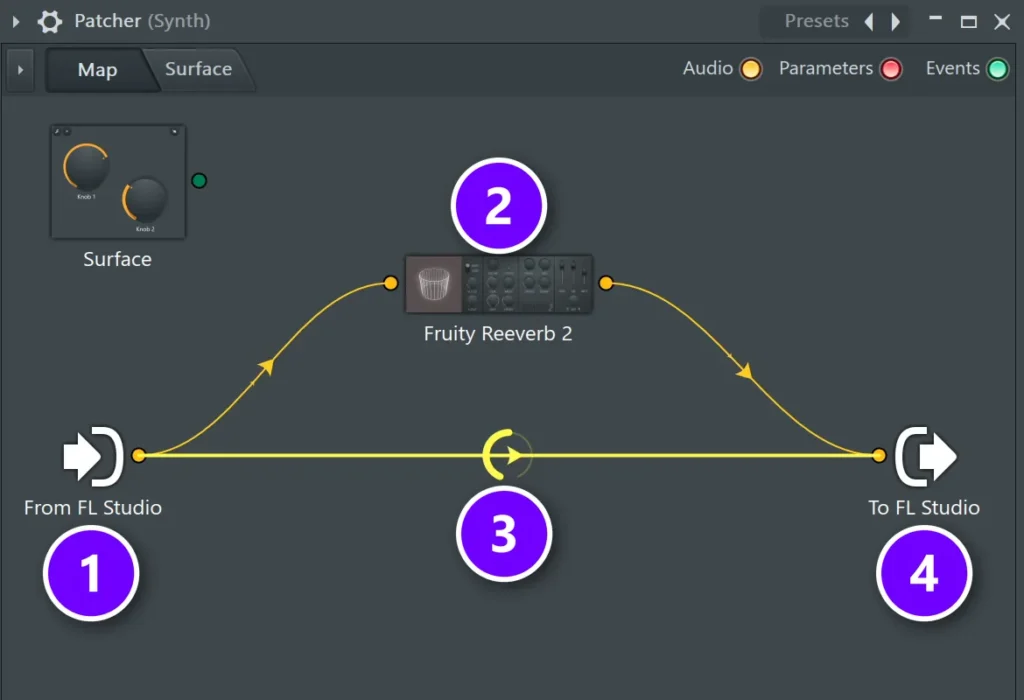
Open the reverb, turn its dry level all the way down and set wet to 100%. Now drag a second cable straight from From FL Studio to To FL Studio. That straight line is your dry, untouched sound, and the reverb carries only the wet part.
The reverb path (2) and the straight dry cable (3) both start at From FL Studio (1) and meet again at To FL Studio (4). Turn the reverb down with the arrow on its cable or with the wet knob inside the plugin.
Keep the dry knob inside the reverb at zero. Max’s reason is simple: the dry sound already travels on the straight cable, so the reverb shouldn’t add any. If both paths carry the dry sound, it doubles. Your mix suddenly gets louder.
Level 3: process only the reverb
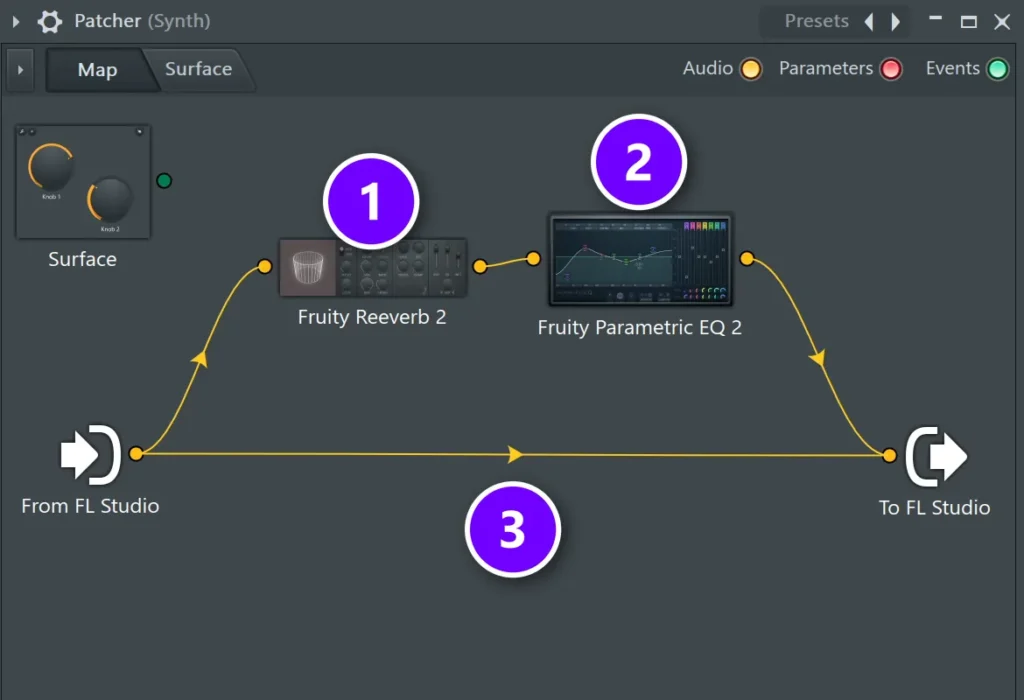
Here’s where Patcher beats the mixer. Add Fruity Parametric EQ 2, then cable the reverb (1) into the EQ (2) and the EQ into To FL Studio. The EQ now shapes the reverb tail only. The dry sound (3) stays exactly as it was.
Cut the low end out of the reverb, for example, and it stops muddying your mix without making the vocal or synth itself any thinner. In a normal mixer chain that EQ would hit the dry and wet sound together.
How to make a sidechain reverb in Patcher
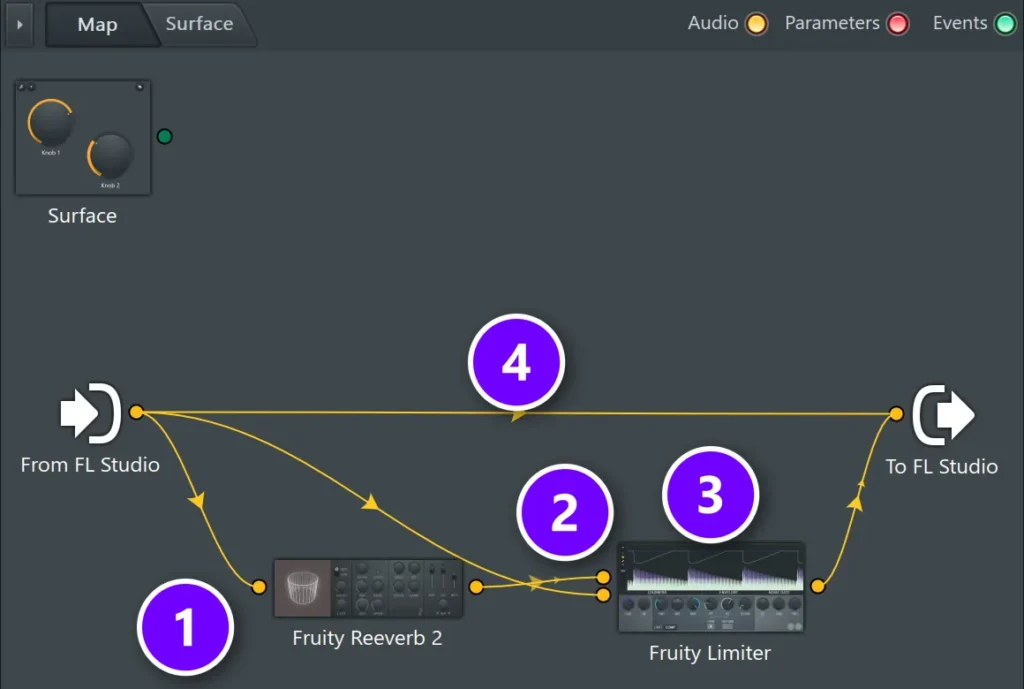
Put Fruity Limiter after a fully wet reverb, give the limiter a second audio input, and feed your dry sound into it. Set the limiter to compressor mode with that input as its sidechain, then lower the threshold and raise the ratio. The reverb now ducks while the dry sound plays and blooms in the gaps.
Max builds this in level 3 of his video. In the mixer you’d need extra tracks, sends and a Peak Controller to get the same effect. In Patcher it’s one preset.
- Start from the Level 2 setup: a fully wet Fruity Reeverb 2 plus a straight dry cable.
- Add Fruity Limiter and cable the reverb into it, then the limiter into To FL Studio.
- Right-click the limiter and choose Inputs › Audio to add a second input.
- Drag a cable from From FL Studio into that new input. It carries the dry sound.
- Open the limiter, switch it to COMP mode and pick the new input as the sidechain.
- Pull the threshold down and push the ratio up until the reverb ducks under the dry sound.
The reverb (1) feeds the limiter (3), and a second cable brings the dry sound into the limiter’s sidechain input (2). The straight cable on top (4) is the dry sound you hear. The result is a vocal or lead that stays clear, with the reverb filling the space between phrases. It sounds expensive. It costs nothing. For more ways to duck one sound under another, read our guide to the top 3 ways to sidechain in FL Studio.
How to split your sound into bands for multiband effects
Load Frequency Splitter in Patcher, turn on its extra audio outputs, and send the lows, mids and highs to separate outputs. Cable each band into its own effect, then bring all three back into To FL Studio. Now you can distort the highs while the low end stays clean and tight.
Max builds a multiband distortion this way in his custom plugin video. Here are his steps.
- Add Frequency Splitter and cable From FL Studio into it.
- Right-click it, choose Outputs › Audio and turn on Send 1, Send 2 and Send 3. Then switch off the main output.
- Inside the plugin, send the lows to 1, the mids to 2 and the highs to 3.
- Add a distortion on each band. Max uses Fruity WaveShaper and copies it with Save preset as, so each band gets its own.
- Cable every band into To FL Studio and set how much distortion each one gets.
Frequency Splitter’s main output and its sends carry the same bands, so Image-Line’s Frequency Splitter manual warns that it’s easy to double your audio. Turn the main output off when you use the sends, and you’ll hear each band exactly once.
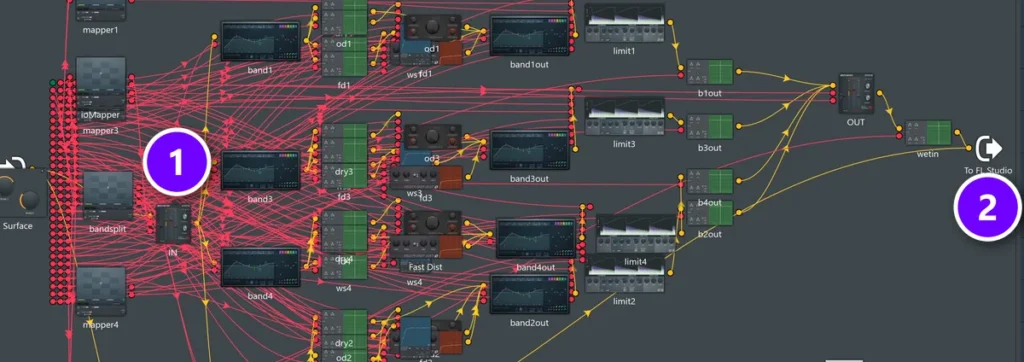
If you add an EQ after a band, Max sets it to linear phase mode, so the bands still line up when they meet again. A big preset from Patcher’s own preset list shows how far this goes. It splits the sound into four bands (1). Each band runs through its own distortion and limiter, and they all meet at To FL Studio (2).
The same split works for compression, which our multiband compression guide covers. It works for width too. Keep the bass in mono and widen only the highs, as our mono vs stereo mixing guide shows with a mid/side setup in Patcher. Our stock-plugin beats guide even splits an 808’s reverb into 3 bands this way.
How to make your own plugin with Surface knobs
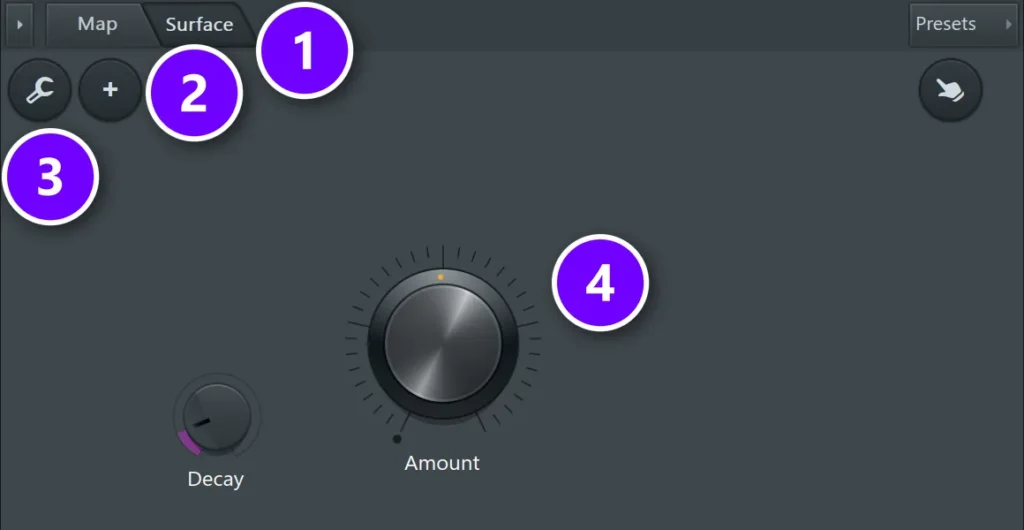
Open the Surface tab, click the plus and add a knob. Then go back to the Map, right-click a plugin, choose Inputs › Parameters and pick the control you want. A red dot appears on the plugin. Drag a cable from the knob’s red dot to it, and your knob now turns that control.
This is the step where Patcher “actually becomes a plugin maker, which is extremely fun,” as Max puts it in the Patcher video. You hide the cables behind a clean panel with a few knobs. Using the chain later takes one second.
- Click the Surface tab (1) and press the plus (2) to add a knob. The wrench (3) switches edit mode on and off, so you can move and rename controls.
- Name the knob after what it does, such as Amount (4). Add a second one, like Decay, the same way.
How to link a Surface knob to a plugin
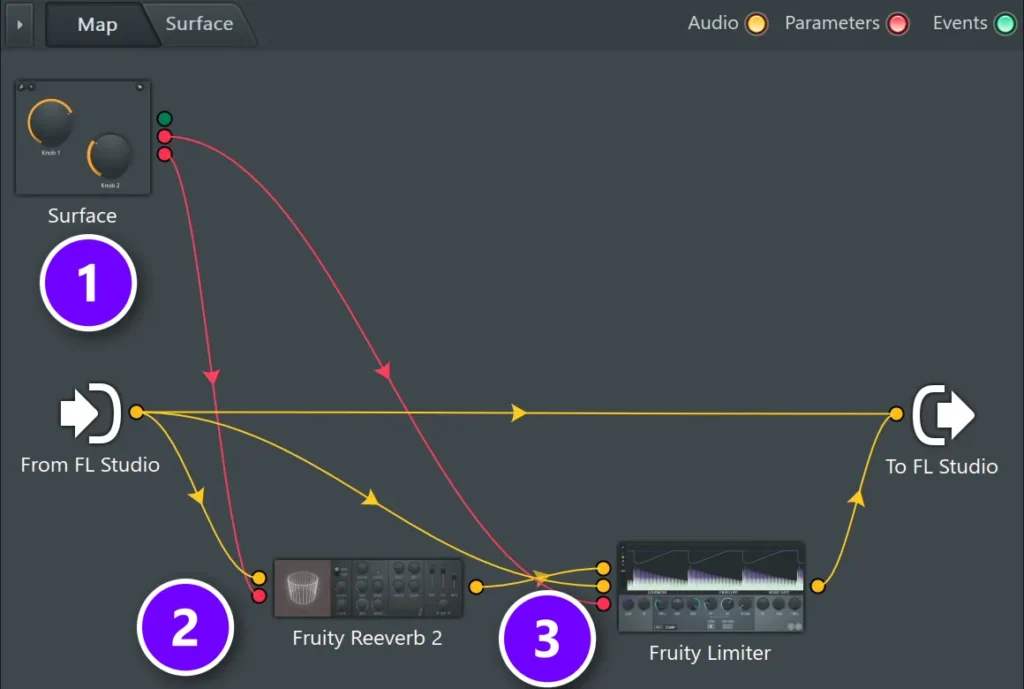
Plugins hide their controls from Patcher until you activate them, because a plugin can have hundreds. You pick the ones you need, and each one gets a red dot you can cable a knob to.
- Go back to the Map. Right-click Fruity Reeverb 2, choose Inputs › Parameters and pick Decay time. Do the same on Fruity Limiter and pick Gain.
- Drag from each red dot on the Surface box to the matching red dot on the plugin.
- Switch edit mode off and turn the knobs. You can also give a knob a default value, so it snaps back to it.
Back on the Map, the Surface (1) now has red parameter cables running to the reverb (2) and the limiter (3). Max links his Amount knob to the limiter’s gain and his Decay knob to the reverb’s decay time, so two knobs run the whole sidechain reverb.
How to make one knob control several things
Put Fruity Envelope Controller between the knob and your plugins. It lets you set the exact range and curve for each target, so one knob can push a mix knob from 0 to 50% while it pulls a volume down. One Envelope Controller has 8 articulators, which means one knob can drive up to 8 targets.
Max shows this in his custom plugin video. One knob turns up the distortion on the highs, lowers their volume a little and opens an EQ band, all at once. Here’s how to set it up.
- Add Fruity Envelope Controller to the Map.
- Right-click it and choose Inputs › Parameters › Global modulation X. Link your Surface knob to that input.
- Right-click it again and choose Outputs › Controllers › Articulator 1. Link that output to the first target.
- Open the Envelope Controller, pick Articulator 1, choose Mod X and draw the range: where the target starts and where it stops.
- Turn on continuous output. Max points out that without it, the envelope won’t work at all.
- Add Articulator 2, 3 and so on for every other control the same knob should move.
Bending the curve makes the knob feel smooth, so the first half of its turn does very little and the effect builds slowly. Image-Line’s Envelope Controller manual explains each source if you want to go further. You could do the same with Fruity Formula Controller and a formula, but Max finds that one much harder to understand.
How to add a bypass button
Add a Button on the Surface, then two Fruity Balance plugins: one at the end of your wet chain and one on a clean dry path. Link the button through an Envelope Controller with two articulators that move in opposite directions. Press the button and the wet chain goes silent while the dry path takes over. Press it again and the effect comes back. Max sets the wet side to about 60% on Fruity Balance, which he says is about 0 dB. Now one click compares your effect with the clean sound.
How to make your Surface look like a real plugin
Open the Control Creator to style a knob: right-click the Map and choose Control creator. You can randomize the look until you like one, then change the pointer, glow and colors. Copy that one knob for every control so the panel matches. Turn on the grid so things line up, add bevel rectangles for panels, and add a label for the plugin’s name.
The plus menu holds more than knobs. There are sliders, buttons, checkboxes and an XY control, which Max suggests for distortion amount on one axis and loudness on the other.
How to add movement with the Peak Controller LFO
Add Fruity Peak Controller inside Patcher, right-click it and choose Outputs › Controllers › LFO. Then activate any knob on any plugin in the chain and cable the LFO to it. That knob now moves by itself, in the shape and speed you set in Peak Controller.
Max’s point in his FX chain video is that every single knob inside Patcher can be moved this way. Most effect plugins on the market come down to volume, wet effects, distortion and time tricks like reversing. Patcher can do all of them with plugins you already have. Here’s his chain, in order.
- A long, fully wet reverb with no high cut, moved by a saw-shaped LFO.
- Fruity Delay 3, fully wet, linked to a second LFO with its own speed.
- Fruity Panomatic with a random LFO on the pan knob, so the sound drifts left and right.
- Gross Beat on a half-speed preset, faded in and out by an LFO on a Fruity Balance after it.
- A reversed copy that goes through a sharp band-pass EQ for a radio sound, then a ping-pong delay.
- One last Fruity Balance before To FL Studio, with an LFO pumping the volume of everything.
If an LFO on a plugin’s own mix knob would turn the effect fully dry, link it to a Fruity Balance after the plugin instead and leave the plugin’s mix at 100%. If you also run audio through Peak Controller, check its Mute switch. The Peak Controller manual says it’s on by default, so no sound passes through.
Gross Beat comes with the Signature Bundle and up, so on a smaller edition skip that step or use any other half-speed effect. Max says this kind of chain works best on single instruments, like a piano loop or a chord layer. Try it on one.
How to use Patcher as an instrument
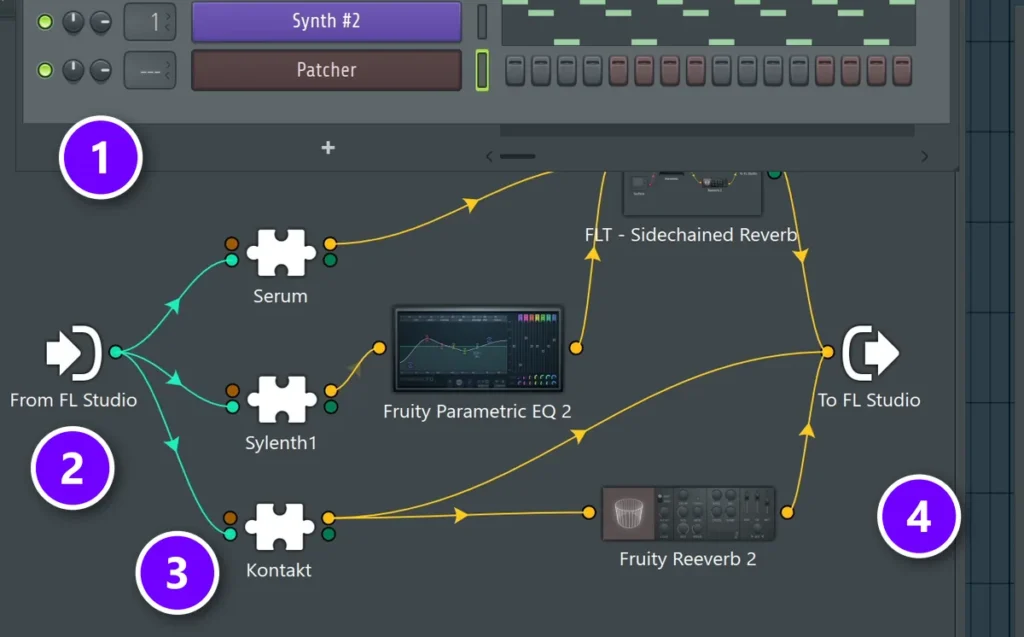
Load Patcher from the plus in the Channel Rack, then add synths on the Map and give each one a green event cable from From FL Studio. Every note you play triggers all of them at once. Give each synth its own effects, and send them all to To FL Studio.
Patcher sits in the Channel Rack like any instrument (1). Green event cables carry the notes from From FL Studio (2) to three synths (3), and each synth has its own effects before they all meet at To FL Studio (4). Third-party plugins work too: this map layers Serum, Sylenth1 and Kontakt.
Max calls this the moment you’re getting quite advanced. You can layer as many instruments as you like, treat each one on its own, and even drag finished Patcher presets straight into the Map.
How to save and load Patcher presets
Click the small arrow at the top left of the Patcher window and choose Save preset as. FL Studio saves the whole thing, plugins, cables and Surface knobs, as one .fst preset. To load it, drag the preset from the Browser onto a mixer slot or a Patcher channel.
- Drag the Save preset as line from that menu onto another slot to copy the chain straight away.
- Save Surface layouts on their own with the Presets button on the Surface tab, so you can reuse a panel design.
- Any third-party plugin in a preset must be installed on the computer that opens it.
- Bought or downloaded a pack? Our guide to installing FL Studio presets shows which folder they go in.
Max’s advice in the FX chain video is to save each chain as a preset, use it, and keep improving it over time. Bit by bit, your chains turn into a signature sound. You never have to rebuild it.
Want a head start? Mix Elite’s Patcher Lords pack has 33 ready-made Patcher presets, such as a self sidechained reverb and a multiband sidechain, built only with FL Studio’s own plugins. Each one has its own Surface, so you can open the Map and see exactly how it works.
Max recommends that habit with any preset in the Patcher video: load one, open the Map and reverse engineer how everything was made. It’s the fastest way to learn new routing tricks.
Why is there no sound in Patcher?
Almost always because the chain is broken: a missing cable between From FL Studio, your plugins and To FL Studio. If every cable is there, check the plugin’s outputs and look for a muted cable. Work through this list.
- Broken path. Follow the yellow cables from left to right. Every plugin needs a cable in and a cable out.
- Missing outputs. Right-click the plugin and check Outputs › Audio. Without an output dot, nothing leaves it.
- Muted cable. A right-click on a cable mutes it, so look for one you muted by accident.
- Too loud after a split. The dry sound is probably going through two paths. Set the effect’s dry to zero, or turn off Frequency Splitter’s main output.
- No notes reaching a synth. Instruments need a green event cable from From FL Studio, not a yellow one.
Once the sound flows again, save the preset before you change anything else. Then build one chain this week, use it in a real song, and improve it next time. That’s how Patcher pays off.
DAY 4 OF THE 7-DAY MUSIC PRODUCER COURSE
Patcher is the tool. Day 4 teaches the mix.
Day 4 of Mix Elite’s 7-Day Music Producer Course is all about mixing: the simple Holy-Quad mixing formula, the volume mistake beginners make in the first 5 minutes of a mix, a mixing checklist and a mixing template to start every track from. The other six days take you from setup to a released song. It’s taught in FL Studio (the free trial works), and on day 7 a pro gives you feedback on your track. It’s $27, with a 60-day money-back guarantee.
Frequently asked questions
Is Patcher free in FL Studio?
Yes. Patcher comes with every FL Studio edition, including Fruity, Producer, Signature Bundle and All Plugins, so you don’t need to buy it. It also works in the free trial, which gives you every plugin. You can load it as an effect in a mixer slot or as an instrument in the Channel Rack.
What do the colors mean in FL Studio Patcher?
Yellow cables carry audio, red cables carry parameters (knob movements, like a Surface knob turning a plugin’s control) and green cables carry events, meaning notes and MIDI for instruments. The three switches in the top right of the Map show or hide each type.
Can you use VST plugins inside Patcher?
Yes. Patcher hosts third-party VST plugins as well as FL Studio’s own, both effects and instruments. Max’s layering example runs Serum, Sylenth1 and Kontakt inside one Patcher. If you share the preset, the other computer needs the same plugins installed.
How many plugins can Patcher hold?
There’s no fixed limit. Image-Line describes Patcher as a way to add unlimited effects or instruments in a single channel or effect slot, while a normal mixer track has 10 effect slots. The real limit is your computer’s CPU.