


“If I have seen further, it is by standing on ye shoulders of giants.”
To install FL Studio mixer presets, unzip the pack and drag its folder onto FL Studio’s Browser, or copy the .fst files into your Mixer presets folder (Documents › Image-Line › FL Studio › Presets › Mixer presets). Then drag any preset from the Browser onto a mixer track, and its whole effect chain loads in one go. To save your own, right-click a mixer track’s name and choose File, then Save mixer track state as.
You bought a vocal preset pack, or grabbed a free one. Now you’re staring at a ZIP file full of files that end in .fst. Double-clicking them does nothing useful. The old guides online send you to folders that aren’t there in your version of FL Studio.
This guide gets you from download to a loaded preset in a few minutes. You’ll get the exact steps for current FL Studio, checked against Image-Line’s own manual. You’ll also see how to save your own presets, copy one effect between tracks and carry whole mixer tracks into a new project the way Max, the founder of Mix Elite, does.
Table of Contents
What is a mixer preset in FL Studio?
A mixer preset is a saved mixer track. FL Studio calls it a mixer track state. It stores every effect in the track’s 10 slots with all of its settings, plus the track’s own settings. Drop one on a track and a whole chain, like EQ, compressor, de-esser and reverb on a vocal, arrives already dialed in. Our guide on how to mix vocals explains what each link in a chain like that does.
FL Studio uses the same .fst file type for several kinds of presets, so it helps to know which one you have:
- Mixer track states hold a whole mixer track, with every effect in its slots and in order. This is what most mixer preset packs contain.
- Plugin presets hold the settings of one effect or instrument, like a single reverb.
- Channel states hold an instrument from the Channel Rack with its settings.
- Patcher presets are plugin presets for FL Studio’s Patcher. Each one packs a whole chain of effects into a single slot.
Some packs also include .fxp or .fxb files. Those are VST presets for one specific plugin, and you load them from inside that plugin, not onto the mixer.
How to install FL Studio mixer presets, step by step
The steps are the same on Windows and Mac. If you’ve added sample packs before, this will feel familiar, because it’s the same Browser trick as in our guide to installing sample packs in FL Studio.
Step 1: Download and unzip the pack
FL Studio can’t see presets inside a ZIP file. On Windows, right-click the ZIP and choose Extract All; on a Mac, double-click it. Then move the unzipped folder somewhere permanent, like a Presets folder next to your samples, because FL Studio reads the files from wherever they sit.
Look inside before you move on. Many packs ship one folder per DAW, so grab the FL Studio folder and ignore the Ableton or Logic versions.
Step 2: Put the presets where FL Studio can see them
You have two options, and both work:
- Drag the folder onto the Browser. Drag the unzipped folder from File Explorer or Finder onto FL Studio’s Browser on the left. Image-Line’s Browser manual calls this the simplest way to add a folder, and the new folder shows up in green.
- Copy the files into Mixer presets. Paste the .fst files, or the whole folder, into
Documents › Image-Line › FL Studio › Presets › Mixer presets. That folder lives inside FL Studio’s user data folder, so the presets also show up in the mixer’s own menus.
Can’t find that folder? In FL Studio’s Browser, right-click Mixer presets and choose Open, and FL Studio shows it to you in File Explorer or Finder.
Skip the Program Files folder that older guides mention. It holds Image-Line’s own factory presets, and a new version of FL Studio installs into a fresh folder without your files in it.
Step 3: Find your presets in the Browser
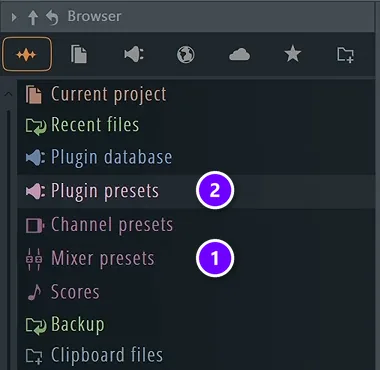
Your presets now sit in the Browser, either in the pack folder you dragged in or under Mixer presets (1). Don’t mix it up with Plugin presets (2), which holds presets for single effects and instruments.
New files not showing yet? Open the Browser’s menu with the small arrow at its top left and choose Refresh content, which makes FL Studio read every folder again.
Step 4: Drag a preset onto a mixer track
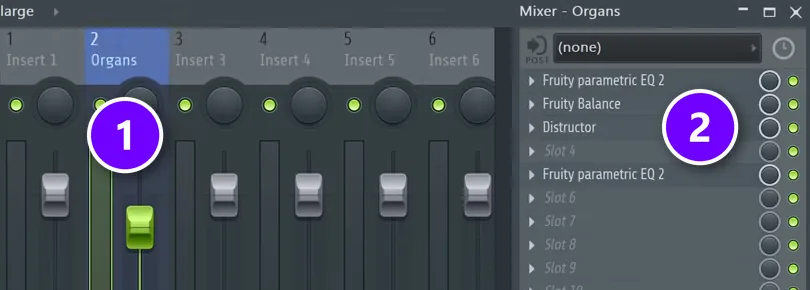
Open the Mixer with F9. Drag a preset from the Browser and drop it on the mixer track you want. The whole chain loads into that track’s slots (2). In Mix Elite’s video, the track even takes the preset’s name and its fader level along with it (1).
There are two more ways to load one. Right-click the track’s name and pick File › Open mixer track state, or choose it straight from the States list in that same menu. In current FL Studio you can also right-click the Add insert mixer track button at the top of the Mixer. Pick Add from state, and you get a brand-new track with the preset already on it.
Step 5: Route your sound and adjust the preset
A preset only works on the sound that reaches its track. In the Channel Rack, select your instrument or vocal channel, click the preset’s mixer track, and press Ctrl + L to route it there.
Then make it yours. Most chains expect a certain input level, so start with the gain on the first plugin, then set the EQ and the compressor’s threshold by ear. Max is blunt about borrowing EQ settings: “You don’t want to ever copy someone’s EQ presets or EQ shapes, because what works for me will not definitely work for your specific track.”
How do you save your own mixer preset in FL Studio?
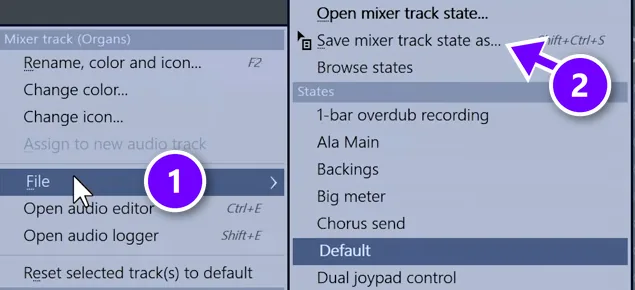
Right-click the mixer track’s name, open File and choose Save mixer track state as. Save it in the folder FL Studio suggests, Mixer presets, and the whole chain shows up in the Browser in every project, ready to drag onto any track. Built a vocal chain you love? Save it once and reuse it forever:
- Right-click the name of the mixer track that holds your chain.
- Go to File (1) and click Save mixer track state as… (2).
- Give it a clear name, like Rap vocal main, and save it in the folder FL Studio suggests.
- Find it later under Mixer presets in the Browser, or in the States list of the same menu.
That File menu also has Browse states, which jumps the Browser straight to your mixer presets. Image-Line’s Mixer menu manual adds a handy trick. Drag the little icon next to Save mixer track state onto another mixer track, and the whole chain is copied over in one move.
Why save effect chains as mixer presets instead of copying them?
Because a copy only lives inside the project you have open, while a saved mixer preset waits in the Browser for every future song. Copy a chain when you need it once more in the same beat. Save it as a preset when it’s a chain you’ll reach for again, like your main vocal chain.
The fastest copy is a drag. Open the track’s File menu and drag the little icon next to Save mixer track state onto another mixer track, and the whole FX chain is duplicated there. To keep it, click the option instead and save it. That takes about as long as the copy, and you never rebuild the chain again.
Don’t save a state for every single track, though. Doing that one track at a time gets old fast, and your Mixer presets folder fills up with clutter. When you want a whole song’s tracks in a new project, export Project bones instead, as shown further down.
How to save or copy a single effect preset
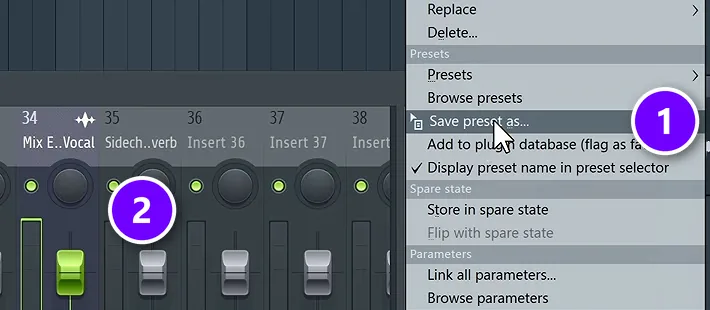
Sometimes you only want one effect, like a reverb you’ve tuned just right. Click the small arrow at the left end of the effect’s slot to open its menu, then choose Save preset as… (1). FL Studio saves it as an .fst plugin preset. The Effects Slots manual recommends keeping it in the folder FL Studio picks, so it shows up in that plugin’s Presets menu.
To copy that effect to another track, you don’t need to save anything. A shortcut from Mix Elite’s free 4.5-hour FL Studio course, in Max’s words: “You can very, very quickly duplicate the presets between the mixer tracks by going to the drop down and dragging the Save preset as option onto the mixer track that we want.” Drop it on the other track (2) and the effect lands there with every setting in place.
How to copy mixer tracks between projects
Mixer presets are great for one chain. When you want a whole set of tracks from an older song, use Project bones instead. The video below shows the full move.
- Open the older project and choose File › Export › Project bones. FL Studio saves every instrument and effect setting as .fst presets, plus the scores, in a folder named after the project.
- Start your new project and open Project bones in the Browser.
- Open that project’s Mixer folder and drag the tracks you need onto empty mixer tracks.
- Load the matching instruments from the Channels folder next to it.
As Max explains in the video, “most of the time you will need just the mixer together with the channel or the instrument.” Bones gives you both, so a sound you loved in one song can be rebuilt in the next in a minute. The File menu manual lists Project bones under Export if you want the details.
Mixer presets not showing up? Try these fixes
- Still zipped. FL Studio can’t read inside a ZIP or RAR file, so unzip it first.
- Wrong DAW folder. Packs often include Ableton or Logic versions, and only the FL Studio .fst files load on the mixer.
- Browser not refreshed. Choose Refresh content in the Browser menu, or restart FL Studio.
- Missing plugins. A mixer preset only stores settings. If it uses a third-party plugin you don’t have, that slot stays empty until you install it, as shown in our guide on installing VST plugins in FL Studio.
- VST presets in the wrong place. Files ending in .fxp or .fxb load inside their own plugin, not on the mixer.
- Files in the install folder. Keep your presets in the Documents folder or in a folder you dragged into the Browser, not in Program Files.
Are mixer presets worth using?
Yes, as long as you treat them as a head start. Mix Elite’s vocal mixing video points out that lots of people use vocal presets, says there’s nothing wrong with that, and loads one. Presets save time, and taking a pro’s chain apart is a quick way to learn why each plugin sits where it does.
Where presets let you down is when you expect them to rescue a bad recording or a mix that’s out of balance. Get the basics right first, and our FL Studio guide for beginners covers the mixer and the rest of the main windows. Then let the preset do the polishing.
Want a set to start from? Mix Elite’s 7-Day Music Producer Course comes with 40+ drag-and-drop vocal mixing presets, and its vocal day adds 10 copy-and-paste vocal processing chains with how to use them. Install them with the steps above, then adjust them to your voice.
DAY 4 OF THE 7-DAY MUSIC PRODUCER COURSE
Learn what the presets are doing
Day 4 of the 7-Day course is all about mixing: the simple Holy-Quad mixing formula, the volume mistake people make in the first 5 minutes of every mix, and the mixing mistakes most beginners make. You also download a mixing checklist and a mixing and production template, and the course comes with 40+ drag-and-drop vocal mixing presets. It’s taught in FL Studio (the free trial works), and on day 7 a pro gives you feedback on your finished track. It’s $27, with a 60-day money-back guarantee.
Frequently asked questions
How do you add presets to FL Studio?
Unzip the pack, then drag its folder onto FL Studio’s Browser, or copy the .fst files into Documents, Image-Line, FL Studio, Presets, Mixer presets. Open the Mixer with F9 and drag a preset from the Browser onto a mixer track. The whole effect chain loads into that track’s slots.
Where do mixer presets go in FL Studio?
Downloaded and saved mixer presets belong in Documents › Image-Line › FL Studio › Presets › Mixer presets, inside FL Studio’s user data folder. You can also skip the folder hunt: drag the unzipped pack folder onto FL Studio’s Browser, and FL Studio adds it as an extra folder you can load presets from.
Why aren’t my downloaded mixer presets showing up?
Usually the pack is still zipped, the files are the Ableton or Logic versions, or the Browser hasn’t refreshed. Unzip it, put the FL Studio .fst files in your Mixer presets folder (right-click Mixer presets in the Browser and choose Open to find it), then choose Refresh content in the Browser menu.
How do I save a mixer preset in FL Studio?
Right-click the mixer track’s name, go to File and choose Save mixer track state as. Name it and save it in the folder FL Studio suggests. It then shows up under Mixer presets in the Browser and in the States list of the same menu, ready to drag onto any track in any project.
Why save effect chains as mixer presets instead of copying them?
A copy only works inside the project you have open. A saved mixer preset sits in the Browser for every future project, so your best chains are always one drag away. For a one-off copy, drag the icon next to Save mixer track state onto another track.