

“It’s subtle, but it just makes everything interact, sound much more urgent, more energy and more like you’re in the room watching people play.”
The OTT compressor is a free multiband compressor from Xfer Records. It splits a sound into low, mid and high bands and, in each band, turns the loud parts down and the quiet parts up, so the sound gets thicker, brighter and more upfront. Start with Depth at 0% and raise it slowly: on vocals, 7 to 20% is plenty.
The OTT compressor makes a sound jump out of the speakers the second you load it, which is exactly why it’s so easy to overdo. As Max, the founder of Mix Elite, points out in Mix Elite’s free 4.5-hour FL Studio course, a ton of producers use it. Below you’ll find what every knob does, settings for vocals, synth leads and the master, how to fix a harsh or noisy OTT, and how to get the same result by hand with Maximus in FL Studio. In a mix, OTT is part of the dynamics step of Mix Elite’s method for mixing a song.
Table of Contents
What is an OTT compressor?
A compressor is an automatic volume knob: when a sound gets too loud, it turns it down. OTT is a multiband compressor, which means it first splits the sound into three bands, low, mid and high, and then compresses each band on its own. That’s how it can tighten a bass without dulling the cymbals.
It also works in two directions. Downward compression turns the loud parts down, like any normal compressor. Upward compression does the opposite. It turns the quiet parts up, so reverb tails, breaths and small details come forward. Push both hard and the gap between the quiet and the loud parts almost disappears.
Max sums it up in the course: “OTT is a multiband compressor, so it’s basically exactly like Maximus, but it’s a one-click solution for your multiband compressor needs.” Maximus is FL Studio’s own multiband compressor, and you’ll see it again further down.
What does OTT stand for, and where does it come from?
The name is usually read as “over the top”, which fits the sound. It started life as a preset called OTT in Multiband Dynamics, an effect in Ableton Live. Xfer Records, the company behind the Serum synth, then made OTT as a free plugin that simulates that preset, so producers in any DAW can use it.
On Xfer’s forum, Steve Duda of Xfer has said that if you use Ableton Live, you don’t need the plugin, since it copies Live’s own preset. Serum users have something close, too. Steve calls Serum’s multiband compressor technically almost the same as OTT, though in practice the crossover points and the upward control differ.
Why is OTT so popular, and how is it different from a normal compressor?
Because it gets a big result in one click. It compresses the low, mid and high bands separately, and it lifts the quiet parts while it squashes the loud ones, so a sound gets thick and upfront without any setup. A normal compressor only turns the loud parts down, usually across the whole sound at once.
It also costs nothing, and it works in any DAW that loads VST, VST3, AAX or AU plugins. The catch? The effect is so strong and so easy to get that it’s just as easy to overdo.
Is OTT free? How to add it to FL Studio

Yes. OTT is freeware, and you download it from Xfer’s freeware page, the same place the course gets it. When we checked in October 2026, the current version was 1.37. It comes as VST, VST3 and AAX on Windows, adds AU on Mac, and has run natively on Apple Silicon Macs since version 1.31. Here’s how to get it into FL Studio:
- Download the Windows or Mac installer from Xfer’s freeware page and run it.
- In FL Studio, open Options > File settings, click Manage plugins, then click Find installed plugins. Our guide on adding VST plugins to FL Studio shows every click.
- Press F9 to open the Mixer, click the mixer track you want to process, and choose OTT from an empty effect slot.
One FL Studio fix comes straight from Xfer’s notes. Older OTT versions could lose their settings when FL Studio switched a project from the VST2 to the VST3 version. Version 1.37 imports the old settings into the VST3 version, so if an old project opens with OTT back at its defaults, update first.
What does each OTT knob do?
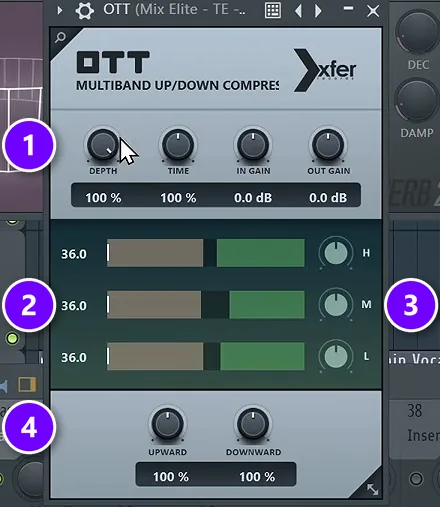
OTT has just a handful of controls. This is a fresh copy from the course, with every knob at its starting value: Depth and Time at 100%, both gains at 0 dB, and Upward and Downward at 100%. The numbers match the picture.
- Depth (1) sets how much of the effect you get. Think of it as a mix knob. Technically, Xfer explains, it scales the strength of all the compression, down to a 1:1 ratio, which means no effect, at 0%.
- Time (1) sets how fast all three bands react. In Ableton’s Multiband Dynamics, the effect OTT copies, Time scales every attack and release at once, so lower settings react faster and higher ones slower.
- In Gain (1) sets how hard the sound hits the compressors. More In Gain means more squashing.
- Out Gain (1) sets the volume coming out. Use it to match the level when you switch OTT on and off, so you judge the sound and not the loudness.
- The H, M and L meters (2) show what’s happening in the high, mid and low bands while the song plays.
- The band knobs (3) set the level of each band after compression, so you can turn down a band that gets too loud.
- Upward and Downward (4) set the strength of each kind of compression. At 0% Upward, OTT only turns loud parts down. At 0% Downward, it only lifts quiet parts.
If you searched for an OTT manual, this is about as close as it gets. Xfer doesn’t offer one on its freeware page, and people still ask for one on its forum. So everything above comes from the plugin itself, Xfer’s own forum answers and Ableton’s manual for the original effect.
One more tip from Xfer: you won’t hear upward compression while the downward side is busy. To hear what Upward does, lower In Gain and try a sound with a tail, like a snare.
What should you use OTT on, and what should you avoid?
Use OTT on sounds you want bright and in your face: synth leads, supersaws, growl basses, vocal chops, risers and drums. Go easy on lead vocals and the master, and skip it on noisy recordings and on parts you want natural and dynamic, because it lifts hiss and squashes the quiet and loud parts together.
Good places for OTT:
- Synth leads and supersaws, to make them fuller and brighter (steps below).
- Growl basses and a bass’s midrange layer, where extra grit helps them cut through.
- Vocal chops, risers and FX, where an obviously processed sound is the point.
- Drums and percussion, to bring up room sound and tails.
Go easy, or skip it:
- Lead vocals: keep Depth between 7% and 20%, with a de-esser after it.
- The master: only as a quick fix, with Upward at 0% (more below).
- Noisy recordings: OTT can lift quiet sounds by up to 36 dB, hiss included.
- Parts you want natural, like a soft acoustic guitar: squashing the quiet and loud parts together is the opposite of what they need.
How to use OTT on vocals
Put OTT after the compressor in the vocal chain and keep it subtle, with Depth between 7% and 20%. It makes the vocal sound more modern and glued together. Follow it with a de-esser, because OTT also lifts harsh “s” sounds.
Max says it plainly in the course: “For vocals, we go for anything between 7% to 20%.” He sets it to 15% there, and to 20% in his video on mixing vocals with stock plugins, below.
How to set OTT on a vocal, step by step
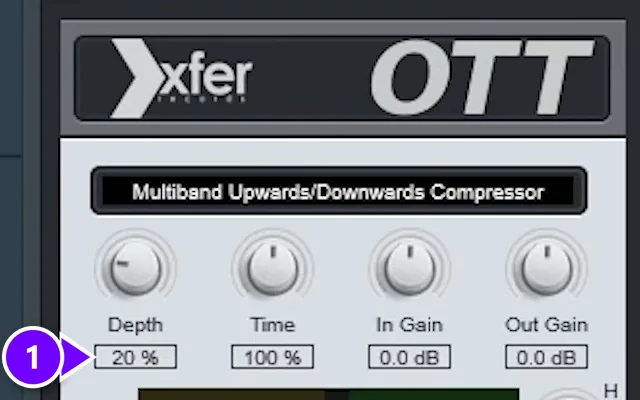
- Load OTT on the vocal’s mixer track, after your compressor.
- Turn Depth down to 0% and play the vocal with the beat.
- Raise Depth slowly and stop between 7% and 20%. In the video it’s 20% (1).
- Listen for harsh “s” sounds. OTT lifts them along with everything else, so follow it with a de-esser, a tool that turns down only those sounds. The video builds one in Maximus.
At 20%, OTT glues the vocal together even more and adds a nice color. It’s optional, though: try it, and keep it if you like what it does. For the rest of the chain, see our guide on how to mix vocals.
Start Depth at 0% and raise it until the vocal just starts to sound thicker, then stop. On vocals that point usually lands somewhere between 7% and 20%.
How do you use OTT on a synth lead?
Load OTT on the lead, start Depth at 0% and raise it until the lead sounds fuller, often somewhere around 15 to 25%. Match the level with Out Gain so you hear the change, not just more volume. If the lead turns harsh or picks up rumble, turn down the H or L band knob.
- Clean the lead first. Upward compression lifts everything quiet, so cut low rumble the lead doesn’t need with an EQ before OTT. A high-pass around 100 to 150 Hz is a common starting point for a lead.
- Load OTT and set Depth to 0%. Play the lead with the full beat, not on its own.
- Raise Depth slowly. Stop as soon as the lead sounds fuller. A lead often lands somewhere around 15 to 25%.
- Match the level. Turn Out Gain down until the lead is as loud with OTT on as with it off, then switch it on and off to judge it.
- Tame the bands. If the top gets harsh, turn the H knob down a little. If the lead adds low-end mud, turn the L knob down.
- Keep reverb and delay after OTT. In front of it, their tails get lifted too, and the lead turns washy.
Should you use OTT on the master?
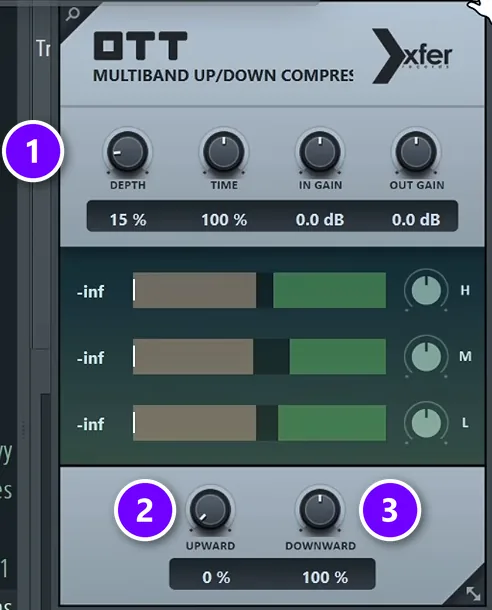
Usually not. Mix Elite’s free course shows it only as a shortcut some pros use when they’re in a rush and don’t want to set up multiband compression by hand. Even then it changes one thing: Depth about 15% (1), Upward down to 0% (2) and Downward left at 100% (3).
Why switch Upward off? Upward compression is what gives OTT its famous sound, and a lot of listeners know that sound well. With only the downward side working, the master gets a slightly softer, glued effect without the obvious OTT color. Use it that way only when you need a master done quickly. For a master you care about, Max’s advice is short: “It is always better to do it manually with Maximus.”
How to get the OTT sound with Maximus in FL Studio
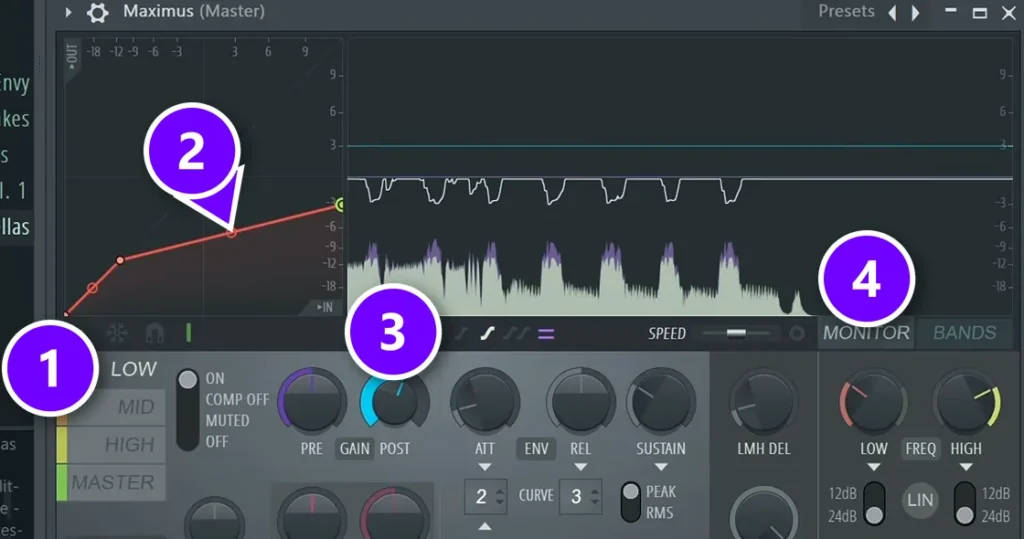
Maximus is FL Studio’s own multiband compressor, included in the Producer Edition and up. Like OTT, it splits your sound into low, mid and high bands with a compressor on each. Unlike OTT, it lets you set every band yourself, and Image-Line’s manual says each band’s compression curve can take any shape.
This is the manual method from the course, and the better choice for a master you care about. The numbers match the picture.
- Load Maximus on the Master track. Click LOW (1) to edit the low band, solo it, and switch the display to MONITOR (4) so you can watch the compressor work.
- Play the loudest part of your song, like the drop or the chorus. Drag the threshold point on the curve (2) down, around 7 dB to start, and hold Alt for fine moves.
- Adjust the threshold and ratio until the band loses about 2 to 3 dB at its loudest.
- Repeat for MID and HIGH, a little lighter if anything. Keep any band to 3 to 4 dB of reduction at most.
- Un-solo the band, then raise each band’s POST knob (3) by about what it lost. If the low band lost 3 dB, add 3 dB back.
The result is a master that sounds more squashed and glued together, and you decide exactly how much each band moves. Our guides to multiband compression and mastering in FL Studio take it further. If compression itself is still new, start with our FL Studio compressor guide.
When should you use OTT?
Use it when you want a sound thicker and more upfront, and you don’t mind hearing that it’s processed. Mix Elite’s free course uses it in two places: a vocal that needs a more modern sound and a quick glue on a master. Xfer itself calls OTT “a drastic up/down comp” that some people like for extreme squashing, which is the third use: sounds where heavy squashing is the whole point. On drums, bass or synths, use the same Depth-first approach: start at 0% and raise it until the sound gets thicker.
OTT can lift quiet sounds by up to 36 dB, Xfer says, so hiss, room noise and long reverb tails can jump out. If you hear noise, lower Depth or Upward, or put a gate before OTT. A gate mutes very quiet sound, and it’s Xfer’s own fix.
Two more cautions. Xfer says not to blend OTT in on a separate parallel track, because a multiband compressor can’t run in parallel without odd frequency side effects. That’s what the Depth knob is for. And on vocals, keep a de-esser after it.
Why does OTT make my track sound harsh and noisy?
Because OTT lifts every quiet sound by up to 36 dB, so hiss, room noise and harsh top-end detail come up along with the parts you want. At the 100% Depth it loads with, that’s usually too much. Turn Depth down first, then lower Upward for noise or the H band for harshness, and gate or clean the sound before OTT.
- Lower Depth first. It scales all of the compression, so it’s the fastest fix. Most sounds need far less than 100%.
- Turn Upward down for noise. Upward compression is the part that lifts hiss and reverb tails. At 0%, OTT only turns loud parts down.
- Turn the H band down for harshness. The band knobs set each band’s level after compression, so a lower H knob softens the top without losing the effect.
- Clean the sound before OTT. A gate in front mutes the quietest parts, which is Xfer’s own fix for noise, and an EQ cut removes rumble OTT would otherwise lift.
- Put reverb and delay after OTT, so their tails don’t get boosted.
- De-ess vocals after OTT. OTT brings up harsh “s” sounds along with everything else, so Mix Elite’s vocal chain follows it with a de-esser.
DAY 4 OF THE 7-DAY MUSIC PRODUCER COURSE
OTT is one tool. Day 4 shows you the whole mix.
Knowing one plugin is a start. Day 4 of the 7-Day course is all about mixing: the simple Holy-Quad mixing formula, the “Mix Murdering” mistakes most beginners make, and the volume mistake people make in the first 5 minutes of every mix. You also get a mixing checklist and a mixing and production template. It’s taught in FL Studio (the free trial works), about 45 minutes a day, and on day 7 a pro gives you feedback on your finished track. It’s $27, and you get 60 days to decide if it was worth it.
Frequently asked questions
How does OTT work?
OTT splits your sound into three bands, low, mid and high, and compresses each one on its own. It compresses in two directions at once: downward compression turns the loud parts down, and upward compression turns the quiet parts up, so reverb tails and small details come forward. The Depth knob sets how much of that effect you hear.
How is OTT different from a normal compressor?
A normal compressor only turns loud parts down, usually across the whole sound. OTT works on three bands separately and compresses in both directions, lifting the quiet parts as well as squashing the loud ones. That’s why it makes sounds thicker, brighter and more upfront in one move, and why it’s easy to overdo.
How do I use OTT on a synth lead without ruining the mix?
Start Depth at 0% and raise it until the lead sounds fuller, often around 15 to 25%. Match the level with Out Gain, turn the H band down if it gets harsh and the L band down if it adds mud. Keep reverb and delay after OTT so their tails don’t get boosted.
What should I use OTT on, and what should I avoid?
It works best on sounds you want bright and upfront: synth leads, supersaws, growl basses, vocal chops, risers and drums. Go easy on lead vocals (7 to 20% Depth) and the master, and skip it on noisy recordings and natural, dynamic parts, because it lifts hiss and squashes the quiet and loud parts together.
Why does OTT make my track sound harsh and noisy?
Upward compression raises quiet sounds, and Xfer says OTT can boost them by up to 36 dB, so hiss, room noise and reverb tails come up with the details. Lower Depth first, then turn Upward down for noise or the H band down for harshness, and put a gate before OTT to cut the quietest parts.