

“I say, beware of all enterprises that require new clothes, and not rather a new wearer of clothes.”
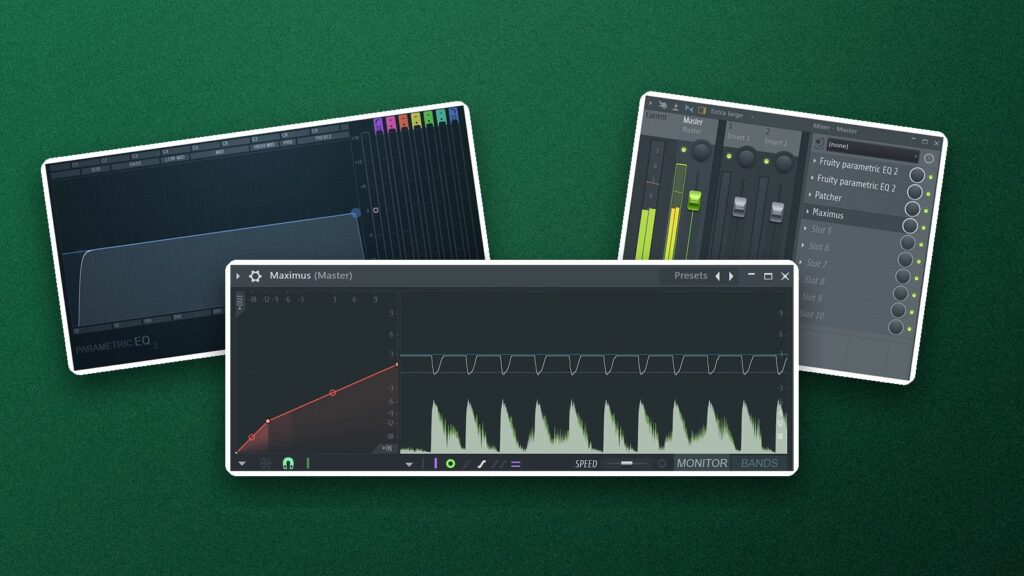
To master in FL Studio, render your finished mix with nothing on the master channel, open it in a new project and run it through stock plugins: Parametric EQ 2 for the low and high cuts, a mid/side EQ to keep the bass mono, and Maximus for dynamics, stereo width and loudness. Then export a 24-bit WAV and a 320 kbps MP3.
Search how to master in FL Studio and the internet tells you the next step is a pricey mastering plugin or a pro engineer. Before you spend a cent, look at what’s already sitting in FL Studio. Below is the method from Mix Elite’s FL Studio mastering tutorial, which has passed a million views on YouTube, with every plugin, every setting and real screenshots from the video. In it, Max, the founder of Mix Elite, masters a house track, and he says a trap or hip-hop song goes through the same steps.
Table of Contents
What does mastering do?
Mastering is the last step before you release a song. You make small changes to the whole track at once, so it sounds loud, clean and balanced on every speaker, from cheap earbuds to a club system. You’re not fixing single sounds anymore. You’re polishing the finished mix as one file.
The key word is small. Max puts it simply: “mastering is all about the subtlety”. In his words, 95% of the work is already done in the mix, and mastering just polishes it. For the bigger picture, read our guide on what mastering is.
If you catch yourself boosting the bass a lot to make the song sound thick, stop. Go back and fix it in the mix instead.
Is FL Studio good for mixing and mastering?
Yes. Mix Elite’s whole mastering tutorial uses only plugins that come with FL Studio: Fruity Parametric EQ 2, Patcher, Fruity Limiter and Maximus. You don’t need to buy anything to get a loud, clean master.
Maximus does most of the heavy lifting. It’s a multiband compressor, which means it splits your song into lows, mids and highs and controls each part on its own. It also has a master band with a saturator and a ceiling, so it can push the volume up at the end of the chain. Want to try other tools later? Start with these free mastering plugins.
How to prepare your mix for mastering
Good mastering starts before you load a single plugin. Render the mix with the master channel completely empty, so no limiter squashes the song before mastering starts. Here’s the prep, in order:
- In the Mixer of your mix project, remove every plugin from the master track.
- Press Ctrl + R, tick WAV, set the bit depth to 32-bit float and click Start. A 32-bit float file keeps every detail, and peaks over 0 dB don’t clip inside it.
- Open a new project and drag the WAV file into the Playlist.
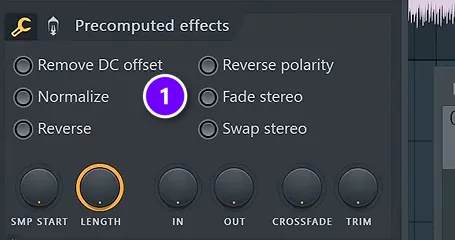
- Double-click the audio clip and tick Normalize (1). It turns the whole file up until its loudest peak reaches the top of the meter.
- Loop the busiest part of the song, usually the drop or the chorus, while you set up the chain.
The mix still matters more than any plugin. A newer Mix Elite video lists the mix habits that give you most of a clean, loud master: delete parts that fight for the same space, keep the low end from hogging the mix, fix frequency masking (two sounds hiding each other), sidechain so the most important sound has room, tame the peaks on single channels and groups, and keep everything below 120 Hz in mono. Together they get you about 80% of a clean mix. Our guide to making a loud mix without losing dynamics covers that side.
How much headroom do you need before mastering?
With this method, you don’t need to aim for a number like -6 dB. Render the mix as a 32-bit float WAV with nothing on the master, and even peaks that went over 0 dB can be recovered. Normalize then sets the level in your mastering project.
Why does my song sound quiet and muddy compared to pro releases?
Usually it’s the low end. Rumble you can’t hear eats your headroom, so the song hits the top of the meter before it gets loud, and wide or uneven bass blurs into mud. Cut below about 30 Hz, keep everything under about 120 Hz mono, compress the lows the most, and push the volume with a maximizer, not a plain limiter.
- Too much low end: low frequencies take up far more room than high ones, so they use up your headroom first. Step 1 cuts the rumble.
- Wide bass: bass that spreads into the sides sounds muddy, and on a mono speaker it can cancel itself out. Step 3 keeps it in the middle.
- Uneven lows: a kick and bass that jump around sound amateur. Step 4 squeezes the low band the most.
- Peaks that hit the ceiling first: a loud kick poking out stops the whole song from getting louder. Step 4 tames it, and Step 6 pushes the volume up with a maximizer.
Mastering won’t rescue a muddy mix, though. Making a song louder doesn’t magically make it better, so if the mud is still there after these steps, go back to the mix habits above, or work through our guide on how to mix a song.
How to master in FL Studio, step by step
Mastering in FL Studio takes seven steps on the master track of a new project: cut the rumble and the harsh top, fix the tone, keep the low end mono, even out the dynamics, set the stereo width, push the volume up and automate the drop. Press F9 to open the Mixer, click the Master track, and load each plugin into the next empty slot. Keep the busy part of the song looping, and compare before and after at every step.
Which plugins go on the master track, and in what order?
Clean up first, shape the sound next, and make it loud last. In FL Studio that means Fruity Parametric EQ 2 for the cuts, a second Parametric EQ 2 for tone, a mid/side EQ in Patcher, then Maximus. The volume push always ends the chain, and only a loudness meter goes after it.
- Fruity Parametric EQ 2: low cut about 30 Hz, high cut about 16.5 kHz (Step 1).
- Fruity Parametric EQ 2: small tone moves, each under 2 dB (Step 2).
- Patcher with a mid/side EQ: keeps the low end mono (Step 3).
- Maximus: compression for each band, stereo width and the master band for loudness (Steps 4 to 6), with its POST knob automated before the drop (Step 7). Fruity Limiter in compressor mode can stand in for the band compression.
Turn on the LIN (linear phase) and HQ buttons along the bottom of each Parametric EQ 2 on the master. Max’s reminder: they’re off by default, and mastering is when you want them on.
Step 1: Cut the rumble and the harsh top with Parametric EQ 2
Load Fruity Parametric EQ 2 first and pick its preset called 30Hz + 18kHz cut. It gives you a low cut and a high cut in one click. You only need to move them.
Cut the lows just under your lowest note
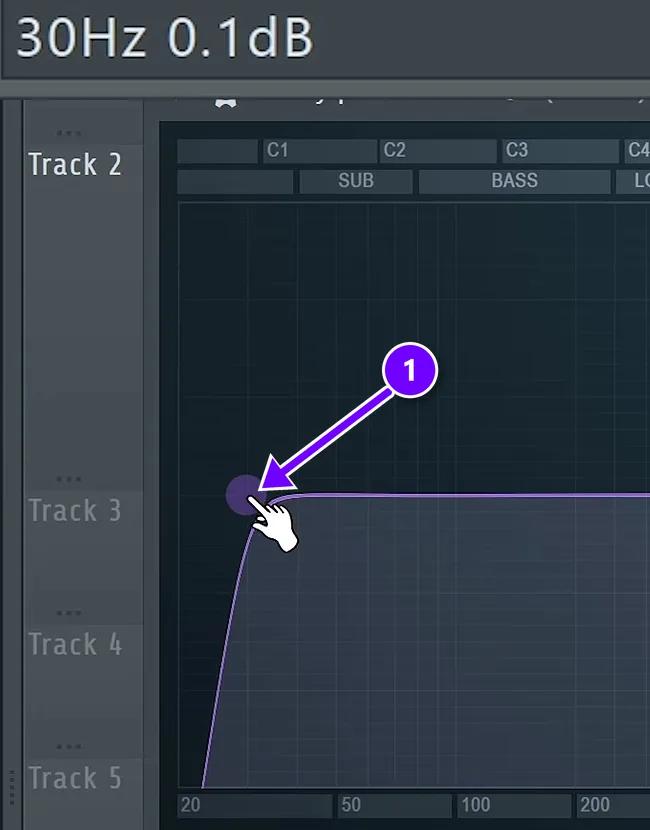
Drag the low cut (1) so it sits at about 30 Hz, the sweet spot for a master. A low cut removes everything under that frequency. Deep rumble you can’t hear still eats headroom, the space your song has before it hits the top of the meter, and most club systems don’t play much below 35 Hz anyway.
Don’t be scared of this cut. In a later video, Max says he finds it funny how many people are afraid of cutting 30 Hz. Sub basses rarely go lower than a D, which plays at about 37 Hz, so the cut doesn’t touch the notes you wrote. If your song’s lowest note is higher, move the cut up to sit just under it.
Trim the harsh highs around 16.5 kHz
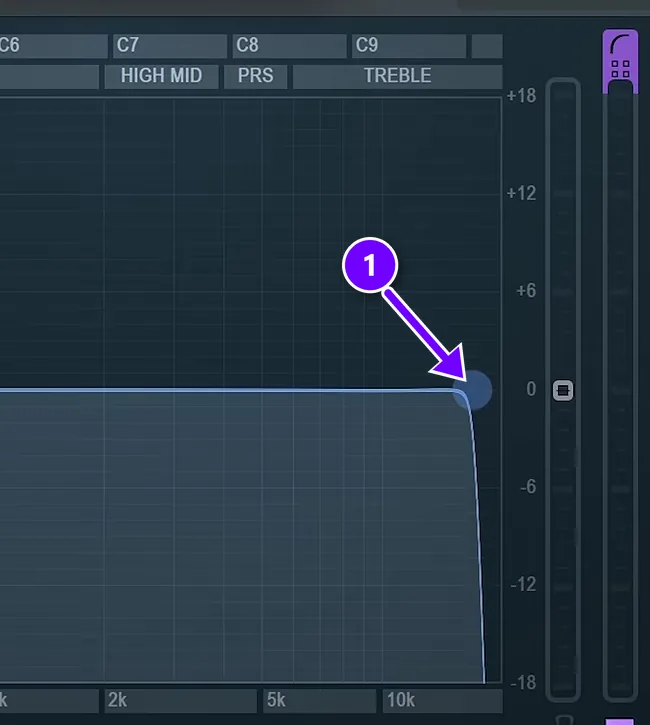
Now drag the high cut (1) down from 18 kHz. Mastering engineers put it anywhere from 16 to 18 kHz. About 16.5 kHz works well, because those very high sounds hurt the ears and you won’t miss them.
If the top feels dull after the cut, don’t skip it. Add a small boost just below 16.5 kHz instead.
Step 2: Fix the tone with small EQ moves
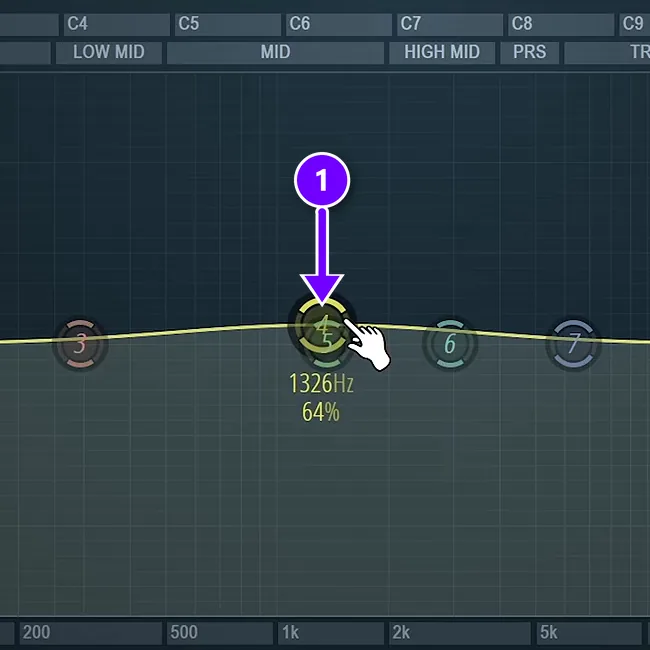
Load a second Parametric EQ 2 and listen to the overall tone. Is anything missing? Is something too much? In the tutorial the mix is already balanced, so the only move is a gentle lift around 1.3 kHz (1) to bring up the body of the mix.
The rule for this step is simple: keep every boost or cut under 2 dB. A fix that needs more belongs in the mix. Not sure where to look? These are the usual problem spots:
- Muddy or boomy: around 100 to 250 Hz.
- Boxy: around 350 to 600 Hz, sometimes up to 1 kHz.
- Harsh: around 3 to 7 kHz. A small boost here adds presence, but too much hurts.
Step 3: Keep the low end mono with a mid/side EQ
Every stereo song has a mid and a side. The mid is what both speakers play the same. The side is the difference between left and right, and it’s what makes a mix sound wide. Wide bass is bad news. It sounds muddy, and on a mono speaker, or in parts of a club, it can cancel itself out until you barely hear it.
Load a mid/side EQ in Patcher
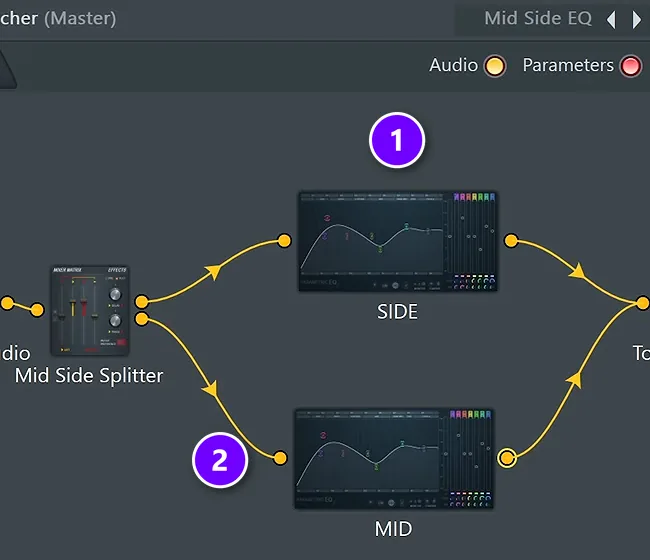
Do this in Patcher, FL Studio’s plugin for building your own effect chains, with the free mid/side EQ preset the Mix Elite channel shares. It splits the song into a SIDE path (1) and a MID path (2), each with its own Parametric EQ 2, and then joins them back together.
Cut the lows from the side
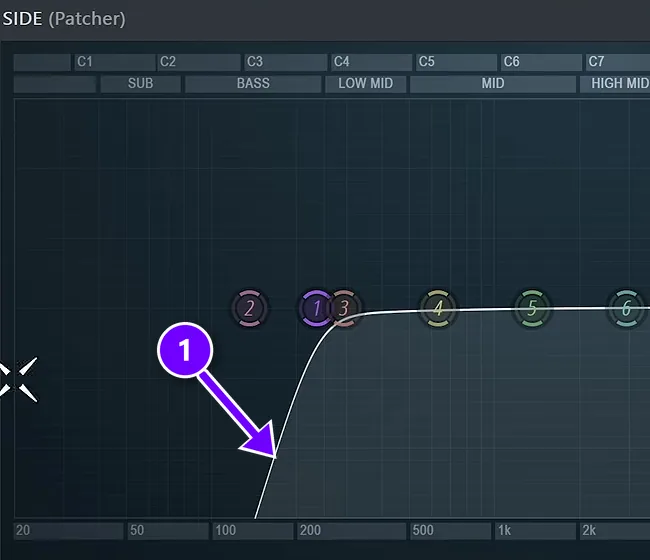
Open the SIDE EQ and use its low cut (1). Start with the cut set high, bring it down while you listen, and stop at the sweet spot between clean and nicely wide in the lows. In the newer video, everything under about 120 Hz ends up fully mono. Max uses this trick on every single song.
Step 4: Even out the dynamics
Dynamics are the difference between the loud and quiet moments in a song. Look at the waveform of a mix and you’ll often see the kick poking out above everything else. Today, too big a gap between the loudest and quietest hits doesn’t sound professional, so you compress, which means turning the loudest peaks down a little.
Before you touch a knob, ask one question. Is the track too punchy or too smooth? If it already sounds right to you, you may barely need compression at all.
The simple way: Fruity Limiter in compressor mode
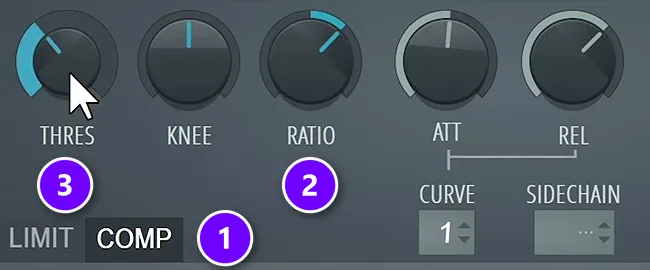
- Load Fruity Limiter and open its COMP tab (1).
- Set RATIO to about 2:1 (2), and no higher.
- Pull THRES down (3) until you see about 2 dB of compression.
A track that’s too punchy needs a very fast attack, from 0 to 2 ms on the ATT knob. A track that’s too smooth needs a slower one, around 40 to 60 ms, so the first hit of the kick gets through.
The better way: compress each band in Maximus
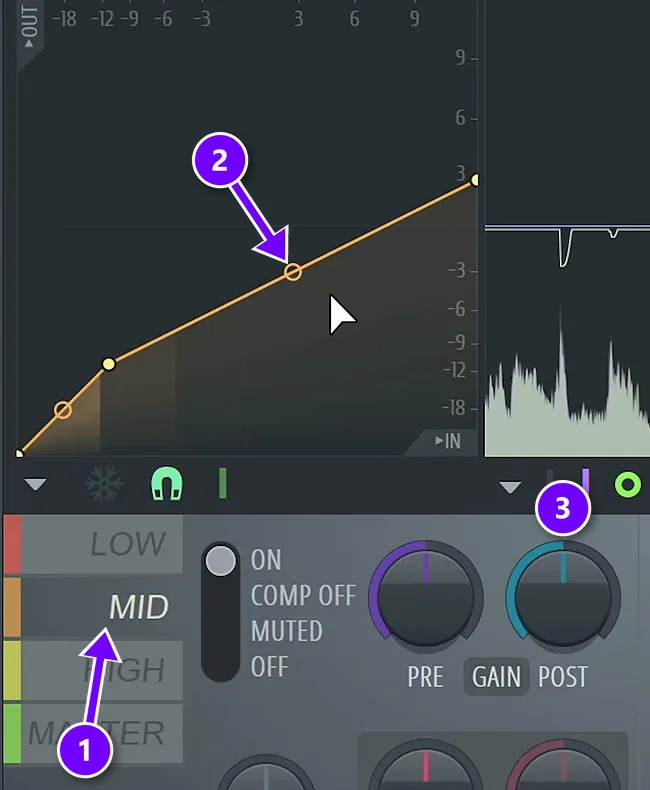
Maximus is the better choice, because a simple compressor turns the whole song down every time the kick hits. Maximus compresses the lows, mids and highs separately.
- Pick a band (1).
- Drag its curve down a little to compress it (2).
- Turn up POST (3), the make-up gain, to win back the volume you lost.
Don’t hunt for perfect numbers. As Max says, “the idea here is not to know what are the perfect settings but just do it”. Here’s what to do with each band:
- LOW: compress it the most and keep it steady. Uneven lows sound amateur, and a firm squeeze brings the kick and bass closer together.
- MID: raise the attack (ATT) to about 20 ms, so a clap or snare can poke through.
- HIGH: a light touch that just catches the peaks.
- POST on each band: with about 3 dB of compression, add about 2.5 dB back.
Step 5: Set the stereo width of each band
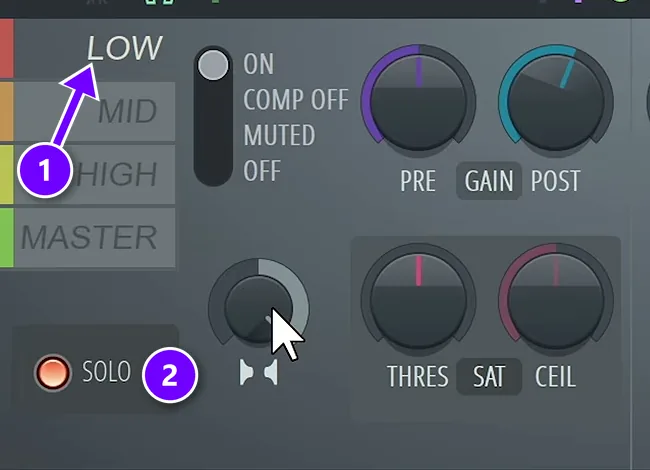
Each Maximus band has its own stereo separation knob. Click a band (1), then turn its knob (2). In the middle it does nothing. Turning it right makes that band narrower and closer to mono, and turning it left makes it wider. The settings for this house track:
- LOW: about 15 to 20% narrower, so the kick and bass hit the same in both speakers.
- MID: about 15 to 20% wider. It opens the track up, but much more starts to sound weird.
- HIGH: a bit wider than the mids.
By this point in the video, the low end is punchier, the mud in the very lows is gone, and the whole track sounds more polished. Two steps to go.
Step 6: Push the volume up with the Maximus master band
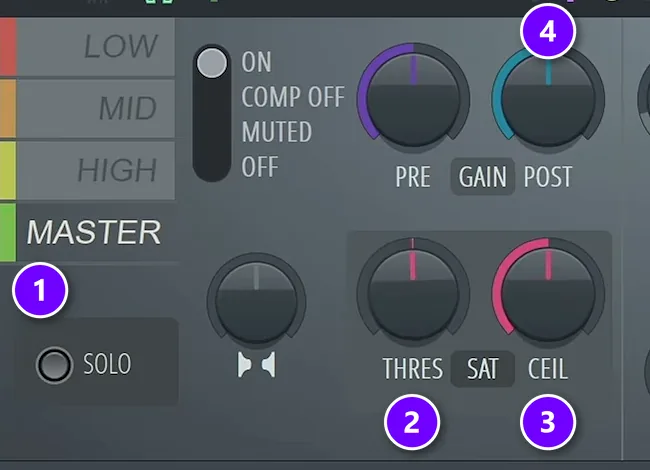
A plain limiter only turns the peaks down. In a later video, Max calls a simple limiter on the master the worst idea you can have when mastering. Use a maximizer instead, which pushes the volume up and shaves the peaks off at the same time. Maximus does that on its MASTER band:
- Select the MASTER band (1).
- Turn THRES (2) to about 1%. Left is saturation type A and right is type B, so pick the one you like. At 1% it just wakes up the saturator without adding much distortion.
- Set CEIL (3), the ceiling, to -1 dB if you’ll export an MP3. For a WAV only, -0.3 or -0.1 dB is fine. Don’t go all the way to 0 dB.
- Loop the loudest part of the song and raise POST (4) until you hear the song distort.
- Back it off 1 to 2 dB from that point.
Why the lower ceiling? When your song is turned into an MP3, or played by your speakers, the wave can rise a little between two samples, past the top, even when FL Studio’s meter looks fine. These are inter-sample peaks, and they cause distortion you can’t see in your DAW. True peak meters show them. If clippers, limiters and compressors still blur together, read compression vs clipping vs limiting.
Step 7: Automate the master so the drop hits harder
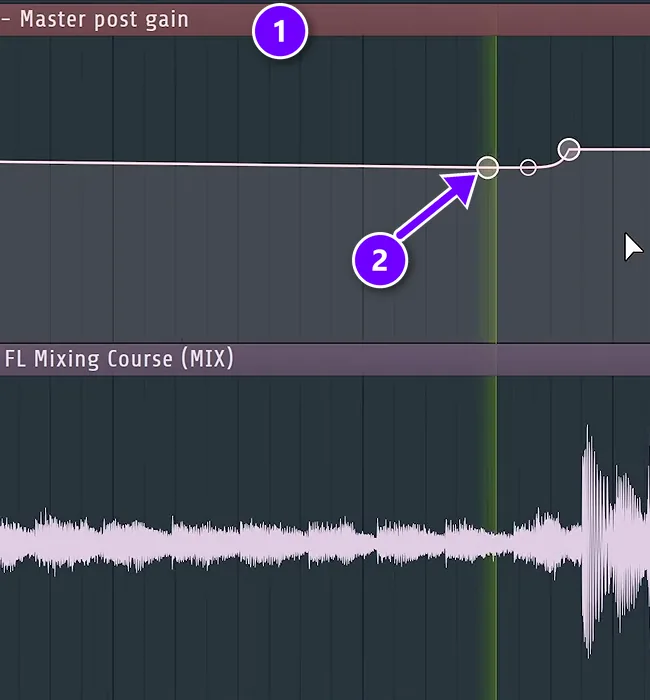
This step is extremely important, and most people skip it. Right-click the POST knob in Maximus and choose Create automation clip. The clip shows up in the Playlist (1), right above your song, so you can draw the volume moves (2) where they belong.
- Breakdowns are often a little too loud next to the drop. Ease the POST gain down about 2 dB just before the drop, then bring it back as the drop lands. Before a second drop, 2 to 3 dB works, and some producers turn the whole breakdown down a little.
- Do the same with width. Automate the stereo separation on the master so the song narrows just before the drop and opens wide when it hits.
- Fade out the very end, and leave a few milliseconds of silence before the first sound, so nothing clicks.
How to export your master from FL Studio
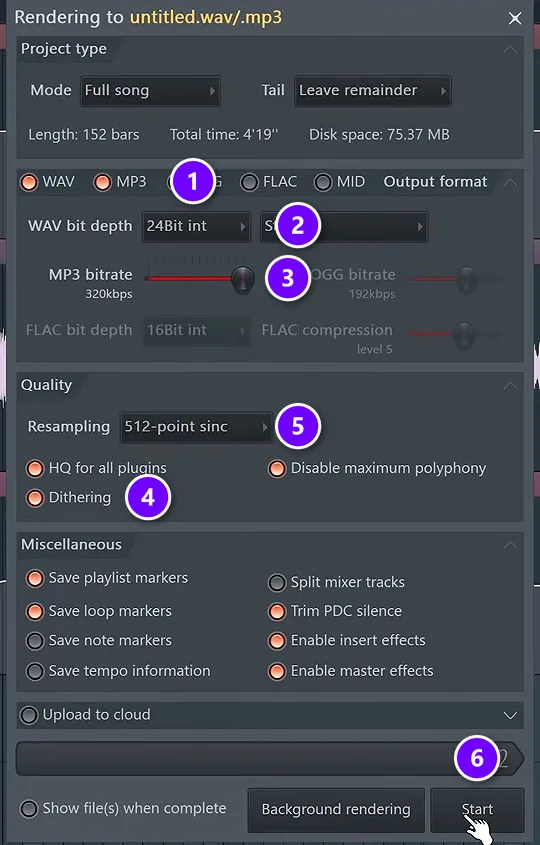
When the master sounds right, press Ctrl + R to open the render window. Use these settings:
- Tick both WAV and MP3 (1), so one render gives you both files.
- WAV bit depth: 24-bit (2). FL Studio’s manual says 16-bit is enough for distribution, so check what your distributor asks for.
- MP3 bitrate: 320 kbps (3), the highest MP3 quality.
- Dithering: on (4). FL Studio applies it to the MP3 and to 16-bit WAVs. Here’s what dithering does.
- Resampling: 512-point sinc (5), the best quality. It just renders slower.
- Click Start (6).
How do you check your master before you release it?
Play it everywhere: on different headphones, a laptop, in a car and on a Bluetooth speaker, which often plays in mono. If the bass disappears or the highs sting on one of them, go back to the step that controls it.
A faster way: master backwards
A later Mix Elite video shows a twist called reverse mastering. You set up the last step first, then build the chain in front of it. Once the loudness is set, you clean up everything before the maximizer until it stops distorting.
Set the loudness first, then clean up in front of it
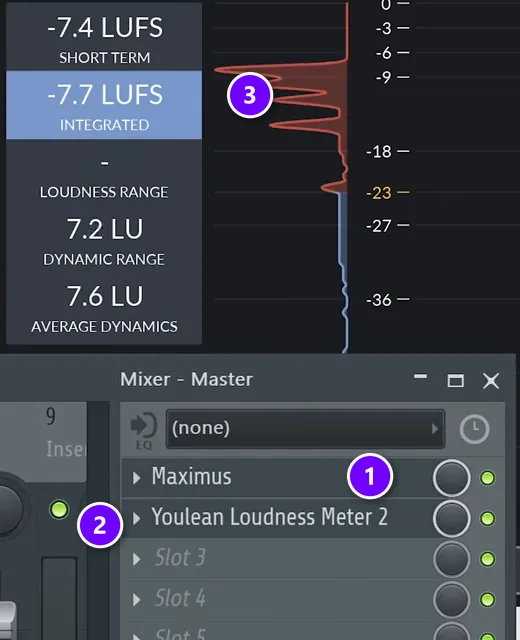
- Put Maximus in the first slot (1) and set it like Step 6: saturation type A at about 1%, a -1 dB ceiling, then push POST until you hear distortion and pull it back 1 to 2 dB.
- Add a loudness meter in the next slot (2). The video uses the free Youlean Loudness Meter.
- Read its integrated number (3), measured in LUFS (loudness units relative to full scale, the standard unit for how loud music sounds).
In that video the track lands around -7.5 LUFS, which Max calls a very loud sweet spot. Some people will say that’s too loud. That’s up to you, he says.
Now work backwards and clean up everything in front of Maximus. Use a firm low cut at 30 Hz and a high cut near 17 kHz, then the mid/side EQ, a little extra weight in the very lows, and some saturation on the very highs if they sound too clean. Finish with multiband compression, and squeeze the lows the most to bring the kick and bass together.
How loud should your master be?
As loud as you can before you hear distortion, then 1 to 2 dB quieter. Mix Elite’s free FL Studio course suggests aiming for about -8 to -7 LUFS, read on the loudest part of the song. Matching a released song in your genre works too.
Measure loudness in LUFS, not on the peak meter. Spotify, for example, adjusts every track to -14 LUFS during playback, which makes many people think they have to master to -14. Max disagrees, and he tells you not to worry about streaming normalization at all. In Max’s view, “you are the producer or mastering engineer and you are deciding how loud your song is”.
His first rule is to make the song as loud as you can before you hear distortion, which is exactly what Step 6 does. His second-best method: load a released song from your genre next to yours, measure it with a LUFS meter and match it, so nobody has to grab the volume knob when your song comes on in a playlist or a DJ set. The video also says you’re free to follow the streaming guidelines and master to -14 LUFS instead.
For what LUFS really measures and the numbers each platform publishes, read LUFS vs RMS. For the streaming side, see how to mix and master for streaming. For a shorter overview of the whole process, try mastering made easy in 5 steps.
Want to go deeper with a full course? See the best mastering courses online.
FL Studio mixing and mastering cheat sheet (save as PDF)
Searching for a mixing and mastering PDF? Here’s the whole chain in one list. Press Ctrl + P (Cmd + P on a Mac) in your browser and choose Save as PDF to keep a copy. For any plugin in more depth, FL Studio’s own manual is free online, and pressing F1 inside FL Studio opens the page for whatever window you’re in.
- Mix in the order of the Holy Quad, Mix Elite’s mixing formula: volume, EQ, dynamics (compression), then space (reverb and panning).
- Before you render: delete parts that fight for the same space, sidechain so the main sound has room, and keep everything below 120 Hz mono.
- Mix: nothing on the master channel. Render a 32-bit float WAV and open it in a new project.
- Normalize the clip and loop the busiest part of the song.
- Parametric EQ 2: preset 30Hz + 18kHz cut, low cut about 30 Hz (just under your lowest note), high cut about 16.5 kHz.
- Tone EQ: keep every move under 2 dB.
- Mid/side EQ in Patcher: cut the lows from the side, so the low end is mono.
- Maximus bands: compress each a little, keep the lows steady, use a 20 ms attack on the mids, then make up the gain.
- Maximus width: lows 15 to 20% narrower, mids 15 to 20% wider, highs a bit wider.
- Maximus master band: THRES about 1%, CEIL -1 dB for MP3, raise POST until it distorts, then back off 1 to 2 dB.
- Automate a 2 dB dip and a narrower image before each drop, fade the end, then export: WAV 24-bit, MP3 320 kbps, dithering on, 512-point sinc.
THE 7-DAY MUSIC PRODUCER COURSE
Master your first song on Day 6
On Day 6, the 7-Day course teaches mastering: a 3-step mastering chain that makes your song loud, clear and punchy everywhere, the inter-sample clipping mistake and an easy way to always avoid it, and the best export settings for streaming. You get a final mix to practice on and a mastering chain preset pack. It’s $27 for all seven days, and you have 60 days to decide if it was worth it.
Frequently asked questions
Can you master a song in FL Studio with only stock plugins?
Yes. Mix Elite’s FL Studio mastering tutorial uses only plugins that come with the program: Parametric EQ 2 for the low and high cuts, a mid/side EQ built in Patcher, and Maximus for multiband compression, stereo width and loudness. Fruity Limiter in compressor mode handles simple compression. You don’t need paid plugins to make a loud, clean master.
Should I master in the same project as my mix?
It’s better not to. Render the mix with nothing on the master channel as a 32-bit float WAV, then master that file in a new FL Studio project. With an empty master channel, no limiter squashes the mix before mastering starts, and working on one audio file keeps you focused on the whole song instead of single tracks.
What order should mastering plugins go in?
Clean up first, shape next, and make it loud last. In FL Studio that’s Parametric EQ 2 for the low and high cuts, a second Parametric EQ 2 for small tone moves, a mid/side EQ in Patcher to keep the bass mono, then Maximus for multiband compression, stereo width and loudness. The volume push always goes last.
Does FL Studio have automatic mastering?
Yes. Image-Line’s FL Cloud subscription adds AI-powered mastering inside FL Studio, with genre presets you can preview. It’s a quick way to hear a finished-sounding version of your song. Building your own chain, as in this guide, shows you what each step does and lets you control every setting.
How loud should I master in FL Studio?
Mix Elite’s rule: as loud as you can before you hear distortion, then back off 1 to 2 dB. You can also match the LUFS of a released song in your genre. Spotify adjusts songs to -14 LUFS during playback and asks for a true peak below -1 dB, or below -2 dB if your master is louder than -14 LUFS.