


“You will be fooled by a trick if it involves more time, money and practice than you (or any other sane onlooker) would be willing to invest.”
The best FL Studio tips and tricks are a few workflow shortcuts plus the hidden features most people never click: F5 to F9 for the main windows, Ctrl + B to duplicate, Alt + drag to place clips off the grid, Stretch Pro to shift a vocal’s formant, the Limit tool (Alt + K) to force notes into a key, and Tools > Dump score log to bring back a melody you didn’t record.
You watch another producer work in FL Studio and they pull off things you didn’t know it could do. It looks like they bought some secret plugin. Usually they just found a menu you’ve never clicked, and once you know where it is, it takes seconds.
Below are 18 FL Studio tricks from two videos by Max, the founder of Mix Elite, each with the exact clicks and a real screenshot, plus the workflow shortcuts worth knowing by heart.
Table of Contents
FL Studio tricks for vocals
Five ways to reshape a vocal with tools that come with FL Studio. The first one needs nothing but the Sampler.
1. Change a vocal’s tone without changing its pitch
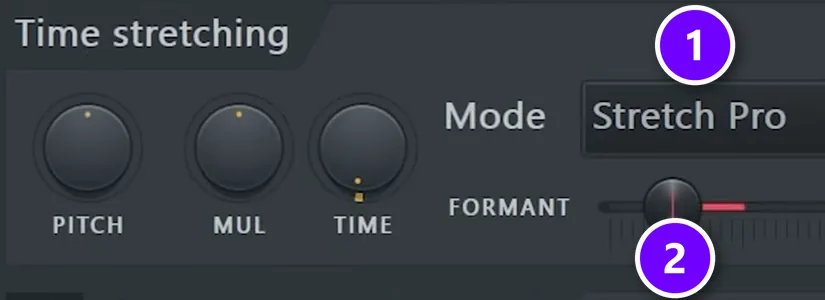
A formant is the natural resonance that makes a voice sound like a certain person, separate from the note being sung. Shift it and the same melody sounds darker or brighter, with the pitch untouched. Same notes, new voice. In the hidden-features video, that’s exactly the goal: keep the same pitch, but make the vocal darker.
Open the vocal’s channel settings and find Time stretching. Set Mode to Stretch Pro (1), then move FORMANT (2) until the voice has the color you want. Right-click the knob and choose Create automation clip to sweep it over time, from a normal voice to a dark one. Max loved this one: “Just wow, I’m so happy that FL Studio finally brought this feature.”
Edison, FL Studio’s audio editor, gives you a second route. Its Time stretcher / pitch shifter tool has its own formant controls, which is how the tricks video darkens a vocal.
2. Chop vocals with the Slip tool
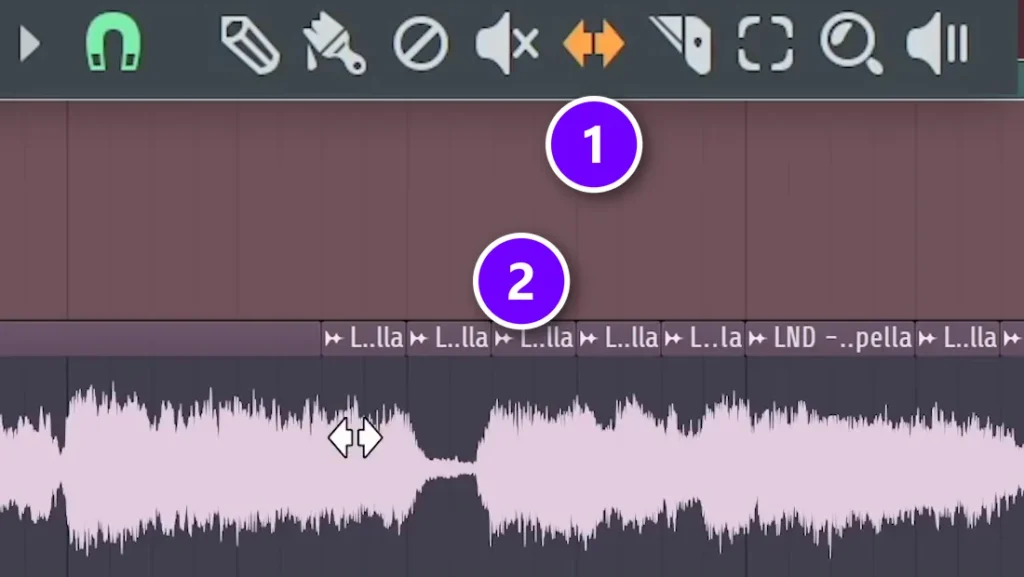
Vocal chops are short slices of a vocal, rearranged into a new rhythm or hook. The fast way: cut the acapella into short clips in the Playlist with the Slice tool (C), then press S for the Slip tool (1) and drag inside each clip (2).
The clip stays where it is on the grid, but the audio inside slides left or right. So each chop can play a different syllable without you moving a single clip. No re-slicing needed. Hold Alt while you drag to switch snap off. Image-Line’s manual calls that perfect for aligning vocals to the beat.
3. Make a robot vocal with Newtone
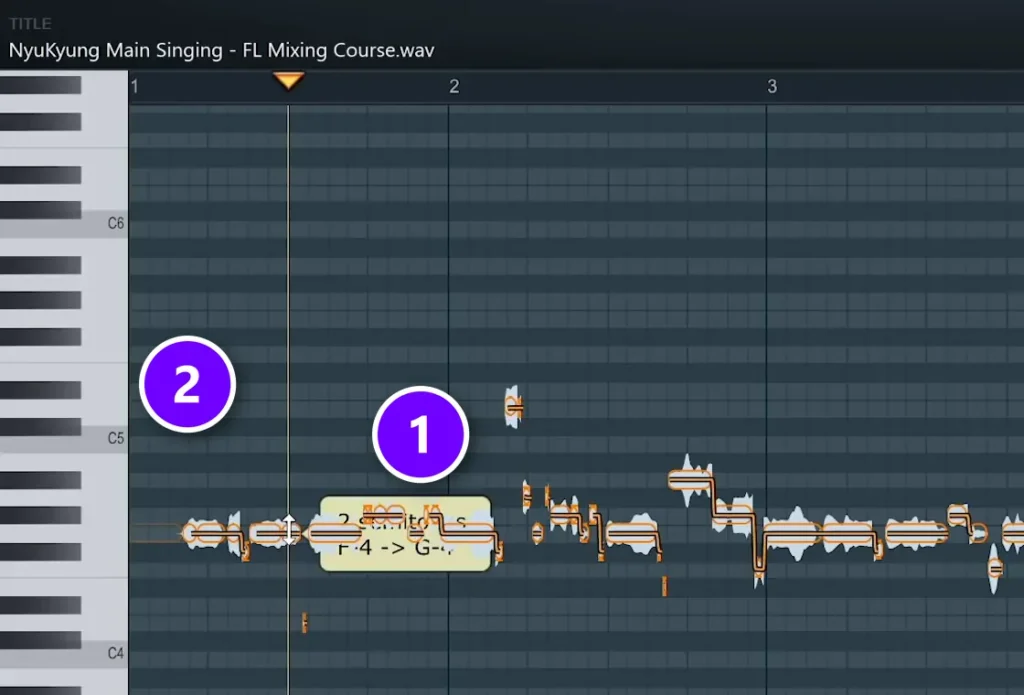
Soundtoys’ Little AlterBoy is known for its robot mode. You can get the same effect with Newtone, the pitch editor built into FL Studio. Right-click the vocal’s waveform in its channel settings and choose Edit in pitch corrector to open it in Newtone.
Now select all of the notes (1) and click one key on Newtone’s keyboard (2). Every note jumps to that single pitch, a feature Image-Line calls auto-flatten pitch, and the melody turns into a flat, robotic line. That’s the robot. Click another key to move the whole line up or down. The Variation knob, which controls vibrato and pitch errors, makes the robot even stiffer.
4. Reverse, reverb, reverse: a swell into every word
The video’s chapter list calls this one Reverse + Reverb + Reverse = BOOM. It gives you a ghostly swell that rises into each word. It takes four steps.
- Reverse the vocal: in its channel settings, tick Reverse under Precomputed effects.
- Load Fruity Reeverb 2 on the vocal’s mixer track and turn the wet signal up.
- Select the clip and consolidate it with Ctrl + Alt + C. FL Studio renders the vocal and its reverb into a new audio clip.
- Reverse the new clip again. The words play forward, and the reverb tail now swells in before each one.
5. Use a vocal as a reverb in Fruity Convolver
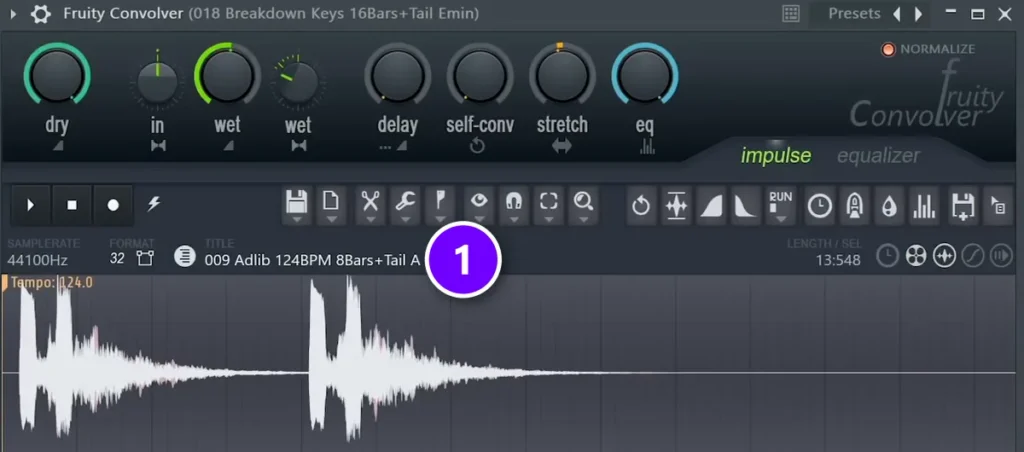
Fruity Convolver normally loads impulse responses, short recordings of real rooms, and makes your sound play as if it were in that room. The trick is to load a vocal adlib instead. Put Fruity Convolver on a keys track, drag a vocal sample from the Browser onto its display (1), and the keys pick up the shape and color of that vocal. Try a few different adlibs.
Blend it in with the dry and wet knobs. You get a strange, breathing texture that sounds nothing like a normal reverb, built from a sample you already own.
FL Studio sampler tricks
Max opens the second video with a bold claim: “First of all, the sampler itself is a gold mine of hidden features.” Here are three of them, straight from that video.
6. Punchier kicks with Clip, Boost and Pogo
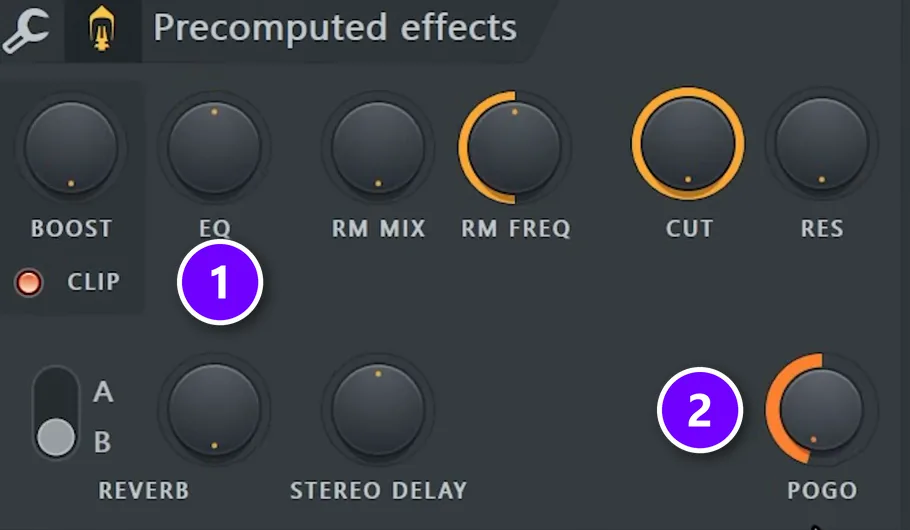
Open a kick’s channel settings and look under Precomputed effects. Turn on CLIP (1) and raise BOOST above it. Clip lets the sample clip when it’s boosted past 0 dB, so you get instant distortion. Then turn POGO (2) to the left, which bends the pitch down on the attack. Your kick gets more punch.
Pogo works especially well on kicks. Turned right, it drops the pitch near the end of the sound instead, which makes claps sound like a vinyl tape stop.
7. Swap samples fast with Sample history
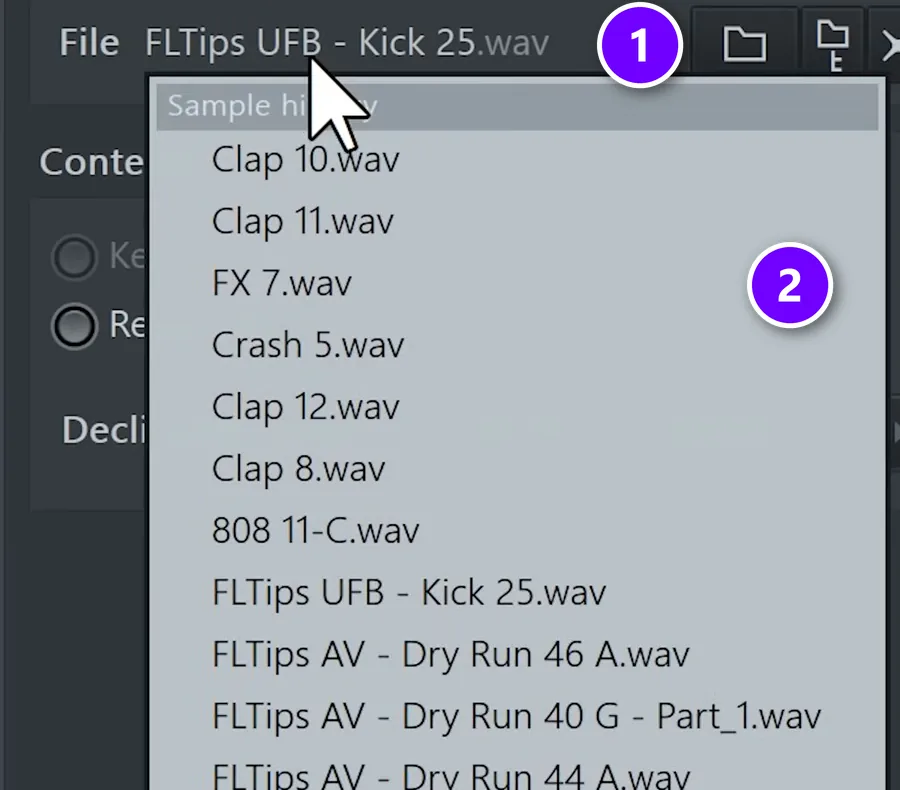
This one is easy to miss. Right-click the sample name at the top of the Sampler (1). A list called Sample history (2) shows every sample you’ve loaded in the project. Jump back to the kick you used an hour ago, or swap in a different clap, in one click. It’s the fix when you replace a sample by accident.
8. Turn one vocal note into an instrument
Load a long, sustained vocal note into the Sampler and play it from the Piano roll. Move SMP START a little to the right, shorten LENGTH and turn down OUT so each note fades away. Then turn on the volume envelope with a little attack, a shorter decay and the sustain all the way down.
Two more settings live in the channel’s Miscellaneous functions tab. Key tracking can pan higher notes to the right and lower ones to the left. Echo delay repeats the MIDI notes themselves instead of adding a separate delay effect, and it has a ping pong mode too.
FL Studio tricks for MIDI and melodies
9. Force every note into your key with the Limit tool
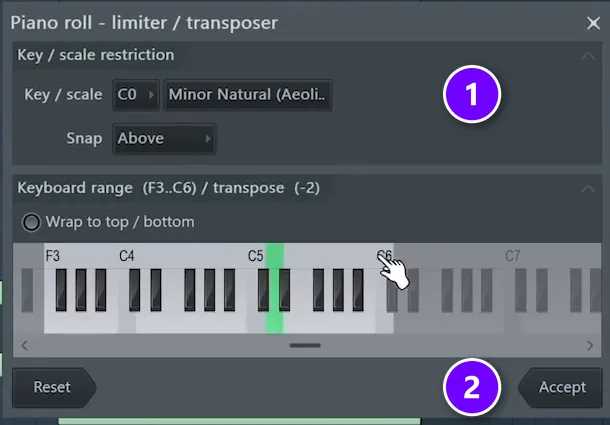
The video’s chapter list labels this one MY FAVOURITE. Select your notes in the Piano roll and press Alt + K to open the Limit tool, which shows up as the limiter / transposer. Set Key / scale (1), here a minor scale, choose whether wrong notes snap up or down, and click Accept (2).
Every note outside the scale moves onto it. No more wrong notes. It’s a fast way to clean up chords you played on a MIDI keyboard, or random notes you drew in while looking for an idea.
10. Make a new melody from a reversed loop
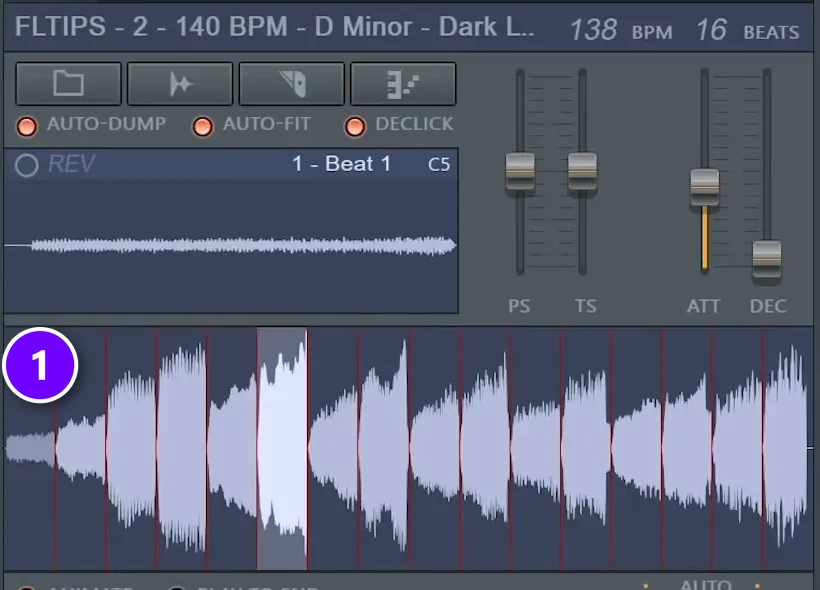
The video calls this one chopped melodies, and it turns any melody loop into a brand-new melody. Here’s how.
- Reverse the loop: tick Reverse under Precomputed effects in its channel settings.
- Consolidate it into a new clip with Ctrl + Alt + C.
- Right-click the new clip’s waveform in its channel settings and choose Open in new Fruity Slicer channel.
- Set the slicing to 1/2 beat. Fruity Slicer cuts the loop into slices (1) and, with Auto Dump on, writes one note per slice into the Piano roll.
- Move, delete and repeat those notes until a new melody appears.
11. Zoom the Piano roll up and down
In the Piano roll, the usual zoom only works side to side, and the vertical version changes note velocity instead. The fix is simple. Hover over the piano keys on the left, hold the middle mouse button and drag up or down to zoom.
FL Studio tricks for automation and arranging
12. Turn any sample into automation
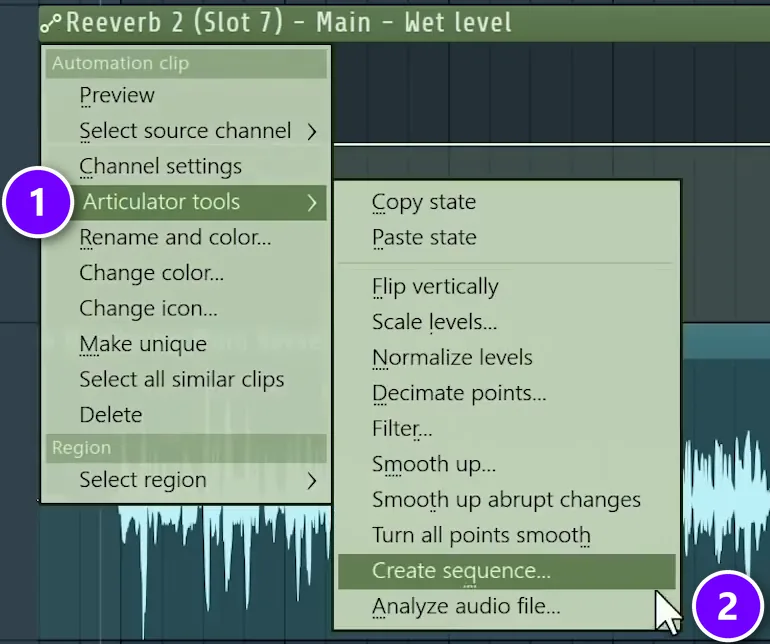
Want a reverb that rises and falls with the vocal? Right-click the knob you want to move, for example Wet in Fruity Reeverb 2, and choose Create automation clip. Open the clip’s menu, go to Articulator tools (1) and choose Analyze audio file (2). Pick the vocal, and FL Studio copies its volume shape into the automation. No drawing needed.
Then smooth the shape with Smooth up, in the same menu. Flip vertically, also there, turns it upside down, so the reverb gets louder when the vocal gets quieter and stays out of the way while the singer sings.
13. Copy one automation shape to another knob
Make an automation clip for the second knob, like the output wet level of Fruity Delay 3. In the first clip’s Articulator tools menu choose Copy state, then choose Paste state in the second clip. Both effects now follow the same shape, and you only had to draw it once.
14. Merge pattern clips into one
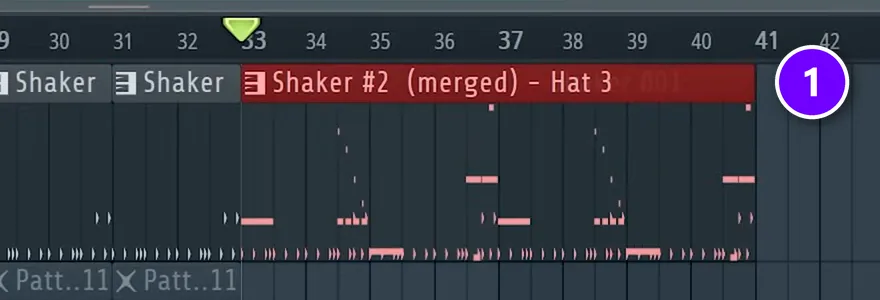
Select a row of pattern clips in the Playlist and press Ctrl + G. FL Studio merges them into one new pattern (1), and the original patterns still exist. Nothing gets lost. To pull a pattern apart again, use Split by channel in the Patterns menu, which makes one pattern for each channel.
15. Let short patterns loop in the Channel Rack
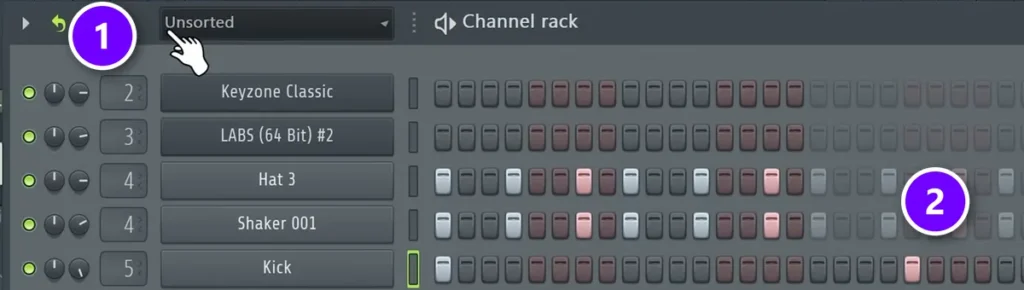
Want a 16-step hi-hat to keep repeating while the kick plays a longer pattern? Turn on the Loop icon at the top left of the Channel Rack (1). Shorter channels then loop to match the longest one, and the repeats show up as ghost steps (2). The kick stays as you wrote it.
Right-click the icon for advanced looping, where each channel can loop at its own step, beat or bar. When you want to edit the repeats, Burn to pattern turns ghost steps into real ones.
Hidden FL Studio features that save your projects
16. Fix a project that crashes when it opens
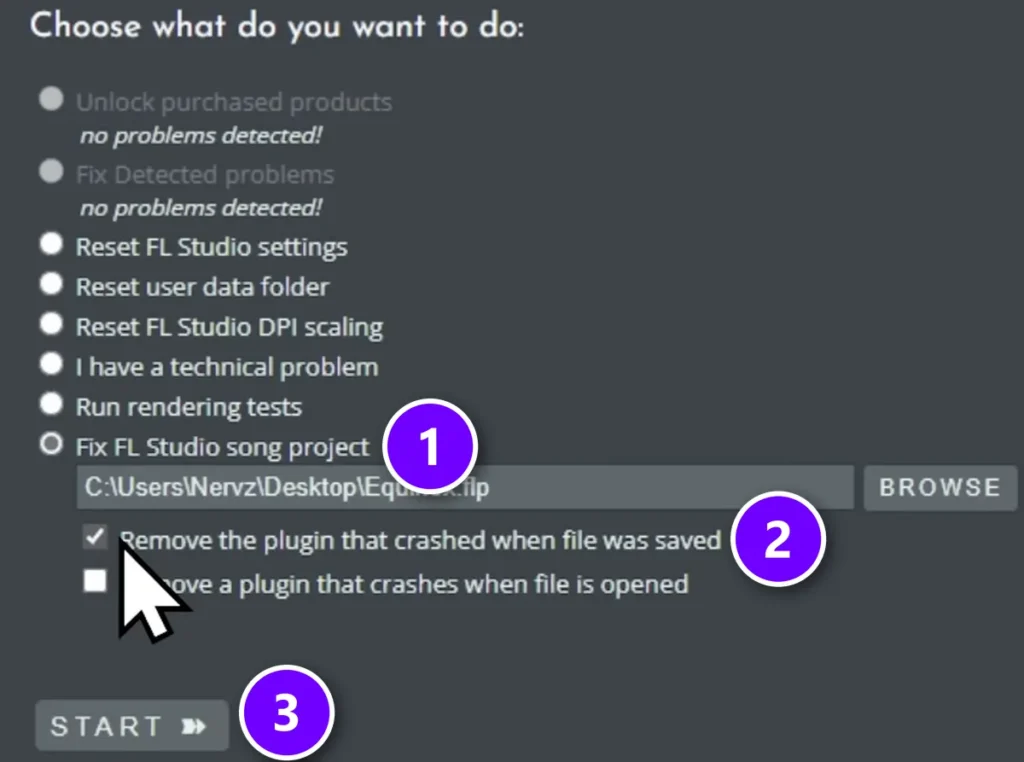
Max calls this “one of my favorites and life saving features in FL Studio.” If a plugin crashes every time you open a project, go to Help > Diagnostics. It opens a separate repair tool. Choose Fix FL Studio song project (1), browse to the file, tick Remove the plugin that crashed when file was saved (2) and press Start (3).
If that doesn’t find the culprit, the second option lets you pick the plugins to remove yourself, before the project even loads.
Before you repair a project, save a copy of the .flp file somewhere else. Then you still have the original if you want that plugin back later.
17. Hide the Browser until you need it
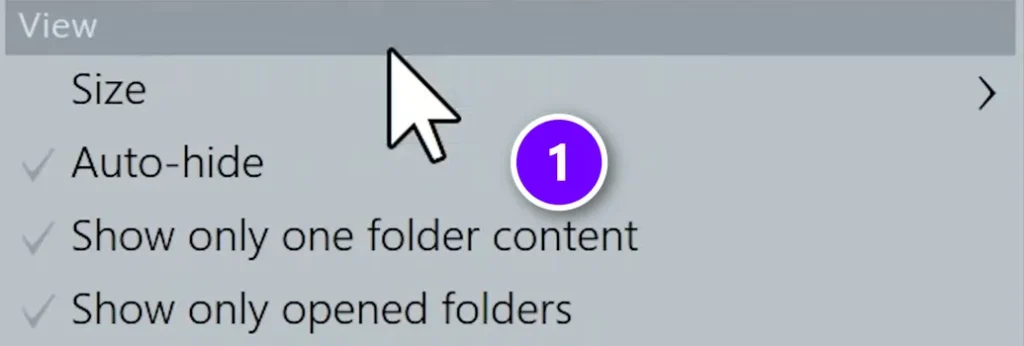
Open the Browser’s menu and turn on View > Auto-hide (1). The Browser slides away and pops back out when you move your mouse to the left edge of the screen. Alt + F8 shows or hides it too, and you can drag it to the right side or let it float. You get more room for the Playlist.
18. Change the FL Studio background
Go to View > Background > Set image wallpaper and pick any picture. The video suggests wallpapers with scales on them, so the notes of a key are always in view and you don’t have to look them up in your browser. On Windows there’s also Set dynamic wallpaper / HTML document.
FL Studio workflow tips that save time every session

These come from our old FL Studio workflow guide, now part of this page, and every shortcut is checked against Image-Line’s own list. On a Mac, use Cmd instead of Ctrl and Opt instead of Alt.
- F5 opens the Playlist, F6 the Channel Rack, F7 the Piano roll and F9 the Mixer. F8 opens the Plugin Picker.
- Tab cycles through your open windows, Esc closes one, and F12 closes them all.
- Ctrl + B duplicates your selection to the right, in the Playlist and in the Piano roll.
- Alt + V shows ghost notes, the notes of other channels, in the Piano roll. Double right-click a ghost note to jump to its channel.
- Make unique, in a clip’s menu, lets you edit one copy of a pattern without changing the others.
- Ctrl + T turns your computer keyboard into a piano keyboard.
- Tools > Dump score log to selected pattern brings back what you played in the last 30 minutes, even if you never pressed record.
Learn one shortcut per session, for the thing you click most, and they add up fast. Our full list of FL Studio shortcuts has the rest, sorted by window.
What does Alt + drag do in the FL Studio playlist?
Holding Alt while you drag turns snap off. The clip lands exactly where you let go instead of jumping to the grid. Image-Line’s shortcut list calls it bypass snap, and it works the same way in the Piano roll. It’s the fix for a vocal that comes in a hair early or a snare that should sit just behind the beat.
Two neighbors are worth knowing. Hold Shift while you click and drag a clip to clone it, and press Backspace to switch snap off for good, or back on.
Why use ghost notes in the FL Studio piano roll?
Ghost notes show the notes of your other channels as gray shapes behind the part you’re writing. When you layer a melody, you can see exactly where the chord notes sit, so the new part lands on notes that already work and stays in key and in time. Turn them on with Alt + V, or choose Ghost channels in the Piano roll’s View menu.
It’s also the melody method in Mix Elite’s free 4.5-hour FL Studio course: write the melody right on top of the chord notes you can see as ghost notes, then step a little outside them once it works, with snap to scale still on. Double right-click a ghost note to jump to the channel it belongs to.
How do you bring back a melody you didn’t record?
Go to Tools > Dump score log to selected pattern. FL Studio keeps a log of every note you play on a MIDI keyboard or your computer keyboard for the last 30 minutes, even when you aren’t recording. Select an empty pattern first, then choose how far back to go: the last 2, 5, 10, 20 or 30 minutes.
The notes land in that pattern’s Piano roll, so delete what you don’t need and keep the take you liked. For audio, Tools > Audio Logger can keep a rolling recording of the master output, from 1 to 10 minutes long.
How do you bounce a MIDI pattern to audio in FL Studio?
Select the pattern clip in the Playlist and press Ctrl + Alt + C to consolidate it. FL Studio renders it into one audio clip and mutes the original clip instead of deleting it, so the pattern, its notes and the synth’s settings all stay in your project. Unmute the old clip whenever you want to change the part.
By default, the new clip includes the effects on the pattern’s mixer track, but not the effects on the Master. You can also right-click a pattern in the Picker panel, the list on the left of the Playlist, and choose Render as audio clip, or Render and replace, which swaps every copy of that pattern in the Playlist for the audio.
Which FL Studio shortcuts help you finish beats faster?
Start every session from your own template, so your go-to drums, synths and mixer setup are already loaded. Then build with keys instead of clicks: F5 to F9 for the main windows, Ctrl + B to copy a part to the right, and Ctrl + N to save a new version before you try something risky.
With only an hour a night, these four habits save the most time:
- Make a template once. Load your favorite sounds and set up your mixer, then choose File > Save as template. It shows up under File > New from template, and you can make it the default for every new project in the General settings.
- Loop first, then arrange. Build one strong 8-bar loop, copy it across the song with Ctrl + B, and take parts away to make the intro, verse and breakdown. Our guide on how to finish a song walks through it.
- Save versions as you go. Ctrl + N saves the project under a new name, like MyBeat_2, so the version that worked is never lost.
- Pack it up. File > Export > Zipped loop package saves the project and every sample it uses in one ZIP file, so no sound goes missing later.
Which FL Studio tricks should you learn first?
Start small. Pick the ones that fix what slows you down tonight. If clicking around eats your session, start with the workflow shortcuts. If your beats sound plain, try the vocal Convolver or the reversed-loop melody on your next idea. Each one takes a few minutes, and you’ll remember a trick far better once you’ve used it in a real song.
New to FL Studio? Start with our beginner’s guide to FL Studio, then work through our FL Studio tips for beginners before you come back for these.
DAY 1 OF THE 7-DAY MUSIC PRODUCER COURSE
Learn the workflow first, then the tricks
Day 1 of the 7-Day course covers setup, workflow and navigation: the #1 music production workflow and the four most important features of any DAW, explained so you can find your way around even if it’s your first time opening it. As a bonus you get a searchable vault of 1000+ FL Studio tips and tricks videos. It’s taught in FL Studio, and the free trial works. It’s $27, and you have 60 days to decide if it was worth it.
Frequently asked questions
What are some cool FL Studio tricks?
Turning a vocal into automation with Analyze audio file, shifting a vocal’s formant with Stretch Pro, making a robot voice in Newtone, using a vocal sample as a reverb in Fruity Convolver, forcing notes into a key with the Limit tool (Alt + K), and rebuilding a melody by reversing a loop and slicing it in Fruity Slicer.
What does Alt + drag do in FL Studio?
Holding Alt while you drag bypasses snap, so a clip or note lands exactly where you let go instead of jumping to the grid. It works in the Playlist and the Piano roll. Holding Shift while you click and drag a clip clones it, and Backspace switches snap off or on for good.
How do you make a pattern unique in FL Studio?
Open the clip’s menu, the small icon at the top left of the clip in the Playlist, and choose Make unique. FL Studio copies that clip into a new pattern, so you can edit it without changing every other copy of the pattern in your song.
How do you get back a melody you played but didn’t record in FL Studio?
Use Tools > Dump score log to selected pattern. FL Studio logs every note you play on a MIDI keyboard or your computer keyboard for the last 30 minutes, even when you aren’t recording. Select an empty pattern, choose how far back to go (2, 5, 10, 20 or 30 minutes), and the notes appear in its Piano roll.
How do you bounce a pattern to audio without losing the synth settings?
Select the pattern clip in the Playlist and press Ctrl + Alt + C to consolidate it. FL Studio renders an audio clip and mutes the original clip instead of deleting it, so the pattern and the synth’s settings stay in the project. Unmute the old clip any time you want to edit the part.