


“Civilization advances by extending the number of important operations which we can perform without thinking about them.”
The FL Studio keyboard shortcuts you’ll use most: Space plays and stops, F5, F6, F7 and F9 open the Playlist, Channel rack, Piano roll and Mixer, Ctrl + S saves, Ctrl + Z undoes and Ctrl + B duplicates. On a Mac, press Cmd instead of Ctrl and Option instead of Alt.
Watch a fast producer work in FL Studio and their hands barely touch the mouse. Learning FL Studio shortcuts is how they get there: every window, tool and undo is one key away, so the beat seems to build itself. And you only need a handful to feel the difference.
Below are more than 100 of these hotkeys, or keybinds as some producers call them, grouped by the window you use them in and checked against Image-Line’s own FL Studio manual for Windows and Mac. You’ll also see the handful that Mix Elite’s free 4.5-hour FL Studio course uses over and over, with frames from Mix Elite’s videos that show each one at work.
Table of Contents
How do FL Studio shortcuts work on a Mac?
FL Studio uses the same shortcuts on Windows and macOS, with a few keys swapped: Cmd replaces Ctrl, Option replaces Alt and Delete replaces Backspace. Mix Elite’s shortcut video puts the main rule right on the screen: “CTRL on Windows = CMD on MacOS (most of the time).” Here’s every swap from Image-Line’s manual.
| On Windows | On a Mac |
|---|---|
| Ctrl | Cmd (Command) |
| Alt | Opt (Option) |
| Backspace | Delete |
| Delete | fn + Delete |
| Insert | fn + Return |
| Enter | Return |
In the tables below, the second line under a shortcut is the Mac version. If there’s no second line, the keys are the same on a Mac. On many Mac keyboards the F keys control brightness and volume, so hold fn with them (fn + F5) unless you’ve set them to work as standard function keys.
Keep two rules in mind. Shortcuts change with the window you’re in, so Alt + R renders audio in the Mixer but opens the Randomize tool in the Piano roll. And the single-key shortcuts, like L, R or the tool letters, only work while Typing keyboard to piano is switched off.
Pressing L or P and nothing happens? Your keyboard is probably playing notes. Press Ctrl + T (Cmd + T on a Mac) to switch Typing keyboard to piano off, and the single-key shortcuts work again.
The FL Studio shortcuts to learn first
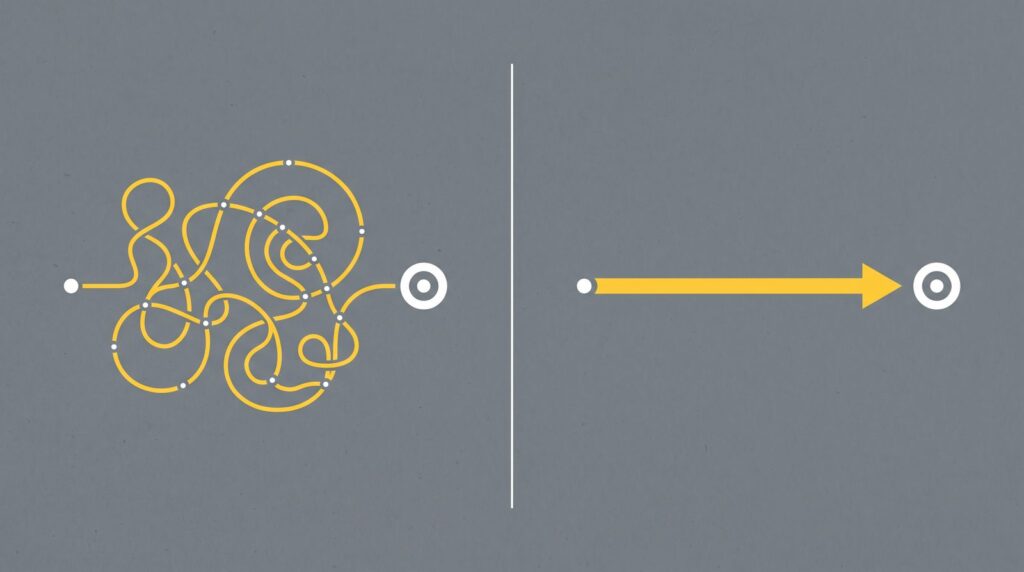
You don’t need all 100 to stop reaching for the mouse. Space, the F keys, Ctrl + S and Ctrl + Z come first, because you use them every minute. Then learn these nine moves. Max, the founder of Mix Elite, makes them again and again in Mix Elite’s free 4.5-hour FL Studio course, because they save time in every single project.
- Ctrl + B duplicates whatever you’ve selected, in the Playlist or the Piano roll.
- Ctrl + L sends the selected channels to their own mixer tracks.
- Alt + right-click lets you hear notes or clips without pressing play.
- Ctrl + ↑ or Ctrl + ↓ moves the selected notes up or down a whole octave.
- Alt + V shows the notes of your other channels as gray ghost notes.
- Shift + ↑ or Shift + ↓ in the Browser swaps through samples while the beat plays.
- Shift + mouse wheel moves a channel, mixer track or Playlist track up or down.
- Ctrl + mouse wheel zooms in and out.
- Ctrl + click on a mute switch solos that channel or mixer track.
The zoom keys are a habit worth copying. “I’m keeping my hands on Control and Alt and my scroll wheel at all times, so I can quickly zoom in and zoom out,” Max says while he arranges a track in the course. Once your hands live there, you stop hunting for scroll bars.
Which FL Studio shortcuts edit MIDI notes and chop audio fastest?
To chop audio, point at the spot in the Playlist and press Insert, or hold the right Shift key and click the clip. To edit MIDI notes, Shift + ↑/↓ moves them a semitone, Ctrl + ↑/↓ moves them an octave, Ctrl + Q snaps them to the grid and Ctrl + B duplicates them.
- C picks the Slice tool, and right Shift + right-click slices a clip and deletes the smaller part.
- Ctrl + Alt + C joins the selected clips into one new audio clip.
- Ctrl + U chops long notes into short ones.
- Alt + mouse wheel changes the velocity of the note under the mouse.
- Right-click deletes a note in the Piano roll, or a clip in the Playlist.
On a Mac, press Cmd for Ctrl, Option for Alt and fn + Return for Insert. The full lists are in the Playlist and Piano roll sections below.
General FL Studio shortcuts: windows, saving and playback
These work anywhere in FL Studio. The F keys are the quickest way around: each one opens a window, and pressing it again hides it. The Playlist is where you arrange your song, the Channel rack holds your instruments and drum patterns, the Piano roll is where you write notes, and the Mixer is where you shape the sound. If those windows are new to you, our beginner’s guide to FL Studio explains each one first.
How do you switch between the Playlist, Channel rack and Mixer?
Use the F-key hotkeys. F5 opens the Playlist, FL Studio’s arrangement view, F6 the Channel rack with its step-sequencer grid, F7 the Piano roll and F9 the Mixer. Press the same key again to hide that window, and Tab jumps between the windows you have open.
Window shortcuts
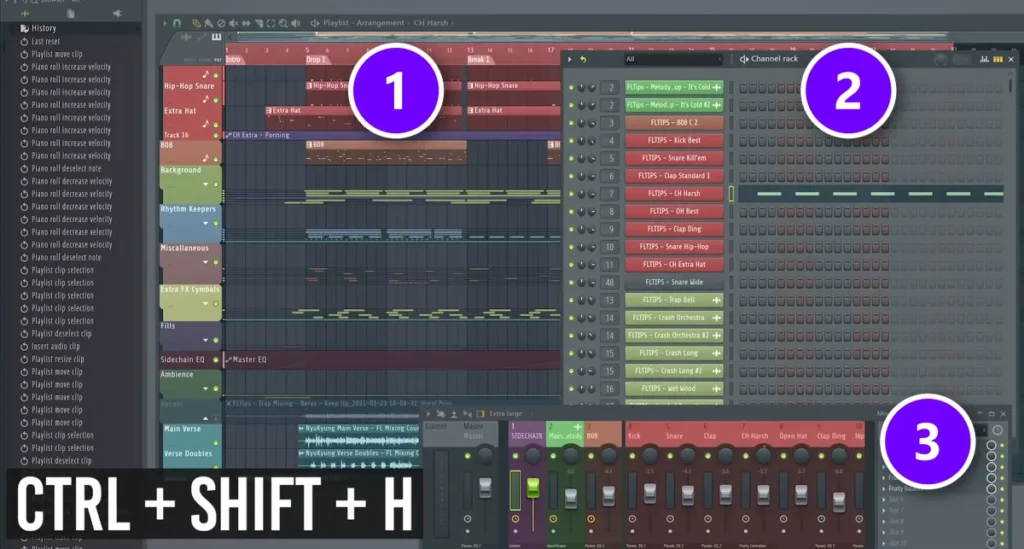
Lost in a pile of windows? Ctrl + Shift + H snaps them back into a tidy layout. In Mix Elite’s shortcut video, it lines up the Playlist (1), the Channel rack (2) and the Mixer (3), so nothing hides behind anything else. F12 closes every window at once, which helps when a project opens with a stack of plugin windows.
| Windows / Mac | What it does |
|---|---|
| F5 | Show or hide the Playlist. |
| F6 | Show or hide the Channel rack. |
| F7 | Show or hide the Piano roll. |
| F9 | Show or hide the Mixer. |
| F8 | Open the Plugin picker. |
| Alt + F8 Opt + F8 | Show or hide the Browser. |
| F10 | Open the MIDI settings. |
| F11 | Show or hide the song info window. |
| F12 | Close all windows. |
| F1 | Open the manual page for the active window. |
| F3 | Open the tool menu for the active window. |
| Tab | Jump between open windows. |
| Esc | Close the active window. |
| Enter Return | Make the Playlist full size, or small again. |
| Ctrl + Shift + H Cmd + Shift + H | Arrange all open windows. |
| Ctrl + T Cmd + T | Turn Typing keyboard to piano on or off. |
Save, export and playback shortcuts
| Windows / Mac | What it does |
|---|---|
| Space | Play or stop. |
| Ctrl + Space Cmd + Space | Play or pause. |
| L | Switch between Pattern and Song mode. |
| R | Turn recording on or off. |
| Ctrl + M Cmd + M | Turn the metronome on or off. |
| Backspace Delete | Switch snap between Line and None. |
| Ctrl + S Cmd + S | Save. |
| Ctrl + Shift + S Cmd + Shift + S | Save as. |
| Ctrl + N Cmd + N | Save a new version of the project. |
| Ctrl + O Cmd + O | Open a project. |
| Alt + 0 to 9 Opt + 0 to 9 | Open one of your 10 most recent projects. |
| Ctrl + R Cmd + R | Export a WAV file. |
| Ctrl + Shift + R Cmd + Shift + R | Export an MP3 file. |
| Ctrl + Shift + M Cmd + Shift + M | Export a MIDI file. |
| Ctrl + Z Cmd + Z | Undo your last edit, or redo it. |
| Ctrl + Alt + Z Cmd + Opt + Z | Undo step by step. |
Press Ctrl + N before big changes. FL Studio saves a copy with a new number at the end of the file name, like Keep Up_2.flp in the shortcut video, and the old version stays safe.
Pattern shortcuts
A pattern is a block of notes or drum steps that you build in the Channel rack and then place in the Playlist. These keys make and pick patterns. The plus, minus and number keys here are the ones on the number pad, not the top row.
| Windows / Mac | What it does |
|---|---|
| F4 | Make a new empty pattern and name it. |
| Ctrl + F4 Cmd + F4 | Jump to the next empty pattern. |
| F2 | Rename the selected pattern (press again for a random color). |
| + / - | Go to the next or previous pattern (number pad). |
| 1 to 9 | Pick patterns 1 to 9 (number pad). |
FL Studio Playlist shortcuts
The Playlist is where your song comes together, so it’s where shortcuts save the most time. Start with the tool keys. Each letter picks a tool, and all of them except S do the same job in the Piano roll.
- P Draw tool, the pencil
- B Paint tool, which keeps placing clips as you drag
- C Slice tool
- D Delete tool
- E Select tool
- T Mute tool
- S Slip edit tool (in the Piano roll, S turns slide notes on instead)
- Y Playback tool
- Z Zoom tool
How to slice, mute and move clips
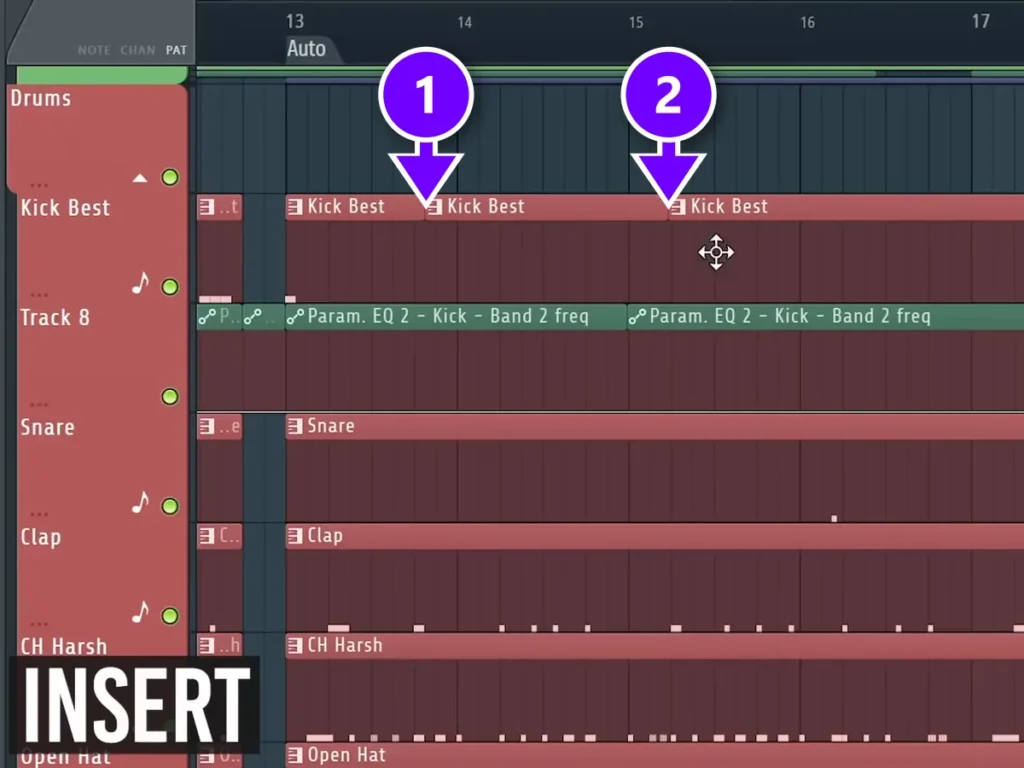
To cut a clip, put your mouse where you want the cut and press Insert (fn + Return on a Mac). In the shortcut video, two presses cut the Kick Best clip at two spots (1 and 2), without a single tool change. Holding the right Shift key and clicking a clip slices it the same way.
To mute clips, select them and press Alt + M. Alt + Shift + M unmutes them, and for a single clip you can hold the right Alt key and click it. To hear a clip without playing the whole song, hold Alt and right-click it.
| Windows / Mac | What it does |
|---|---|
| Ctrl + B Cmd + B | Duplicate the selection to the right. |
| Ctrl + C Cmd + C | Copy the selection. |
| Ctrl + V Cmd + V | Paste. |
| Ctrl + X Cmd + X | Cut the selection. |
| Ctrl + A Cmd + A | Select everything. |
| Ctrl + D Cmd + D | Deselect. |
| Shift + I | Invert the selection. |
| Insert fn + Return | Slice the clip at the mouse cursor. |
| Right Shift + click | Slice a clip where you click. |
| Right Shift + right-click | Slice a clip and delete the smaller part. |
| Right-click | Delete a clip. |
| Shift + left-click on a clip | Clone the selection. |
| Ctrl + Insert Cmd + fn + Return | Add empty space the length of your timeline selection. |
| Ctrl + Delete Cmd + fn + Delete | Delete the space of your timeline selection. |
| Alt + M Opt + M | Mute the selected clips. |
| Alt + Shift + M Opt + Shift + M | Unmute the selected clips. |
| Right Alt + click Right Opt + click | Mute a clip. |
| Alt + right-click Opt + right-click | Hear the selected clip. |
| Alt + drag Opt + drag | Move clips without snapping to the grid. |
| Shift + Q | Snap clip start times to the grid. |
| Shift + C | Select every clip from the same source. |
| Ctrl + G Cmd + G | Merge the selected pattern clips into one. |
| Ctrl + Alt + C Cmd + Opt + C | Consolidate the selected clips into one audio clip. |
| Shift + M | Switch the stretch mode. |
| Shift + G | Group the selected clips. |
| Alt + G Opt + G | Ungroup them. |
| Alt + T Opt + T | Add a time marker. |
| Shift + ←/→ | Move the selection left or right. |
| Shift + ↑/↓ | Move the selection up or down. |
| Ctrl + mouse wheel Cmd + mouse wheel | Zoom in or out. |
| Ctrl + right-click Cmd + right-click | Zoom in on the selection. |
| Shift + 1, 2 or 3 | Jump to one of three zoom levels. |
| Shift + 4 | Zoom all the way out. |
| Shift + mouse wheel | Move a Playlist track up or down (over the track names). |
Two of these need explaining. Ctrl + Alt + C is called consolidate: it renders the selected clips into one new audio clip, which Image-Line suggests for joining several recordings into one or for saving CPU. Ctrl + G merges the selected pattern clips into one new pattern. Mix Elite’s free FL Studio course uses it to combine two drum patterns before splitting them up by channel.
FL Studio Piano roll shortcuts
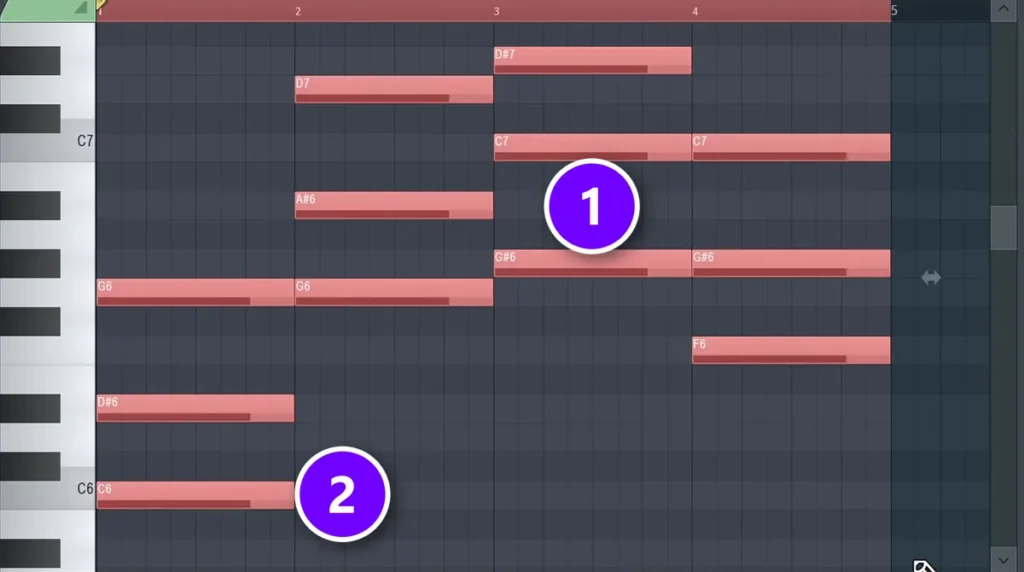
The Piano roll is where you write chords and melodies, and most of its shortcuts move or reshape notes. Start with the octave jump. Select your notes (1), press Ctrl + ↓, and the whole selection drops an octave: here the lowest note moves from C6 (2) down to C5. “It will take it an octave lower, so everything will sound the same, just one octave lower,” Max explains.
Shift + ↑ and Shift + ↓ move notes one semitone at a time instead, which is how you try a melody in a new key. To hear a note without playing the pattern, hold the left Alt key and right-click it. Press Alt + V to see the notes of your other channels as gray ghost notes while you write.
Piano roll tools: the Alt shortcuts
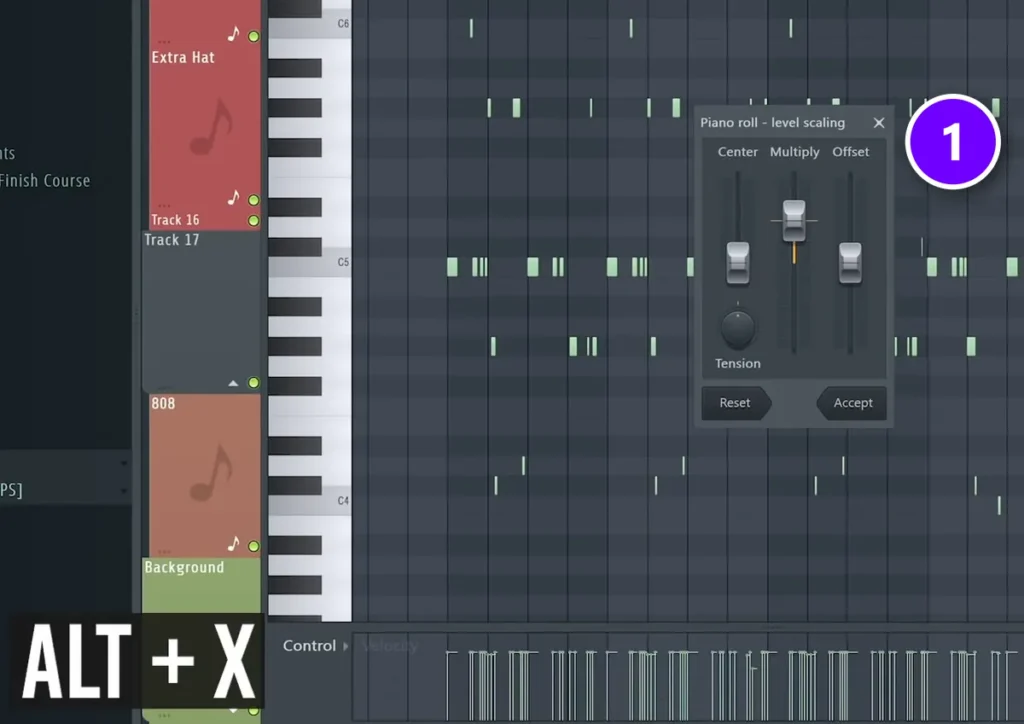
The Alt letters open the Piano roll’s tools, small windows that change your notes for you. Alt + X opens Scale levels (1), shown here in the shortcut video. It multiplies, offsets or flips the values in the lane under your notes, like velocity, so you can make a whole hi-hat pattern softer in one move.
| Windows / Mac | What it does |
|---|---|
| Ctrl + ↑/↓ Cmd + ↑/↓ | Move the selected notes up or down an octave. |
| Shift + ↑/↓ | Move the selected notes up or down a semitone. |
| Shift + ←/→ | Move the selected notes left or right. |
| Ctrl + B Cmd + B | Duplicate the selection to the right. |
| Alt + right-click Opt + right-click | Hear notes without pressing play (left Alt key). |
| Alt + V Opt + V | Show or hide ghost notes from other channels. |
| Ctrl + Q Cmd + Opt + Q | Quick quantize: snap notes to the grid. |
| Shift + Q | Quick quantize the start times only. |
| Alt + Q Opt + Q | Open the Quantize tool. |
| Shift + D | Shrink the selected notes to the shortest length your snap setting allows. |
| Ctrl + L Cmd + L | Quick legato: stretch each note to the next one. |
| Ctrl + U Cmd + U | Quick chop: cut long notes into short ones. |
| Alt + U Opt + U | Open the Chop tool. |
| Ctrl + G Cmd + G | Glue touching notes together. |
| Alt + M Opt + M | Mute the selected notes. |
| Alt + Shift + M Opt + Shift + M | Unmute the selected notes. |
| Alt + mouse wheel Opt + mouse wheel | Change the velocity of the note under the mouse. |
| Right Shift + click | Slice notes where you click. |
| Shift + R | Select notes at random. |
| Shift + M | Select groups of notes at random. |
| Alt + R Opt + R | Open the Randomize tool. |
| Alt + S Opt + S | Strum the selected chords. |
| Alt + A Opt + A | Open the arpeggiator. |
| Alt + X Opt + X | Open Scale levels. |
| Alt + Y Opt + Y | Flip the notes (vertical or horizontal). |
| Alt + O Opt + O | Open the LFO tool. |
| Alt + K Opt + K | Open the Limit tool. |
| Alt + E Opt + E | Open the Riff machine. |
| K / G | Show the next channel below or above. |
If you’re writing chords, our guide on how to make chords in FL Studio walks through the Piano roll steps one by one.
FL Studio Channel rack shortcuts
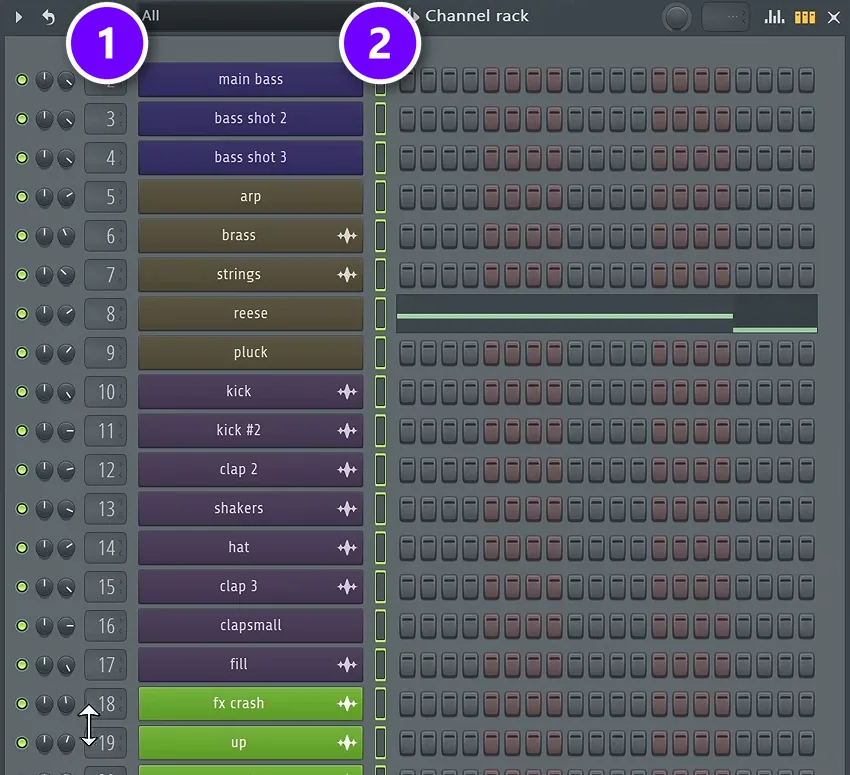
The Channel rack holds every instrument and sample in your project, one row per channel. Its most useful shortcut is Ctrl + L. In the free course, a double-click on a channel selector selects every channel, then Ctrl + L gives each channel its own mixer track. Afterwards the number next to each channel (1) shows its mixer track, and the selectors on the right (2) show what’s selected.
With the typing keyboard off, the number keys 1 to 9 and 0 mute or unmute the first 10 channels, and Ctrl plus a number solos one. It’s quicker than clicking the tiny lights when you’re testing which drum is too loud.
| Windows / Mac | What it does |
|---|---|
| Ctrl + L Cmd + L | Send the selected channels to free mixer tracks. |
| 1 to 9, 0 | Mute or unmute the first 10 channels. |
| Ctrl + 1 to 9, 0 Cmd + 1 to 9, 0 | Solo the first 10 channels. |
| ↑/↓ | Select the channel above or below. |
| Alt + ↑/↓ Opt + ↑/↓ | Move the selected channels up or down. |
| Shift + mouse wheel | Move the selected channel up or down. |
| Alt + C Opt + C | Clone the selected channels. |
| Alt + Delete Opt + fn + Delete | Delete the selected channels. |
| Alt + G Opt + G | Group the selected channels. |
| Alt + Z Opt + Z | Zip the selected channels. |
| Alt + U Opt + U | Unzip them. |
| Ctrl + Shift + ←/→ Cmd + Shift + ←/→ | Shift the steps left or right. |
| Ctrl + C Cmd + C | Copy a channel’s steps. |
| Ctrl + V Cmd + V | Paste the steps. |
Browser shortcuts
The Browser on the left of the screen holds your sounds, and one of the handiest tricks in the free course lives here. “If you don’t like the sound, you can quickly exchange it using Shift and arrow up or down in your browser while playing the song,” Max says. Select a channel, click a sample in the Browser, then step through the folder with Shift + ↓ until one fits the beat. Our guide to installing sample packs in FL Studio covers the Browser in more detail.
| Windows / Mac | What it does |
|---|---|
| Shift + ↑/↓ | Step through the sounds and hear each one. |
| Enter Return | Replace the selected channel’s sound with the Browser item. |
| Shift + click | Select several items. |
FL Studio Mixer shortcuts
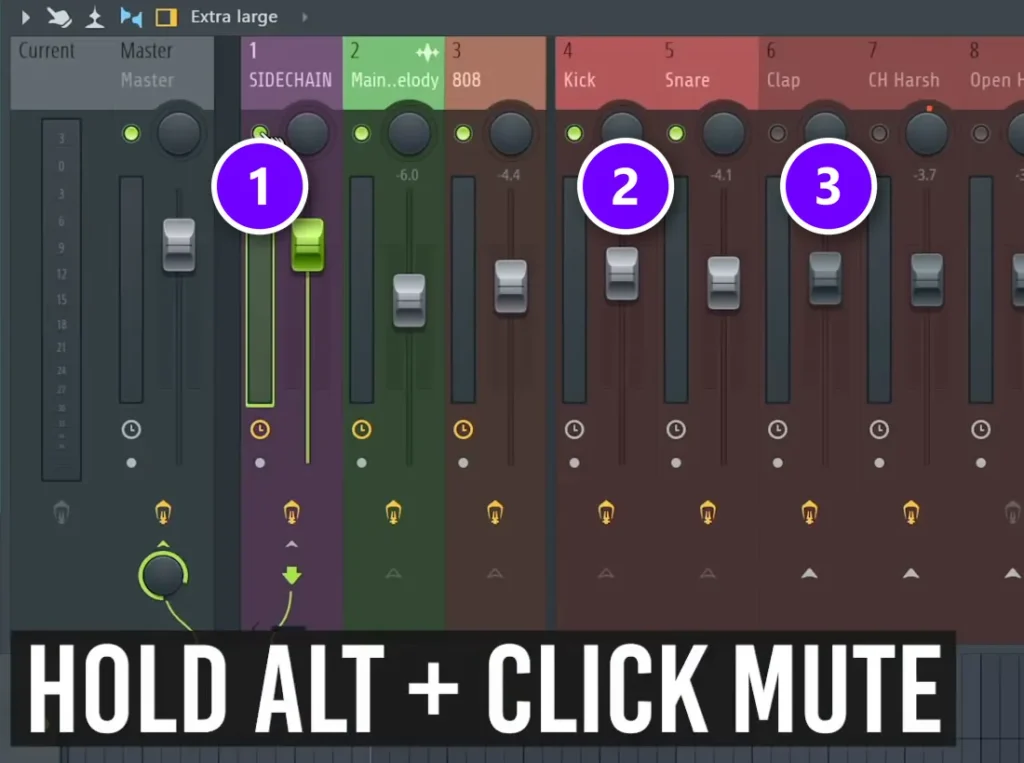
In the Mixer, the shortcuts are mostly about soloing and moving tracks. Hold Alt and click a track’s mute switch, and FL Studio solos that track together with every track routed to or from it. In the shortcut video, the SIDECHAIN track (1) stays on with the tracks connected to it (2), while the others go quiet (3). A plain Ctrl + click solos just the one track.
The routing shortcut from the free course needs no menu at all. To send several tracks into one bus, a mixer track that groups them like all your bass layers, select the tracks, then hold Ctrl and click the routing arrow at the bottom of the bus track. Holding Ctrl is the important part. The selected tracks now feed only the bus, and the bus feeds the Master. The menu version is Track routing > Route selected to this track only.
| Windows / Mac | What it does |
|---|---|
| S | Solo the current track. |
| Alt + S Opt + S | Solo the track plus every track routed to or from it. |
| Ctrl + click Cmd + click | Solo a track (click its mute switch). |
| Alt + click Opt + click | Solo a track and its routed tracks (click its mute switch). |
| Alt + ←/→ Opt + ←/→ | Move the selected mixer track left or right. |
| Shift + mouse wheel | Move the mixer track under the mouse left or right. |
| F2 | Rename the selected mixer track. |
| Ctrl + L Cmd + L | Link the selected channels to the selected mixer track. |
| Ctrl + Shift + L Cmd + Shift + L | Link the selected channels to tracks, starting from the selected one. |
| Alt + L Opt + L | Select the channels linked to the selected track. |
| Alt + R Opt + R | Render the armed tracks to WAV files. |
| Ctrl + Shift + click Cmd + Shift + click | Select several mixer tracks. |
| Ctrl + A Cmd + A | Select all mixer tracks. |
| Ctrl + Shift + S Cmd + Shift + S | Save the mixer track state. |
| Alt + W Opt + W | Show the peak meters as a wave view. |
Can you change FL Studio shortcuts?
Only a few. If you hoped to remap every keybind, that isn’t possible. Open Options > General settings and look for Manage shortcuts. Image-Line describes it as a way to rearrange shortcuts for a limited number of interfaces and functions. Those are toggling the Browser, the Plugin picker and the Project picker, opening the Plugin database, and choosing what happens when you import MIDI or double-click an audio clip.
Everything else in this guide stays on the keys you see here. That’s good news while you learn, because every FL Studio tutorial, Mix Elite’s included, uses the same keys you have.
How to find any FL Studio shortcut
No list has every shortcut, and Image-Line’s manual says so itself: it tells you to look through the menus, because not all shortcuts are on its shortcut page. Open any menu or right-click menu and you’ll see the shortcut next to each command. F1 opens the manual page for the window you’re in.
Don’t learn them all at once. Pick three shortcuts for the job you do most. Use them until your fingers know them. Then add three more. For more time-savers, read our FL Studio tips for beginners and these 10 FL Studio tricks that speed up everyday work.
DAY 1 OF THE 7-DAY MUSIC PRODUCER COURSE
Shortcuts make you faster. Day 1 shows you the workflow.
Day 1 of Mix Elite’s 7-Day course covers setup, workflow and navigation: the #1 music production workflow, and the four features of any DAW you need to understand to find your way around, even if it’s your first time opening it. You also get the ‘Producer Bible 101’, with every music production term explained in plain English. It’s taught in FL Studio, and the free trial works. Each day takes about 45 minutes, and on Day 7 a pro gives you feedback on your finished track. It’s $27, with a 60-day money-back guarantee.
Frequently asked questions
What is the shortcut to mute in FL Studio?
In the Playlist and the Piano roll, select clips or notes and press Alt + M to mute them, and Alt + Shift + M to unmute. Holding the right Alt key and clicking mutes a single clip. In the Channel rack, the number keys 1 to 0 mute the first 10 channels. On a Mac, press Option instead of Alt.
How do you cut a clip in FL Studio?
Put your mouse where you want the cut in the Playlist and press Insert, or fn + Return on a Mac. You can also hold the right Shift key and click the clip, or pick the Slice tool with C. Ctrl + X is different: it cuts the selection to the clipboard so you can paste it somewhere else.
What does Ctrl + Alt + C do in FL Studio?
In the Playlist, Ctrl + Alt + C consolidates the selected clips: FL Studio renders them, starting from the first clip, into one new audio clip and mutes the original clips. It’s handy for joining several recordings into one clip or for saving CPU. Ctrl + Alt + Shift + C does the same from the start of the Playlist. On a Mac, press Cmd + Opt + C.
Which FL Studio shortcuts should I learn first?
Start with the ones you’d otherwise click for every minute: Space to play and stop, F5, F6, F7 and F9 for the main windows, Ctrl + S to save, Ctrl + Z to undo and Ctrl + B to duplicate. Then pick three new shortcuts for the job you do most, and use them until your fingers know them before you add more.
What does Alt + R do in FL Studio?
It depends on the window. In the Mixer, Alt + R renders the tracks you’ve armed for recording to WAV files, which turns them into audio. In the Piano roll, it opens the Randomize tool, which creates or changes notes at random within a scale. On a Mac, press Opt + R.