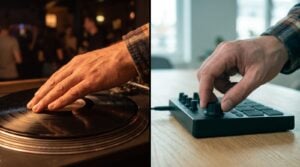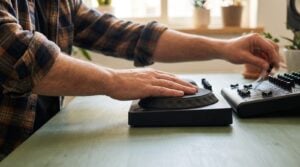

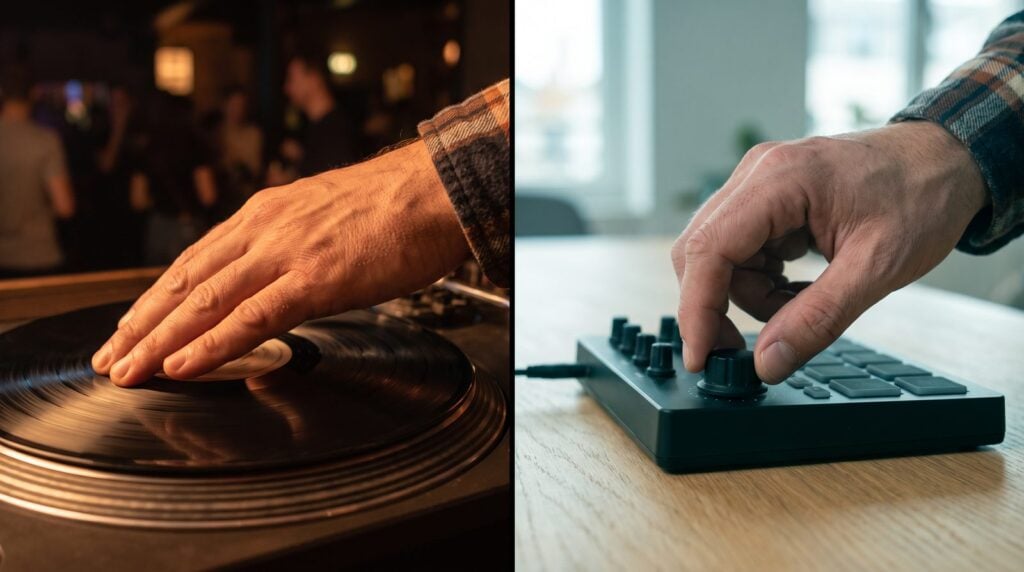
“A DJ has to have a certain kind of touch when he’s moving a record back and forth.”
To make scratches in FL Studio, load a short scratch sample into a Sampler channel. In its envelope tab, set the Volume envelope to HOLD only and the Pitch envelope to DECAY only, about a quarter turn, with the tension turned down. Then link the pitch AMT knob to a MIDI knob and play: each note becomes a scratch.
You know the sound. A short vocal shout gets dragged back and forth, chopped on and off, and the whole beat suddenly feels like a 90s hip-hop record. Then you look up the gear: two turntables, a mixer, years of practice. Not happening for one sound in one beat.
You don’t need any of it. Max, the founder of Mix Elite, showed this trick in a two-minute video that has more than 380,000 views, and it still works in today’s FL Studio. Below you get his exact settings, the two plugins that can do it too, and the fixes for when your scratches sound like a robot.
Table of Contents
What is a DJ scratch, and how does FL Studio fake one?

A scratch is a DJ moving a record back and forth under the needle while the other hand cuts the sound on and off with the crossfader. Pushing the record speeds the sound up and raises its pitch. Pulling it back slows it down and drops the pitch.
So a fake scratch needs two things. First, the pitch has to swoop up or down very fast, the way the record hand moves it. Second, the sound has to stop sharply, the way the fader hand cuts it. FL Studio’s plain Sampler channel can do both with its envelopes. An envelope is a shape that changes a sound over time, every time you play a note.
That’s the whole idea behind the method below. One envelope cuts the volume, one bends the pitch, and a knob on your MIDI controller decides how far and which way the pitch moves.
How to make scratches in FL Studio, step by step
Here’s the full method from Max’s video. He recorded it in FL Studio 20, back when the channel was still called FL Studio Tips. The same knobs are in current versions, and where a click has changed, the step below says so. Everything here is stock, so the free FL Studio trial runs it too.
- Step 1Load a scratch sample
- Step 2Volume: hold only
- Step 3Pitch: decay only
- Step 4AMT to a MIDI knob
- Step 5Copy to more samples
- Step 6Receive notes
- Step 7One key each
Step 1: Load a scratch sample into a Sampler channel
Max’s first rule: “first thing you need to do is find a scratch sample.” Pick a short one: a vocal shout, a single word, a horn stab or a ready-made scratch from a sample pack. Short sounds work best, because every note you play will turn into one quick scratch.
Drag the sample from the Browser and drop it on the Channel Rack. FL Studio makes a new Sampler channel for it. Click the channel’s name button to open its Channel settings.
Step 2: Set the volume envelope to hold only
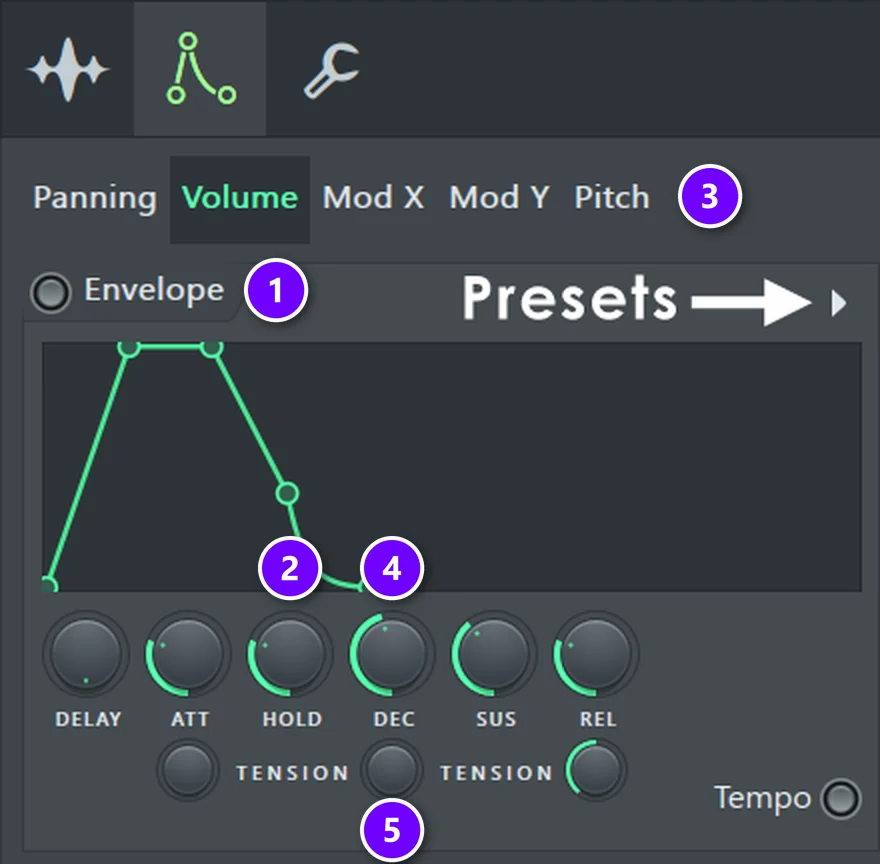
In Channel settings, click the second tab, the one with the little envelope icon. Image-Line’s Channel settings manual calls it the Envelope / Instrument tab. Choose Volume in the row at the top and click the round switch next to Envelope (1) so it lights up. An envelope only works when that switch is on.
Now leave only the hold stage, as Max puts it. Turn ATT, DEC, SUS and REL all the way down, so the only stage left is HOLD (2). Then turn HOLD up a little. Each note now plays at full volume for the hold time and then stops dead, just like a DJ snapping the fader shut.
Step 3: Set the pitch envelope to decay only
Stay in the same tab and click Pitch (3). Switch its envelope on too. This time leave only decay: turn ATT, HOLD, SUS and REL down, and set DEC (4) to about a quarter of its range. Max shortens it to about one quarter, so the pitch sweep is over fast.
Then turn down the small tension knob under DEC (5). Tension changes the shape of the curve, so the sweep bends instead of moving in a straight line. That bend is a big part of what makes it sound like a hand on vinyl.
Step 4: Link the pitch AMT knob to a MIDI knob
The Pitch envelope has an AMT (amount) knob. It sets how strongly the envelope bends the pitch. At the centre it does nothing. Turned right, each note starts high and dives. Turned left, the effect flips, so the sound starts low and swoops up.
Right-click AMT and choose Link to controller, then turn a knob on your MIDI controller. The linking page in the FL Studio manual shows the same three clicks. As Max says in the video, “you can actually move the amount knob with MIDI controller.” Now play a note and turn the knob. That knob is your hand on the record.
This is where it starts to sound real. “Now we can hear we’re getting really closer to the real scratch effect,” Max says after tweaking the tension a bit more. His advice for the last few percent: “What you need to do is play with the decay and tension knob to get the sound you like.”
No MIDI controller? Right-click AMT and choose Create automation clip, then draw the knob moves in the Playlist. You lose the live feel, but it sounds the same. If MIDI is new to you, our beginner’s guide to MIDI explains it.
Step 5: Copy the settings to more scratch samples
One scratch sound gets boring fast. Max adds a few more scratch samples, each on its own channel, and gives all of them the same envelope settings you just made.
You can set each one by hand, like he does. Or save the work once: the envelope section has a small Presets menu that saves and loads envelope shapes, so you can load the same hold and decay settings onto every new channel in a few clicks.
Step 6: Let every sample receive notes from your keyboard
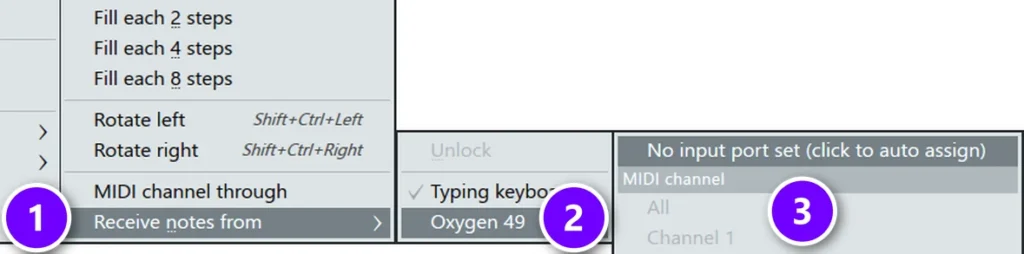
Here’s the snag Max hits next. After the settings are copied, only one sample plays at a time, because FL Studio sends your keyboard to whichever channel is selected.
The fix: right-click each channel’s name button and open Receive notes from (1). Pick your controller (2), then All under MIDI channel (3). Max does this on every sample. The Channel Rack manual explains that the channel then stays locked to that controller, whichever channel you click on. No MIDI keyboard? The same menu lists Typing keyboard, so your computer keys can play the scratches.
Step 7: Give each sample its own key
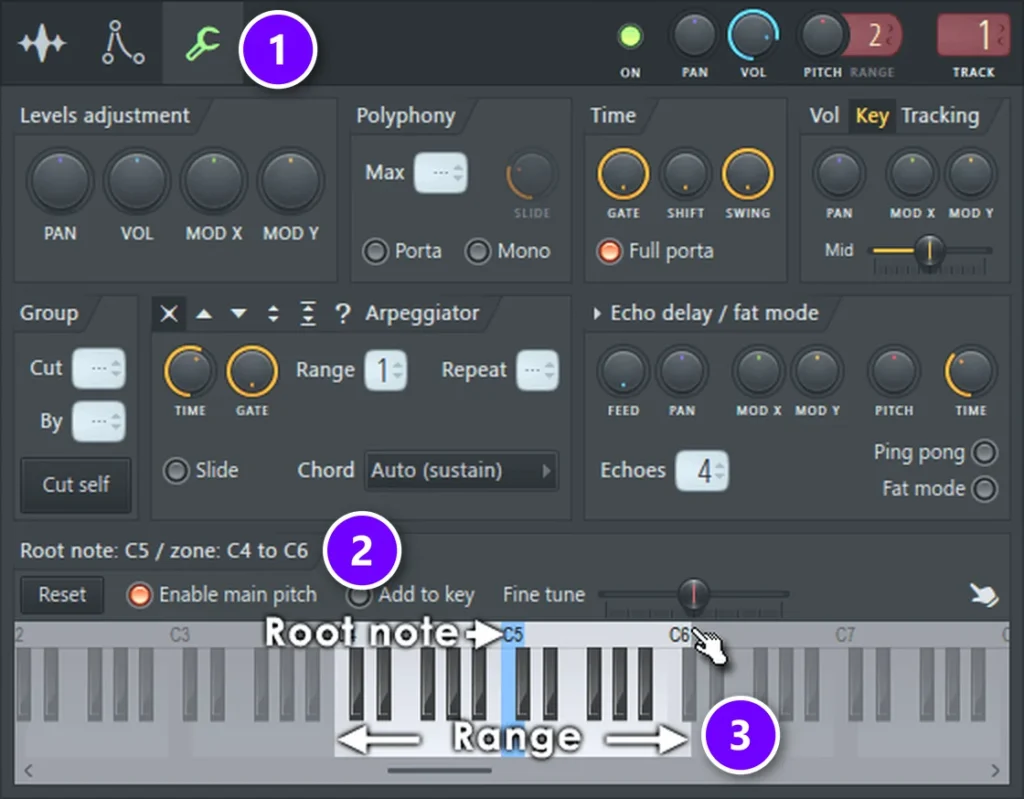
Now every sample plays at once on every key, which sounds like a mess. Each sample needs its own key.
Open Channel settings again and click the wrench tab (1), called Miscellaneous functions. At the bottom is a preview keyboard. In FL Studio 20 Max left-clicks and right-clicks one key to set the range. In current versions, you left-click and drag along the keyboard to set the key region, and the readout (2) shows the zone. Notes outside the light area (3) are ignored, says the Miscellaneous functions manual.
Give the first sample C, the next one the key above it, and so on. In Max’s setup, every key from C up to F plays a different scratch. Now you can play a whole scratch solo with one hand and ride the AMT knob with the other.
Why do my scratches sound fake and robotic?
A robot scratch almost always comes down to one of five things. Go through them in this order:
- The pitch isn’t changing the speed. On vinyl, higher pitch means faster playback. Leave the Sampler’s time-stretch TIME knob at (none), which is the default. The Sampler manual says to pick (none) if a channel won’t respond to pitch.
- There’s no cut. Without the hold-only volume envelope, the tail rings on and you hear a pitch slide, not a scratch. Shorten HOLD until each note snaps off.
- The sweep is a straight line. Lower the decay tension so the pitch curve bends.
- Every scratch is identical. Ride the AMT knob while you play, so no two notes move the same way.
- The sample is too long or busy. A full vocal line smears. A short shout or stab cuts through.
Don’t touch the PITCH knob in the Sampler’s Time stretching section. Image-Line’s manual says tweaking it switches the stretch mode from Resample to Auto, which keeps the length and breaks the vinyl effect. Use the envelope instead.
Which scratch sounds can you make this way?
Real DJs have names for their moves. Each one maps onto the setup above:
- Baby scratch: the plain forward-and-back move with the sound on. Play two samples back to back, one with AMT turned right (the pitch dives) and one with AMT turned left (it rises).
- Transformer: the DJ taps the fader on and off while the record moves. Play quick repeated notes on one key, for example 1/16 notes, so the hold envelope chops it.
- Chirp: the fader closes right as the sound turns around. Use a very short HOLD, so each note cuts off while the pitch is still diving.
How do you keep scratches in time with your beat?
Play your scratches in with the metronome on, then tidy them up. Open the pattern in the Piano roll, select the notes and press Shift + Q. That quick-quantizes only the start times to the grid, so each scratch keeps its length but lands on time. Ctrl + Q snaps the whole note.
You can also skip live playing and draw the notes straight onto the grid. Your knob moves can be recorded too: the FL Studio manual notes that linked controller moves record in real time when the recording filter accepts automation. Need a groove to scratch over? Our breakbeat guide shows how to build one.
Does FL Studio have a scratch plugin?
Yes, two of them. Neither is needed for Max’s method, but each one is better at a different job.
How to scratch with Fruity Scratcher
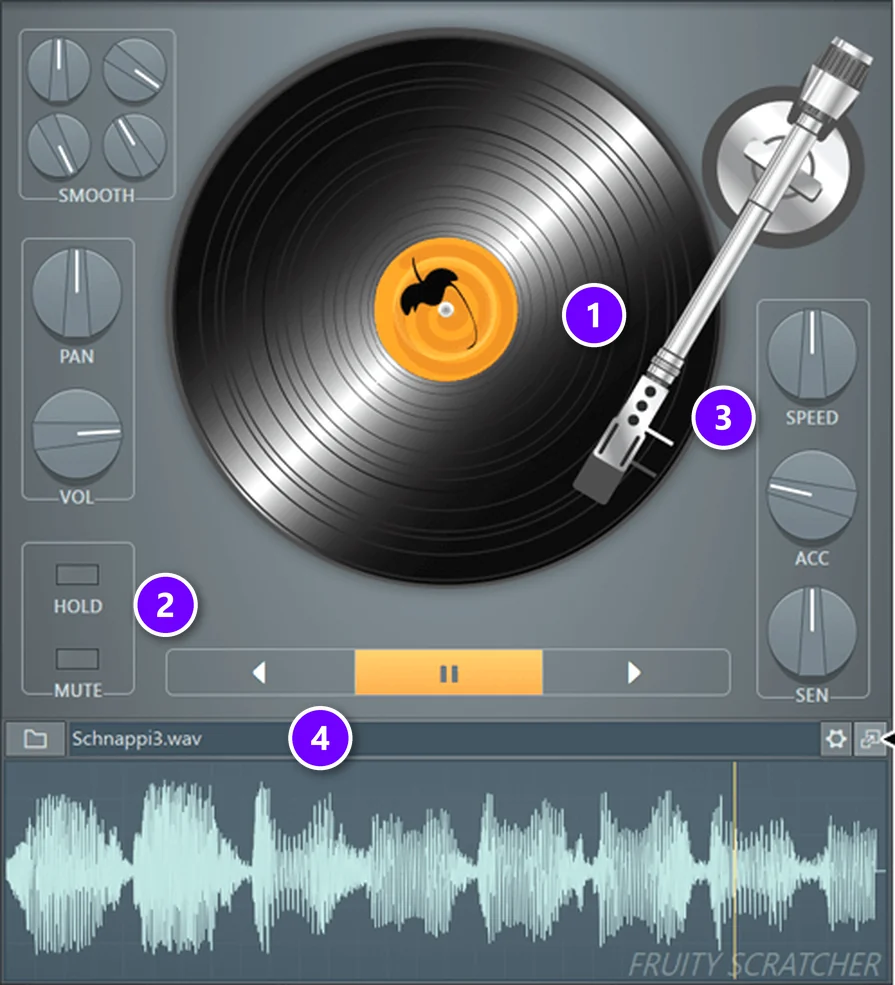
Fruity Scratcher is a turntable simulator. You load any sample into it and scratch it with your mouse. It’s an effect, so load it into an effect slot on a Mixer track.
- Click the folder button next to the sample name (4) and pick your sound.
- Left-click the platter (1) and drag up or down to scratch.
- To scratch with a MIDI knob instead, switch HOLD on (2) so the platter stops spinning, then right-click the platter to link it.
- Shape the feel with SPEED, ACC and SEN (3). ACC is the platter’s weight (acceleration). SEN is how far it turns for the same mouse move.
It can even follow a real turntable through a DVS (digital vinyl system) with Serato, Traktor or Timecode CD formats. Record your platter moves as automation and you have a performed scratch on the timeline.
How to scratch with Gross Beat
Gross Beat works on a live audio stream instead of one sample. It keeps the last 2 bars in a buffer and plays them back through time and volume envelopes, which the manual lists for glitch, stutter, repeat, scratching and gating effects. Put it on the Mixer track of a loop or a vocal and pick a time slot, or open the scratching clock from the Options menu and drag it up and down. The volume slots act like the fader. Gross Beat comes with the Signature Bundle and up, or you can buy it on its own.
The Fruity Scratcher manual calls Wave Traveller and Gross Beat its more sophisticated cousins. Wave Traveller is an instrument, so it loads into a channel, and you shape a time envelope that moves through the sample.
Which scratch method should you use?
Use the Sampler method from Mix Elite’s video when you want to play scratches like an instrument, on keys, in any edition of FL Studio. Use Fruity Scratcher when you want to perform with the mouse or a DVS. Use Gross Beat when you want to scratch a whole loop or vocal in perfect time with the song.
All three sit well in a stock-only workflow, and our guide to making beats with only FL Studio’s stock plugins shows what else that toolbox can do. For more hip-hop flavour tricks in the same spirit, see these trap and hip-hop production tricks.
Should you use scratch samples or your own vocal?
Max starts with a ready-made scratch sample, and that’s the fastest way to sound right. A recorded scratch already carries real vinyl friction and human timing, which is the hardest part to fake.
A chop from your own track has its own charm. Scratching your song’s vocal hook keeps the same voice and key, so the scratch sounds like it belongs. Try both on the same beat and keep the one that fits. If the beat itself still needs work, start with our beat making guide for beginners.
Scratches are spice, not the meal. A good scratch on a weak beat is still a weak beat.
DAY 3 OF THE 7-DAY MUSIC PRODUCER COURSE
Scratches are the spice. Day 3 builds the beat under them.
Day 3 of Mix Elite’s 7-Day Music Producer Course is all about hard-hitting drums and easy arrangements: how to pick sounds that hit, drum patterns in seconds, and 1 simple trick that turns a loop into a full song. You also get the 2025 Producer Toolkit of sounds. It’s taught in FL Studio, and on day 7 a pro gives you feedback on your finished track. It’s $27, with 60-day refunds.
Frequently asked questions
Can you scratch in FL Studio without a turntable?
Yes. Load a scratch sample into a Sampler channel, set its volume envelope to hold only and its pitch envelope to decay only with the tension turned down. Then link the pitch AMT knob to a MIDI knob. Every note you play becomes a short scratch, and the knob acts like your hand on the record.
Does FL Studio have a scratch plugin?
Yes. Fruity Scratcher is a turntable simulator: load a sample and drag the platter with your mouse, a MIDI knob or a DVS. Gross Beat scratches a live audio stream with time and volume envelopes and comes with the Signature Bundle and up. You can also skip plugins and use the Sampler channel’s envelopes.
Do I need a MIDI controller to make scratches in FL Studio?
No. You can play the samples with your computer keys by choosing Typing keyboard under Receive notes from. Instead of turning a real knob, right-click the AMT knob, create an automation clip and draw the moves. A controller just makes it feel more like a live performance.
Why do my FL Studio scratches sound fake?
Usually the pitch moves without changing the speed, the sound never cuts off, or the pitch sweep is a straight line. Keep the Sampler’s time stretching at (none), use a hold-only volume envelope so every note snaps off, lower the decay tension so the sweep curves, and ride the AMT knob so no two scratches match.
How do I keep scratches on beat in FL Studio?
Record them with the metronome on, then select the notes in the Piano roll and press Shift+Q. That snaps only the start times to the grid, so each scratch keeps its length but lands on time. You can also draw the notes straight onto the grid instead of playing them live.