

“Just as one can compose colors, or forms, so one can compose motions.”
Music automation means a setting changes by itself while your song plays: a filter opens before the drop, one clap gets a burst of reverb, or a vocal line gets a little louder. It keeps a track from sounding static without adding new sounds. In FL Studio, right-click almost any knob, choose Create automation clip and draw the move.
Your loop sounds great the first time it plays. By minute three it’s the same eight bars on repeat, and even you are tired of it. Most of the time the fix isn’t another sound. It’s movement: the sounds you already have, changing a little as the song goes on.
That’s the job automation does. Below you’ll learn what it is, what’s worth automating, and three ways to do it in FL Studio, with screenshots from Mix Elite’s free 1-hour mixing course. You’ll also see how to fix automation that won’t behave.
Table of Contents
What is automation in music production?
Automation is a saved change to a setting over time, so a knob or fader moves by itself every time the song plays. Use it to make a track less static: a filter that opens before the drop, an echo on one word or a part that fades in keeps the ear interested without adding new sounds.
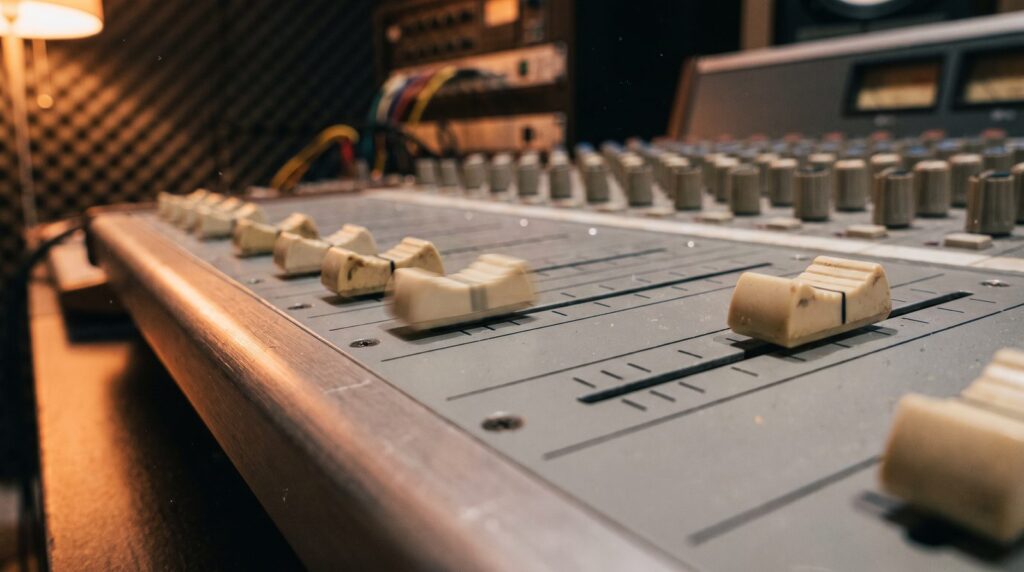
Almost anything with a knob, fader or switch can be automated in a DAW (digital audio workstation, the program you make music in), from the volume of a whole track to one tiny setting deep inside a plugin. Without automation, you would have to turn that knob by hand on every single playback.
In Mix Elite’s free 1-hour mixing course, Max, the founder of Mix Elite, sums up why it matters: automation “will be very useful if you’d like to create change over time in your arrangement.” And you’re not stuck with a few controls. You can automate every single knob inside FL Studio.
What is mix automation?
Mix automation is the quiet, practical kind. A vocal line that dips gets nudged up, and a pad steps back when the singer comes in. Nobody should notice these moves, and that’s the point. The other kind is creative automation, where you want people to hear the change, like a filter that opens into a drop or an echo on the last word of a line.
In the mixing course, automation comes last, after the whole track is balanced and cleaned up. If you’re still working on that part, start with our guide on how to mix a song.
Is automation the same as automatic mixing?
No, even though the names sound alike. Automatic mixing means software that sets your levels or EQ for you, often with AI. Automation is you deciding exactly when and how a setting moves. If what you want is a quick, even balance between your tracks, our guide to mix balancing is the better place to start.
What can you automate in a song?
Pretty much everything. These are the moves you’ll use most:
- Volume: fade a song in or out, or lift one quiet word in a vocal.
- Panning: move a sound from left to right. Pan is where a sound sits between your two speakers.
- Filters and EQ: open up a muffled synth until it’s fully bright, right as the drop arrives.
- Reverb and delay: add a wash or an echo to one clap or one word, then take it away again. Our reverb vs delay guide explains the difference.
- Plugin settings: any knob inside an effect or instrument. You can even automate the smoothness knob of a pitch-correction plugin, so the tuning effect is stronger in some parts of the song than others.
- Pitch: bend a sound down for a slowing “tape stop” effect.
- Tempo: even the speed of the whole song can change over time.
What should you automate to build tension before a chorus?
Start with a filter. Automate a high cut on the bass group or the music so it opens from dull to fully bright over the bars before the chorus, then give one hit a reverb wash that cuts off right as the chorus lands. The sudden full, bright, dry sound is what makes the chorus hit.
Both moves are shown step by step further down, with the exact settings from the course: the filter climbs from about 20% to the top just before the drop, and the reverb rises to about 70% wet on one clap. Put the filter on a group track, and one clip moves every sound in that group at once.
How do you automate in FL Studio?
FL Studio gives you three ways to do it. Most of the time you’ll use the first one, the automation clip. An automation clip is a strip in the Playlist (the window where you lay out your song) with a line drawn on it, and that line tells one setting what to do at every moment. The other two methods, Edit events and live recording, are handy for the rest. The walkthrough in the video below starts at 77:28.
1. Right-click a knob and create an automation clip
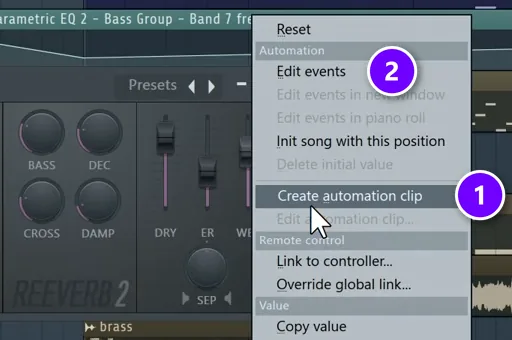
This is the fastest way, and it works on almost every knob and fader in FL Studio. Right-click the control you want to move and choose Create automation clip (1). The same menu also holds Edit events (2), the second method below.
- Play your song and find the knob that makes the change you want. Move it and listen.
- Right-click that knob and choose Create automation clip.
- Find the new clip in the Playlist and drag it onto a free track, under the part it should change.
- Draw the shape of the move, as shown below.
Lost a new clip? Where it lands depends on one setting. In Options > General settings (F10), Create automation clips at the playback position starts new clips where your playhead is. Switch it off and they start at the beginning of the Playlist instead.
Automating a plugin? Use the Last tweaked menu
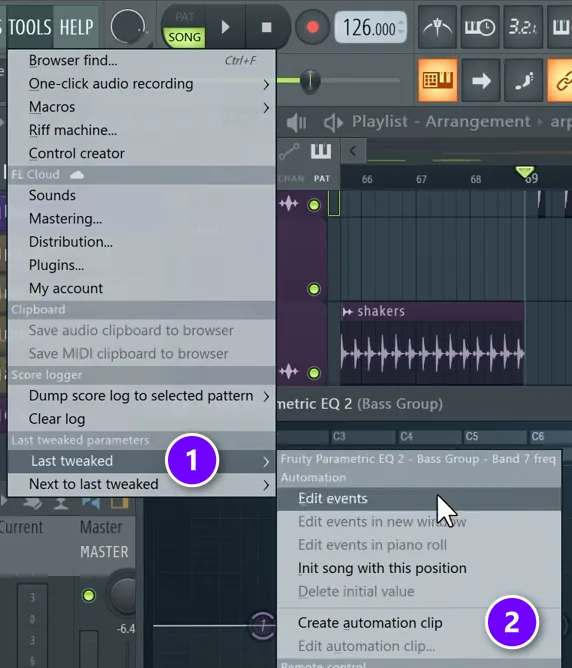
Many plugins from other companies show their own menu when you right-click their knobs, so FL Studio’s menu never appears. For those, move the knob once. Then open the Tools menu, hover Last tweaked (1) and click Create automation clip (2). FL Studio’s manual calls this the preferred way for plugins, and it works on FL Studio’s own knobs too. The course shows both ways and points out that they do exactly the same job.
How to shape an automation clip
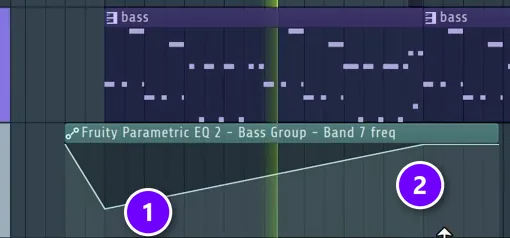
A new clip starts as a flat line, so you draw the movement yourself. In the course’s filter example, the line starts low, at about 20% (1), and climbs to the very top just before the drop hits (2). Then it stays there.
- Drag a point to move it.
- Right-click on the line to add a point.
- Hold Shift and right-click to add a point without changing the level. It’s handy on vocals.
- Right-click a point and choose Delete to remove it.
- Drag the small circle between two points up or down to bend the line into a curve. FL Studio calls this tension.
- Right-click the right-hand point of a section for other shapes, such as Hold, Stairs, Pulse and Wave.
Drag the edges of the clip to make it longer or shorter, just like any other clip. Then play the section back and watch the knob move by itself.
How do you draw a smooth volume fade-in?
Automate the volume. Right-click the track’s volume knob or mixer fader, choose Create automation clip, then drag the first point down to silence where the fade starts and the last point up to full level where it ends. Drag the small tension circle between them to curve the line until the fade sounds smooth.
A straight line works too. Try bending it both ways and keep the shape that sounds smoothest to you. For a single audio clip, like a sample or a vocal, there’s a quicker way. Drag the small handle at the top corner of the clip in the Playlist, and it fades in without any automation at all.
2. Draw the moves with Edit events
Edit events, number 2 in the first screenshot above, opens the Event Editor. It’s a window that shows the setting’s movement as a graph, stored inside the pattern you have selected. You draw with the pencil tool: drag with the left mouse button for freehand lines, or with the right button for straight ones. Select the pattern before you open it, because event data belongs to that one pattern and plays wherever the pattern plays.
That’s the big difference from an automation clip, which sits on its own track in the Playlist. If you’d rather work with a clip, open the Event Editor’s menu and choose Edit > Turn into automation clip. A Sensitivity setting decides how many points you keep. FL Studio’s manual suggests keeping as few as you can, so the clip stays easy to edit.
3. Record your knob moves live
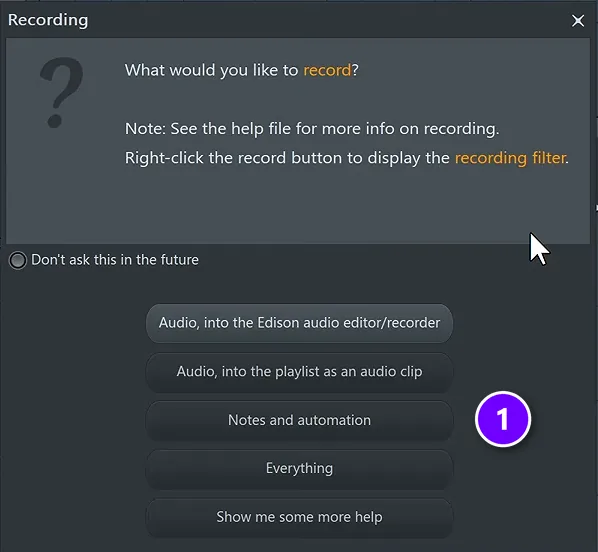
If you’d rather perform a move than draw it, record it. Click the record button next to Play, and FL Studio asks what you want to record. Pick Notes and automation (1). Press Play, turn the knob while the song runs, and press Stop when you’re done.
FL Studio saves recorded moves as events in the pattern you had selected, not as a clip. According to its manual, live moves create a lot of points: 384 per bar at the default setting. So turn them into a clip with Turn into automation clip, as above, and keep as few points as you can. You can also right-click the record button to pick what gets recorded every time.
Can you record automation with hardware knobs instead of a mouse?
Yes. Right-click the control in FL Studio, choose Link to controller and turn the knob on your MIDI controller (a keyboard or box with real knobs). The two are now linked. Then click the record button, pick Notes and automation, press Play and turn the real knob while the song runs.
Then turn the recorded moves into an automation clip and tidy them up with the mouse. Other DAWs handle live moves with automation modes. In Logic Pro, Touch records only while you hold a control, Latch keeps writing your last value after you let go, and Write records over everything as the song plays. FL Studio uses its recording filter instead.
3 music automation moves from Mix Elite’s mixing course
Here’s how the course uses automation in a real house track and a real vocal, with the exact settings. Try each one in your own project.
Sweep a filter into the drop
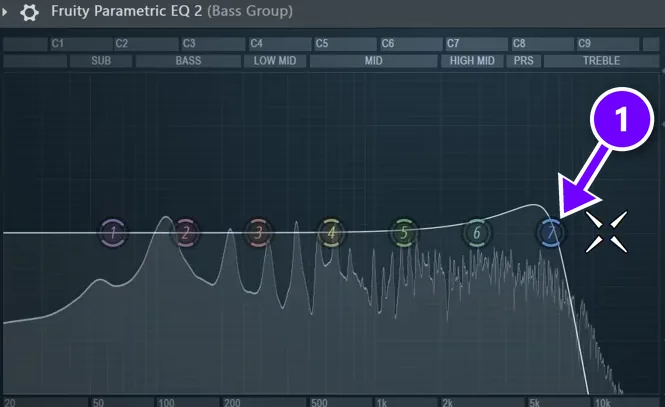
This is the classic build-up move. Add Fruity Parametric EQ 2 to the bass group (a mixer track that all the bass sounds feed into), after the effects already on it. Turn band 7 into a high cut (1), a filter that removes everything above the frequency you set. Then make it steeper and scroll on the band to add resonance, a small boost right at the cutoff that makes the sweep easier to hear.
Next, right-click the band’s frequency knob and create an automation clip. The clip starts at about 20% and rises to the top just before the drop, as in the clip screenshot above. Because the EQ sits on the bass group, one clip moves every bass sound at once. New to EQ? Read how to use EQ in mixing first.
Switch the EQ to detached mode, so its window stays open on top while you edit the clip. You can see the cutoff move as you drag the points.
Wash out one clap with reverb
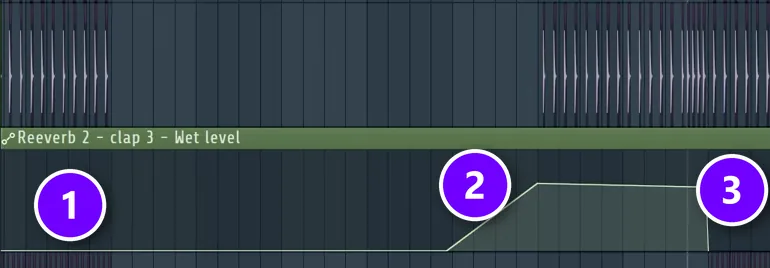
On the clap’s mixer track, load Fruity Reeverb 2, set the low cut and the size, and this time turn the decay up for a long, washed-out tail. You only want it in one spot, so right-click the reverb’s WET fader and create an automation clip. The clip sits at zero (1), rises to about 70% under the clap (2) and drops back to zero when the drop hits (3).
Notice that the clip starts at the very beginning of the song, even though the effect only plays near the drop. That’s the fix for a common problem, explained further down.
Even out a vocal with volume automation
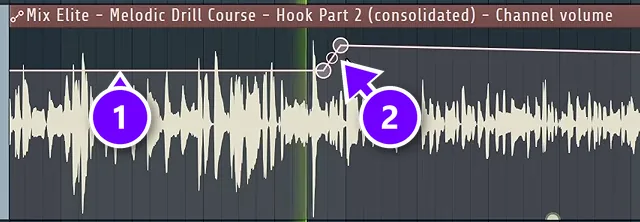
When a vocal is recorded in a few takes, each take can come out a little louder or quieter. The singer stood at a different distance, or had more energy that time. Even this out before you compress anything. Automate the vocal’s channel volume (1) and add points where a new take starts (2), holding Shift as you right-click so each new point keeps the same level.
Keep these moves small. “We don’t want to make huge differences here,” Max says, “we just want to make it roughly okay.” The reason is compression. A compressor only turns down the parts that go over its threshold, the level where it starts working, so a quiet line slips under it untouched. Even out the level first, and the compressor treats the whole vocal the same way.
For finer work, open the vocal in Edison, FL Studio’s audio editor, and draw a volume envelope right on the waveform. Keep those changes to about 3 dB or less, so nothing sounds overdone. It’s the first step of V.O.C.A.L., Mix Elite’s vocal mixing formula, where the V stands for volume automation. The rest is in our guide on how to mix vocals.
Why is my automation not working in FL Studio?
When automation seems broken in FL Studio, it’s usually one of these three things.
Why does my volume fader jump back when I restart the song?
Because FL Studio saved a starting value for it. When you create an automation clip from the right-click menu, FL Studio stores the control’s value and puts it back every time the song starts, even after you delete the clip. Delete it under Current project > Initialized controls in the Browser, or switch off Initialize controls automatically.
Mix Elite’s free 4.5-hour FL Studio course shows it happening: the clip is gone, yet the knob keeps jumping back. And if the fader still has an automation clip, it simply follows the clip, so move the clip’s points instead of the fader.
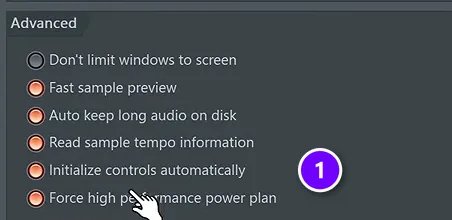
To clear one, open the Browser, go to Current project > Initialized controls and delete it there. To stop it for good, switch off Initialize controls automatically (1) in Options > General settings, under Advanced. Max’s view in Mix Elite’s free FL Studio course: “it’s not really that useful in my opinion. I’m not sure why it’s enabled by default.”
The effect plays before the clip starts
If an effect is already on before its clip begins, it’s usually the same starting value at work. The knob is set back to where it was when you made the clip, and it stays there until the clip takes over. The quick fix: stretch the clip back to the very start of the song and only draw the shape where you want it, like the reverb clip above.
A plugin knob won’t automate
If right-clicking a plugin’s knob shows the plugin’s own menu instead of FL Studio’s, use Tools > Last tweaked > Create automation clip, as shown earlier. Move the knob first, so FL Studio knows which one you mean.
Start small. Pick one move from this page, like a filter into your next drop or a reverb wash on one clap, and add it to the song you’re working on now. Hear how much more alive the loop feels, then add the next one.
DAY 4 OF THE 7-DAY MUSIC PRODUCER COURSE
Mix your first song in the right order
Day 4 of the 7-Day course is all about mixing: the simple ‘Holy-Quad’ mixing formula, the mix-murdering mistakes most beginners make, and the volume mistake that caps how good a song can sound. You also get a mixing checklist and a mixing and production template. It’s taught in FL Studio (the free trial works), about 45 minutes a day, and on day 7 a pro gives you personal feedback on your finished track. It’s $27, and you get 60 days to decide if it was worth it.
Frequently asked questions
What is automation in music production?
Automation is a saved change to a setting over time, so a knob or fader moves by itself while the song plays. Producers use it to fade parts in and out, open a filter before a drop, add reverb or delay to single moments and keep a vocal even. It makes a track feel less static without adding new sounds.
How do you make a smooth volume fade-in with automation?
Right-click the track’s volume knob or fader and choose Create automation clip. Drag the first point down to silence and the last point up to full level, then drag the tension circle between them to curve the line until the fade sounds smooth. On a single audio clip, the fade handle at its top corner works too.
What should you automate to build tension before a chorus?
A filter is the classic first move: automate a high cut so the sound opens from dull to fully bright just before the chorus or drop. A reverb wash on one hit that cuts off when the chorus lands works well too. The sudden switch to a full, dry sound makes the chorus hit harder.
Why does my volume fader jump back when I restart the song?
In FL Studio it’s usually an initialized control. Creating an automation clip saves the fader’s value, and FL Studio puts it back every time the song starts, even after you delete the clip. Delete it in the Browser under Current project > Initialized controls, or switch off Initialize controls automatically in General settings.
Can you record automation live with hardware knobs?
Yes. In FL Studio, right-click the control, choose Link to controller and turn the knob on your MIDI controller. Then record with Notes and automation selected and turn the knob while the song plays. Live moves create many points, so turn them into an automation clip and keep as few points as you can.