

“Plans are worthless, but planning is everything.”
The Ableton tips that save the most time are setup habits, not hidden tricks. Start every song from your own template, learn a dozen shortcuts such as Tab, Ctrl+D and Ctrl+G, group and color-code your tracks, use return tracks for reverb and delay, and bounce finished parts to audio, which Live 12 does in one step.
You open Ableton with an idea in your head. Half an hour later you’re still loading the same drum kit, naming tracks and hunting for last week’s reverb, and the idea has gone cold. Most of that time is clicking, not music.
These 15 tips cut it down. Every menu name and shortcut below comes from Ableton’s own Live 12 manual, checked in October 2026, and they work on Windows and Mac (on a Mac, use Cmd for Ctrl and Option for Alt). Mix Elite teaches FL Studio, so the end of the guide shows the same habits there, with screenshots from Mix Elite’s videos.
Table of Contents
What are the best Ableton tips?
The best Ableton tips aren’t hidden tricks. They’re small habits, like a default template, a dozen shortcuts and return tracks, that remove the same clicks from every session, so more of your night goes into the song. Here are all 15 at a glance, from setup to mixing in Ableton Live 12:
- Start from your own template
- Save default presets
- Use Collections
- Learn 13 shortcuts
- Key-map any button
- Group tracks
- Name and color tracks
- Use return tracks
- Mix in Arrangement View
- Bounce finished tracks
- Switch off what you don’t need
- Reuse tracks from old Sets
- Save effect chains as Racks
- Use Capture MIDI
- Check mono with Utility
How do you set up a default template in Ableton?
Build a Set with the tracks, instruments, return tracks and colors you use every time, then choose File > Save Live Set As Default Set. Live uses it as the starting point for every new Set. For more than one starting point, use File > Save Live Set As Template; templates show up under Templates in the browser (Live 12 manual).
1. Start every song from your own template
Build a Set with everything you load every time: your drum kit, a bass, a chord instrument, two return tracks with reverb and delay, and your track names and colors. You only do this once. Then save it as your Default Set, or as a template if you want more than one starting point (Live 12 manual).
Keep the Main track, Live 12’s name for the master, clean in that template. Mix Elite’s rule while mixing is to keep the master completely empty, especially without a limiter on it.
2. Save your go-to settings as default presets
If you always set up a device the same way, like EQ Eight with a low cut, save that state. Set the knobs, right-click the device’s title bar and choose Save as Default Preset. Every new copy of that device now loads your way. No more fixing the same knobs. Live keeps it in the Defaults folder of your User Library (how default presets work).
3. Keep favorite sounds one click away in Collections
Collections are seven color labels in the browser. Select a sample, preset or folder and press a number key from 1 to 7 to tag it with that color, or 0 to clear it. Your favorite kick, your go-to synth and your vocal chain are then one click away, wherever they’re stored. No more digging through folders.
For anything else, press Ctrl + F and type. Switch on the Preview toggle to hear files as you arrow through them, in time with your song. If a loop still drifts once it’s in, our guide on how to warp in Ableton fixes that.
Which Ableton keyboard shortcuts save the most time?
Start with Tab to switch views, Ctrl + D to duplicate, Ctrl + E to split a clip, Ctrl + J to join clips, Ctrl + G to group tracks and 0 to switch a clip or track off. On a Mac, use Cmd instead of Ctrl.
4. Learn these 13 shortcuts first
You don’t need all of Live’s shortcuts. These 13 cover most of a session:
- Tab switches between Session View and Arrangement View.
- Ctrl + D duplicates a clip, notes or a selection.
- Ctrl + E splits a clip.
- Ctrl + J consolidates several clips into one.
- Ctrl + G groups tracks, and Ctrl + Shift + G ungroups them.
- Ctrl + R renames. Press Tab to jump to the next track.
- 0 switches a selected clip or track off and on again.
- Ctrl + T adds an audio track, and Ctrl + Shift + T a MIDI track.
- Ctrl + Shift + M adds an empty MIDI clip.
- B turns draw mode on and off.
- Ctrl + 4 turns snap to grid on and off, and Ctrl + 1 and Ctrl + 2 make the grid finer or wider.
- Ctrl + I inserts silence, and Ctrl + Shift + Delete deletes time.
- Ctrl + B bounces a selection to a new audio track (Live 12.2 and newer).
Learn two or three a week, and use them until your hands find them without looking. Shift + Tab is another good one: it flips the bottom of the screen between the clip and the devices, so you can hop between notes and effects without the mouse.
5. Map any button to your computer keyboard
Press Ctrl + K to enter Key Map mode. Click any button or switch, such as a track’s on/off button, press a key on your computer keyboard, then press Ctrl + K again to leave. That key now flips the control. MIDI Map mode (Ctrl + M) does the same with a controller (MIDI and key remote control).
Map one key to the on/off buttons of two versions of a part, with one switched on and one off. Each press swaps them, so you can compare the two while the song plays.
How do you group and ungroup tracks in Ableton?
Select the tracks and press Ctrl + G to put them in a Group Track, which works like a bus. To ungroup, select the Group Track and press Ctrl + Shift + G.
6. Group tracks into a bus
A Group Track works like a bus: it mixes the tracks inside it, can hold its own effects and folds away to save space (Live 12 manual, Mixing).
- Click the first track’s title, then hold Shift and click the last one to select them all.
- Press Ctrl + G, or choose Group Tracks from the Edit menu.
- Click the Group Track’s unfold button to show or hide the tracks inside.
- To undo it, select the Group Track and press Ctrl + Shift + G, or choose Ungroup Tracks from the Edit menu.
Groups are also the fastest way to process many tracks at once. Put one compressor on a drum group, or duck a whole group of synths under the kick, as our guide to sidechain in Ableton shows. FL Studio does the same with a sidechain bus, covered in how to sidechain in FL Studio.
How do you keep a big Ableton Set organized?
Name and color every track the moment you make it, group the tracks that belong together, and put reverb and delay on return tracks instead of on every track. Live 12’s Arrangement mixer then lets you balance it all without leaving your song.
7. Name and color tracks as you go
Rename tracks the moment you make them. Add # to a name, and Live numbers the tracks for you. Right-click a track’s title to pick its color, and right-click a Group Track to give its color to every track and clip inside.
In Mix Elite’s free FL Studio course, instruments get one color and drums another. Max, the founder of Mix Elite, explains why: “It’s much more fun to produce if you don’t create a huge mess in your project.” Pick one color per type of sound and keep it the same in every song.
8. Put reverb and delay on return tracks
Instead of a reverb on every track, add one return track with Ctrl + Alt + T, load a reverb on it, and send each sound to it with that track’s Send knob. One effect serves many sounds, which saves CPU and keeps them all in the same space. Your mix stays tidier, too. Do the same with a delay on a second return.
9. Mix without leaving Arrangement View
Live 12 added a mixer to Arrangement View. Click the mixer view control in the bottom-right corner of the window, and volume, pan and sends sit right next to your song. No more jumping to Session View to fix one level.
Freeze, flatten or bounce: how do you save CPU in Ableton?
In Live 12.2 and newer, Bounce Track in Place turns a finished track into audio in one step, which replaces the old freeze-then-flatten routine. Freeze still works when you want to keep editing later, and switching off devices you aren’t using saves CPU too.
10. Bounce the tracks you’ve finished
A busy project can choke your computer, and Live 12.2 added Bounce to Audio to fix that in one step:
- Bounce Track in Place, from the track’s title bar or a clip’s right-click menu, swaps the track for audio.
- Bounce to New Track (Ctrl + B) records the selection to a new audio track and mutes the original, so you can still go back.
- Paste Bounced Audio (Ctrl + Alt + V) pastes what you copied as audio.
Freeze Track (Ctrl + Alt + Shift + F) still works too. A frozen track plays from a temporary audio file, so it barely touches your CPU. You can’t change its devices or clips until you unfreeze it, but you can still change its volume, pan and sends (Track Freeze). In older versions, Flatten then turned a frozen track into plain audio for good. Live’s manual says Bounce Track in Place has replaced that freeze-then-flatten routine.
11. Switch off what you’re not using
Press 0 to switch off a selected clip or track without deleting it. It turns gray and silent. One more press brings it back. Switch off heavy devices with their on/off button too, which shows you how much CPU each one costs.
It’s also the quickest way to run Mix Elite’s mute test: switch parts off one at a time and listen. As Max puts it: “If it sounds better without the element, you can definitely just remove it.”
How do you save racks and reuse sounds from old projects?
Turn any effect chain into an Audio Effect Rack: select the devices’ title bars, right-click and choose Group, then click Save Preset in the Rack’s title bar, and it’s in your User Library. To reuse a whole track, open an old Set in the browser like a folder and drag the track in.
12. Drag tracks in from your old Sets
Live’s browser opens old Sets like folders. Find the Set, unfold it and drag the track you want, with its instrument, effects and clips, into the song you’re working on. Drag the Set’s Devices icon instead to bring in just the device chain. Return tracks don’t come along, so add those by hand (Managing Files and Sets).
13. Save your effect chains as Racks
Select two or more devices by their title bars, right-click and choose Group. The new Rack has Macro Controls, 8 by default and up to 16, so one knob can move many settings at once, like a filter and a reverb together. Macro Variations save snapshots of every knob.
Save the Rack with the Save Preset button in its title bar, and it’s in your User Library for the next song. Press Q to Hot-Swap, which lets you flip through presets while the music plays.
How do you catch an idea before it’s gone?
Use Capture MIDI. It keeps what you just played, even if you never pressed record.
14. Catch ideas with Capture MIDI
Played something great while noodling? Click Capture MIDI in the Control Bar. Live turns what you just played on an armed or monitored MIDI track into a clip, even though you never pressed record (Recording New Clips). In an empty Set, it even works out the tempo, between 80 and 160 BPM, and starts the loop for you.
What does Utility do in Ableton?
Utility is a small device for gain, stereo width, phase flip, balance and mute. Its two best time-savers are the Mono switch, for checking your mix in mono, and Bass Mono, which makes the low end mono below a frequency you pick.
15. Check your mix in mono with Utility
Utility is a small device for simple jobs: gain (from silence up to +35 dB), stereo width, phase flip, balance and mute. Put it on the Main track and switch on Mono to hear your mix in mono. If a sound gets much quieter or vanishes, two parts are cancelling each other out, which producers call phase cancellation. Switch Mono off again before you export.
Its Bass Mono switch makes everything below a frequency you choose mono, anywhere from 50 to 500 Hz, and its Audition button lets you hear just that low range while you set it. It’s a quick fix for a wide bass that sounds weak on a phone or a club system.
Which Live 12 features save the most time?
Bounce to Audio, the Arrangement mixer, Stem Separation and browser tags save the most clicks, if you’re coming from an older version. The newest version at the time of writing is Live 12.4.6, from September 2026 (release notes).
- Bounce to Audio (12.2). One step instead of freeze and flatten, as shown above.
- The Arrangement mixer. Mix without leaving your timeline.
- Stem Separation (12.3, Suite only). Right-click an audio clip or file and choose Separate Stems to New Audio Tracks to split it into Vocals, Drums, Bass and Others. It runs on your computer without an internet connection, in High Speed or High Quality mode (Stem Separation).
- Browser tags. Filter sounds by tags, and Live tags your own samples up to 60 seconds long for you.
Why does arranging a song take so long?
Arranging drags when you build the song one bar at a time from a short loop, or stop to mix while you’re still writing. It goes much faster the other way round. Copy the loop across the whole song first, then take parts away to shape each section, with a reference song’s sections as your map.
Here’s that method in Ableton’s Arrangement View, with the shortcuts that do the heavy lifting:
- Copy the loop out. Select the loop and press Ctrl + Shift + D (Duplicate Time) until the song runs about 2 minutes, the length Mix Elite’s course uses for a beat.
- Mark the sections. Click Set Locator during playback wherever a new part should start, then rename each locator with Ctrl + R: intro, hook, verse (Arrangement View).
- Take parts away. Select clips and press 0 to switch them off, so the intro and verse are lighter than the hook. Mix Elite’s course does the same in FL Studio: mute everything, then bring parts back as the song plays.
- Borrow a map. Drag a song you like into the Set, warp it to your tempo and drop a locator wherever something changes. Then delete the song and follow your locators.
- Edit across the whole song. Ctrl + E splits a clip, Ctrl + J joins clips into one, Ctrl + I inserts empty time, and Ctrl + Shift + Delete deletes a selection of time, so everything after it moves along.
- Slice a loop onto pads. Right-click an audio clip and choose Slice to New MIDI Track. Live chops it into pieces, one per MIDI note, that you can play and rearrange (Converting Audio to MIDI).
Leave the mixing out of it for now. That’s the next habit.
What habits help you finish tracks faster?
Work in stages and finish each one before you start the next: ideas, production, arrangement, mixing, mastering and release. Start from your template, learn the shortcuts above, and save the mixing for the end.
Shortcuts make you faster. Order is what gets songs finished. Mix Elite’s free FL Studio course works in six stages, one at a time:
- Ideas: chords, melodies and the sounds that inspire you.
- Production: bass, drums, percussion and extra layers.
- Arrangement: laying the song out as intro, chorus, verse and outro.
- Mixing: balancing every part.
- Mastering: the final polish.
- Release: getting it out there.
Mixing is the slow one, and Mix Elite’s free course puts a number on it. As Max says: “It takes about 5 to 10 hours on average, of course more if your track is very complicated.” So don’t stop to mix while the idea is still taking shape. Get it down, arrange it, then mix with fresh ears. Our guide on how to produce music walks through every stage.
How to do the same things in FL Studio
Most of these habits have an FL Studio version. Mix Elite teaches in FL Studio, and the screenshots below come from our videos. Still choosing a program? Read our FL Studio vs Ableton Live comparison.
Export Project bones from the old project
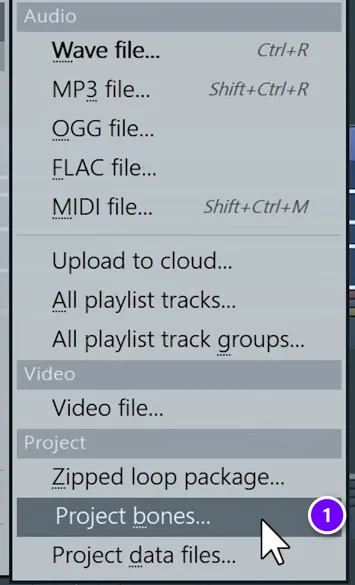
FL Studio’s version of dragging tracks between Sets is Project bones. In the old project, choose File > Export > Project bones (1) and save it. FL Studio exports every instrument and effect setting as presets, plus your scores and automation (FL Studio manual).
Load parts from Project bones
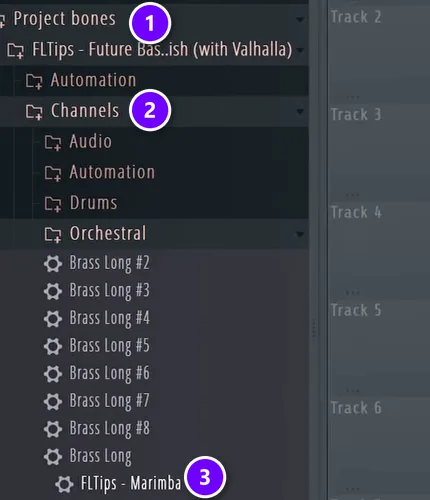
Open your new project, find Project bones in the Browser (1), open the project’s Channels folder (2) and drag any instrument (3) into the Channel Rack. Its mixer settings wait in the Mixer folder next to it.
Once you’ve used it, it’s hard to go back. Here’s the whole trick in four minutes:
Set your own default template

Save your starter project into FL Studio’s Templates folder (inside the Image-Line folder, under FL Studio, Projects, Templates). Then open Options > General settings and pick it as the Default template (1) and the Startup project (2).
FL Studio’s stock template puts a limiter on the master, and Mix Elite’s advice is to take it off. Beginners often wonder why their songs sound off, and a limiter running on the master all the time is a common reason.
Send every channel to the mixer at once
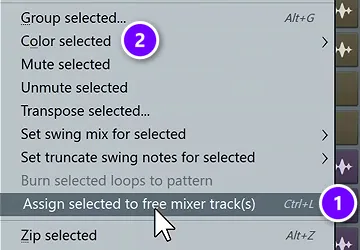
Select all the channels in the Channel Rack (double-clicking a channel’s selector does it). Open the Channel options menu and choose Assign selected to free mixer track(s) (1), or press Ctrl + L. Color selected (2) in the same menu colors them in one go, and the colors carry over to the mixer.
For FL Studio’s own time-savers, see our 30 must-know FL Studio shortcuts, and try any of them in the free FL Studio trial. Whichever DAW you use, the goal is the same: fewer clicks between you and a finished song.
DAY 1 OF THE 7-DAY MUSIC PRODUCER COURSE
Learn a workflow that works in any DAW
Day 1 of the 7-Day course covers setup, workflow and navigation: the #1 music production workflow, the top 4 features of any DAW you need to find your way around, and how to choose the hardware and software that suit you. It’s taught in FL Studio (the free trial works), and every process in it applies whatever software you use. Plan on about 45 minutes a day, and on day 7 a pro gives you personal feedback on your finished track. It’s $27, with a 60-day money-back guarantee.
Frequently asked questions
How do I save a default Set in Ableton?
Build a Set with the tracks, instruments, return tracks and colors you use every time, then choose File > Save Live Set As Default Set. Live starts every new Set from it. File > Save Live Set As Template saves extra starting points, which show up under Templates in the browser.
How do I save an Audio Effect Rack in Ableton?
Select the title bars of the devices you want to keep together, right-click one and choose Group. Map the knobs you use most to Macro Controls if you like, then click the Save Preset button in the Rack’s title bar. The Rack goes into your User Library, ready to drag onto any track.
Why does arranging a song take so long?
Mostly because the song gets built one bar at a time from a short loop, or because mixing starts before the arrangement is done. Copy the loop across the whole song first with Duplicate Time (Ctrl+Shift+D), mark the sections with locators, then switch parts off with the 0 key to shape the intro, verse and hook.
How do I finish tracks faster?
Work in stages: ideas, production, arrangement, mixing, mastering and release, and finish one before you start the next. Start every song from a template, learn about a dozen shortcuts, and leave mixing for last, because it’s the slowest stage.
Is Ableton harder to learn than FL Studio?
Not really. Every DAW is built from the same parts: clips or patterns, a timeline, a mixer and effects. Mix Elite teaches in FL Studio because it’s easy to start with, and Max says switching later is just a matter of days. The habits in this guide, like templates, shortcuts and grouping, carry over to any program.