


To turn a loop into a full song, give every sound in the loop its own track, copy the loop out to about two minutes and mute all of it. Then mark out 16-bar sections (intro, hook, verse, hook, outro) and bring the parts back in one at a time, changing something every 4 to 8 bars.
That’s the method Max, the founder of Mix Elite, teaches in the arrangement chapter of his free FL Studio course, and below are the exact clicks. If you can’t decide what should come in where, there’s also a trick for copying the map of a song you love from its stems.
Table of Contents
Why you get stuck on an 8-bar loop
Most producers have a folder of loops that never became songs. It happens so often that it has a name: 8-bar loop syndrome. You make a loop you love, play it on repeat for an hour, and every sound you add makes it harder to picture anything else.
The loop itself is rarely the problem. It’s usually one of these three things:
- It’s all peak and no build. When every sound plays from bar 1, the song has already reached its biggest moment, and there’s nowhere left to go.
- Nothing ever changes. Eight bars on repeat stop sounding exciting after a while, even to you. That’s when you start to doubt the idea and open a new project.
- There’s no plan for the next part. Without one, it feels safer to keep tweaking the bit you have than to guess at the bit you don’t.
All three have the same fix: lay the loop out on a timeline and give it a plan. No loop yet? Our guide on how to produce music shows you how to write one first.
Step 1: Give every sound its own track
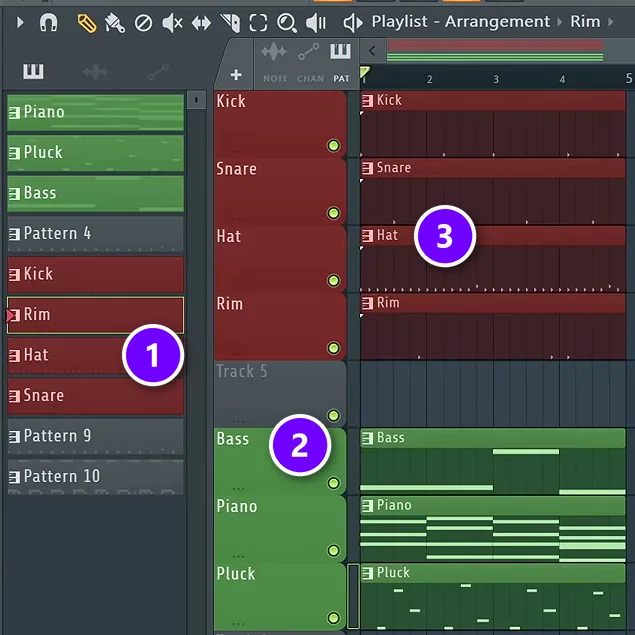
Max’s first move is to split the loop up. With every instrument and every drum sound in its own pattern, you can switch each one on and off by itself, and that’s most of what arranging is. FL Studio does the splitting for you.
Select the pattern your loop lives in, open the Patterns menu at the top and choose Split by channel. Every sound gets its own pattern, named after its channel (1), and each one lands on its own Playlist track. Do it for every pattern in the loop.
Then right-click each track’s name to rename it and give it a color (2). Max makes instruments green and drums red, and uses Auto name clips from the same menu so every clip shows its sound (3). It takes two minutes. Later, when you’re looking at 70 bars of clips, you’ll be glad you did it.
Step 2: Copy the loop to about 2 minutes, then mute it all
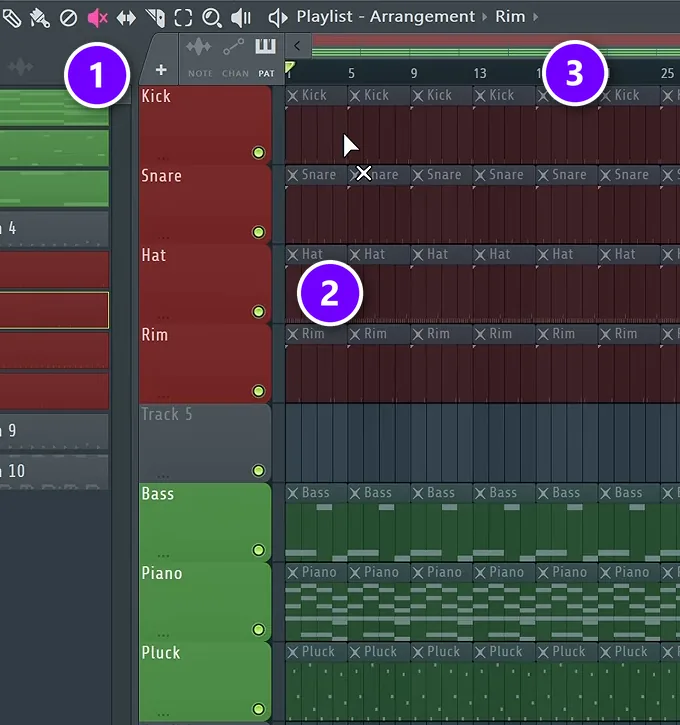
Select everything in the Playlist (Ctrl + A) and press Ctrl + B to duplicate it. Keep pressing until the song runs about two minutes. For a first song, Max keeps it short: “I think around 2 minutes will be perfect.” At 140 BPM, that’s about 70 bars.
Now pick the Mute tool (1) in the Playlist toolbar and drag it across every clip. Muted clips go grey and show an X (2). The bar numbers along the top (3) show how far the song runs.
Nothing plays now, and that’s the point. Instead of cutting parts out of a full loop, you’ll bring parts back in on purpose. Max calls this additive arrangement.
Step 3: Mark your sections with time markers
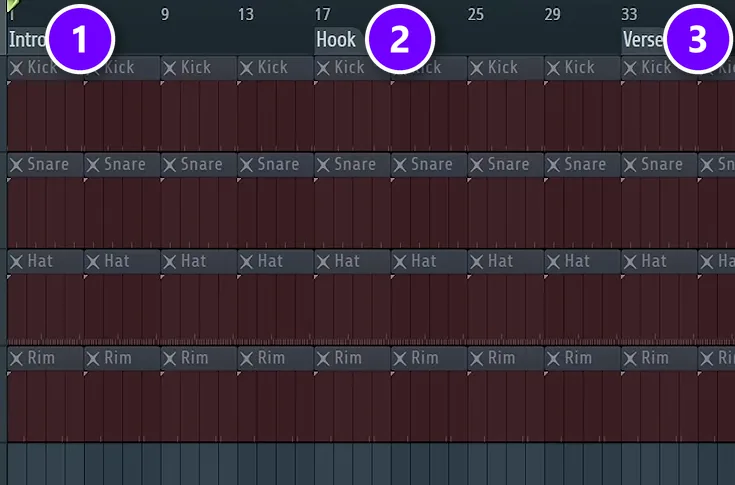
Before you unmute anything, draw the map. Open the Playlist’s options menu (the small arrow at its top left), go to Time markers and choose Add one, or just press Alt + T. Type a name, and the marker sits on the bar ruler.
Max uses 16-bar sections for his trap beat:
- Intro: bars 1 to 16 (1)
- Hook: bars 17 to 32 (2)
- Verse: bars 33 to 48 (3)
- Hook: bars 49 to 64
- Outro: bar 65 to the end
Don’t worry about the names. Max points out that you could swap verse and hook here, because the markers only show where something will change. If you want a longer song, add a second verse before the outro.
Step 4: Bring the parts back in, one at a time
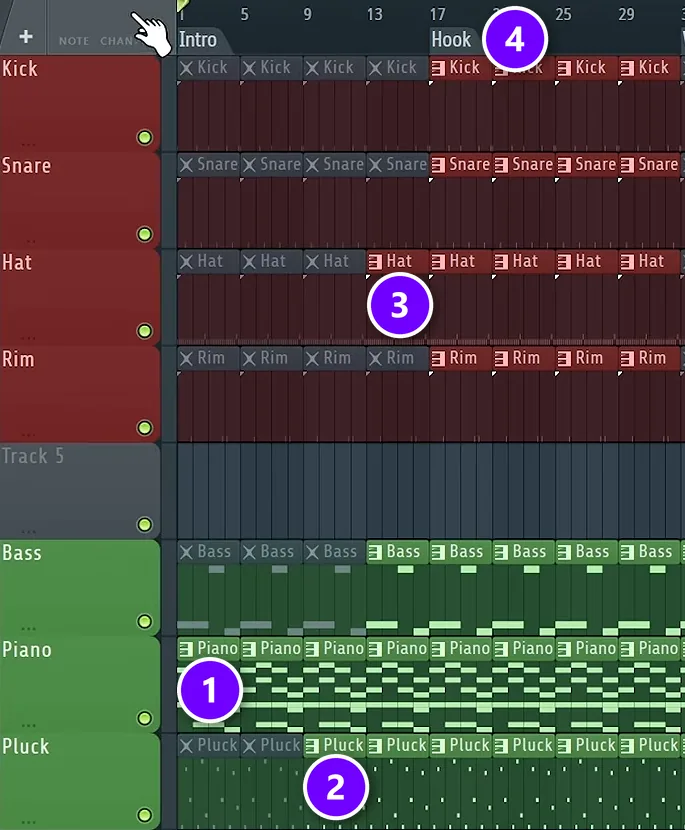
Now click muted clips with the Mute tool to switch them back on, section by section. This is where the loop turns into a song, and Max’s guiding idea is simple: “We want our arrangement to work as if we were taking someone by hand experiencing our song.” Set the mood first, then build.
Here’s how he fills his map. The numbers match the screenshot:
- Intro: start with the core of the track, which for Max is the piano (1). After 8 bars the pluck comes in (2), and at bar 13 the bass.
- Just before the hook: bring in one drum sound early, like a hi-hat or a rim (3). “We just want to tease people with the drums,” Max says.
- Hook: everything at once, all the drums and all the instruments (4).
- Verse: keep the instruments, drop the drums, and bring the hi-hat back after 8 bars. You can also keep one extra part in the first half only, for contrast.
- Second hook: the full loop again.
- Outro: just the pluck and the bass, so the energy winds down instead of cutting off.
This is also a good moment to set the tempo. Trap usually sits around 140 BPM, and Max speeds his beat up from 130 to 140 at this point. If the beat is for a rapper or a singer, a rough arrangement like this is enough, because the vocalist will decide the final length anyway.
Step 5: Smooth the jumps between sections
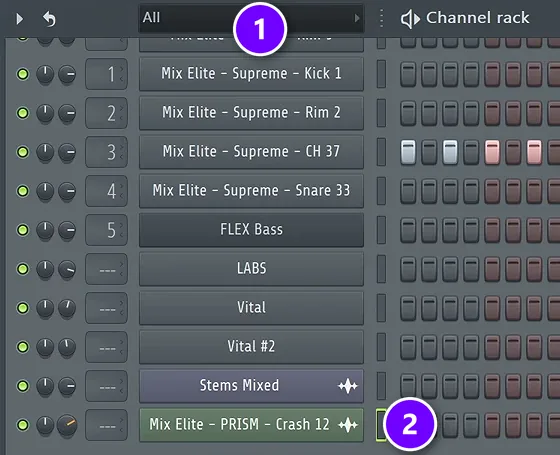
Even with good sections, a song can sound like blocks glued together. Transitions fix that. The quickest kind in FL Studio is an effect sample, like a sweep, a riser or a crash, dragged from the Browser straight into the Playlist where a new section starts.
These samples usually come in way too loud, and they don’t show up in the Channel Rack at first. Switch the Channel Rack’s filter from Audio to All (1), and every sound in your project appears, including the crash on its own row (2). Turn its volume knob, at the left end of that row, down until it sits under the music. Our guide on how to finish a song shows the other way, through the clip’s own settings, plus how to fade a sample in.
A few more moves that make sections flow:
- Take something out before the big moment. Drop the kick, or all the drums, for the last bar before the hook so it lands harder.
- Hold back the low end. Keep the sub bass out of the verse, and the hook will feel bigger when it arrives.
- Sweep a filter. Max puts a Parametric EQ 2 with a high-cut band on his bass group and automates it from about 20% to fully open right before the drop.
- Reverse something. A reversed crash or vocal tail swells into the next section.
- Change something every 4 to 8 bars, even something small: a hi-hat roll, a new percussion sound, one extra kick.
Don’t know what goes where? Copy the map of a song you love
Adding parts by ear works, but sometimes you freeze. Should the drums come in at bar 9 or bar 17? A one-minute Short on the Mix Elite channel shows how to answer that with a real song. You split a track you love into stems, which are separate files for its drums, bass, vocals and other parts, and then copy where each part comes in. The Short calls it “the closest you can get to opening the actual project file.”
Split the song into stems
Start with an MP3 or WAV of a song in the same style as your loop. In the Short, it goes into MVSEP (mvsep.com), a free stem-splitting website. Upload the file, choose a model that splits it into vocals, drums, bass and other, and download the results. The Short picks an older Unmix model, and today Demucs4 HT gives the same four stems.
If you own FL Studio Producer Edition or higher, version 21.2 or newer, you can skip the website. Drag the song into the Playlist, click the small menu at the top-left corner of the clip and choose Extract stems from sample. The free trial can’t download this feature, so trial users should stick with the website.
Line the stems up and mark every change
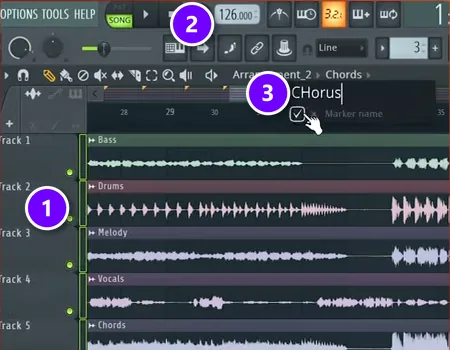
Make a fresh arrangement so your own project stays untouched: open the menu next to the arrangement name at the top of the Playlist and add a new one. Drag the stems in at bar 1, one per track (1). Then type the song’s tempo into the tempo box (2), so its sections line up with FL Studio’s bars.
Play it and watch the waveforms. You can see where the drums start, when the vocal comes in and where the melody drops out. At each change, put the playhead there, press Alt + T and type what you hear into the marker box (3). The Short’s markers read like “Intro Drums Chords” and “Pre chorus All no vocals”, so each one also says what to build.
Delete the stems and fill the map
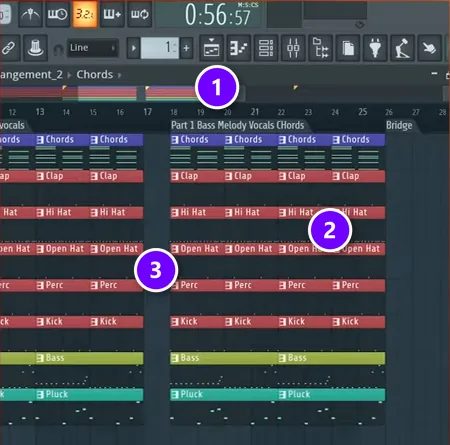
When the whole song is mapped, delete the stems and set the tempo back to your own (the Short goes from 126 to 140 BPM). The markers stay put (1). Your patterns are shared between arrangements, so the ones from your loop are waiting in the pattern list. Paint them in under each marker (2) to match what each marker says.
Look at the bar right before Part 1 (3). Everything stops for one bar. A tiny gap like that makes the next section hit harder. Your sounds, chords and melody are all still yours. You’re only borrowing the order things happen in. For typical section lengths in dance music, see our EDM song structure map.
Additive, subtractive or linear: which arrangement method should you use?
Max’s method is additive: start from silence and add parts as you hear what should come next. It’s the one he prefers, because the result “will also be unique to you and you will not be influenced by any other tracks,” as Max puts it.
Three other methods are worth knowing, in case additive doesn’t click for you:
- Subtractive: copy the full loop across the song and delete parts to make each section. It needs a busy loop to start, around 8 to 10 parts, and it suits loop-based styles like house and techno.
- Linear: build from left to right, one section at a time. Finish a rough intro, move on to the next 8 bars, and don’t go back to polish until the end. It helps if a long, empty timeline makes you freeze.
- One instrument first: write the chords and melody with a single sound, like a piano, and arrange that into a rough song before you add drums and other layers. The hardest part, the writing, is done first.
And when a section needs something new and you’re out of ideas, play the same chords on a different instrument with a different rhythm. Short, bouncy chords on an electric piano can become a long, soft pad in the breakdown. The new section still fits, because the notes haven’t changed. For more ideas on building a track’s energy from start to finish, read the art of arrangement.
THE 7-DAY MUSIC PRODUCER COURSE
Day 3: build the drums, then the whole song
Day 3 of the 7-Day Music Producer Course is about drums and arranging: you build a drum pattern for your track and learn one simple tactic for turning an idea into a full song. The other days take the same track through chords, mixing, vocals, mastering and release, and on day 7 a pro gives you personal feedback on it. It’s taught in FL Studio (the free trial works), costs $27 and comes with a 60-day money-back guarantee.
Frequently asked questions
How long should a song be when you turn a loop into one?
For a first beat, about two minutes is plenty. Max aims for around two minutes, built from 16-bar sections: intro, hook, verse, hook and outro. If a rapper or singer will use the beat, keep the arrangement rough, because the vocalist decides the final length. Dance tracks for DJs usually run longer, with longer intros and outros.
How many bars should each section be?
Most sections are 8 or 16 bars long, because listeners feel a song moving in those blocks. Max uses 16-bar sections and changes something inside each one every 4 to 8 bars, like a new sound coming in or the drums dropping out. Lining your changes up with those blocks keeps the song easy to follow.
How do you make a good intro for a song?
Start with the core of your loop, not the whole thing. Max opens with just the piano, brings in the pluck after 8 bars and the bass at bar 13, then teases one drum sound right before the hook. You can also filter the full loop and open it up slowly, or play the main melody on a different instrument.
Is it OK to copy the structure of a song I like?
Yes. Copying where the parts come in and out is a normal way to learn arranging, and Max calls a reference track one of the most powerful strategies to level up quickly. You’re borrowing the order of the sections, not the sounds, chords or melodies. Delete the reference or its stems before you build, so everything in your song is yours.