


“…speak clearly, if you speak at all; / Carve every word before you let it fall.”
Process vocals in FL Studio in this order: clean up, EQ, compress, de-ess, then add space. Remove background noise in Edison, cut the rumble with an EQ low cut, compress with Fruity Limiter so every word is equally clear, tame harsh S sounds with a Maximus de-esser preset after the compressor, and put reverb and delay on their own send tracks.
You record a great take, drop it on the beat, and it sounds like a voice memo taped on top of a song. A low hum creeps in under the quiet parts. Some words jump out while others vanish, every S hisses, and the voice sits dry and close, as if it were in a different room from the music.
None of that needs new plugins. FL Studio already has a tool for each of those problems, and the order you use them in matters as much as the settings. Below are the settings Mix Elite uses for each job, with real screenshots from Mix Elite’s own videos, so you can copy them one step at a time.
Table of Contents
How to process vocals in FL Studio: the order

Processing a vocal means fixing its problems one at a time, each with the right tool. Work in this order, because every step makes the next one easier:
- Clean it up. Remove background noise, gate the gaps between lines and cut the rumble below the voice.
- Even out the level. Bring very loud and very quiet lines closer together before a compressor touches them.
- Compress it. Make every word equally easy to hear.
- De-ess it. Turn down the harsh S sounds the compressor just made louder.
- Add space. Put reverb and delay on their own tracks so the voice sits inside the song.
Max, the founder of Mix Elite, teaches steps 2 to 5 in Mix Elite’s free 4.5-hour FL Studio course as V.O.C.A.L., Mix Elite’s vocal mixing formula: Volume, Optimize with EQ, Compression, Attenuate harshness and Layer with effects. Cleanup comes before all of it. A compressor lifts the quiet parts of a recording, and that includes the hum and hiss you never wanted.
This page goes deep on those processing jobs: which stock plugin, which knob, and how to hear when it’s working. For the full vocal mix, from tuning to making the voice sit on the beat, read our guide on how to mix vocals. For one complete chain built plugin by plugin, see how to mix vocals in FL Studio with only stock plugins. And if the vocal needs pitch correction, do that first; here’s how to tune vocals in FL Studio.
How to remove background noise from vocals in FL Studio
Background noise is anything in the recording that isn’t the voice: a computer fan, room hum, hiss from a cheap cable, or the beat leaking out of your headphones. You remove it in Edison, FL Studio’s built-in audio editor, and there are two ways to do it.
Remove noise with Edison’s vocal denoiser
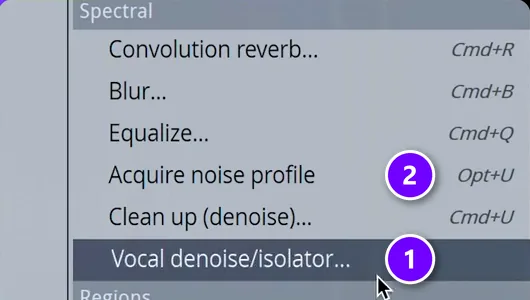
In the Playlist, click the name at the top-left of your vocal clip and choose Edit sample. The clip opens in Edison. Click Edison’s wrench icon to open its Tools menu, then choose Spectral > Vocal denoise/isolator (1).
Set the Mix knob and accept
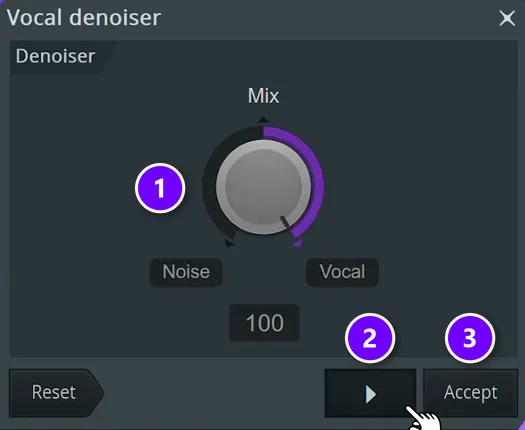
The denoiser has one main control. Turn Mix all the way toward Vocal (1), where it reads 100, to keep only the voice. Press the play button (2) to preview, then click Accept (3).
Turn the knob the other way, toward Noise, and you hear only what’s being taken out. It’s a quick check. If you can hear pieces of words in there, you’re removing too much.
The classic way: a noise profile
If you’d rather tell Edison exactly what the noise sounds like, use a noise profile. Select a short stretch where only noise plays, like the silence before the first line, and click Acquire noise profile (2 in the menu screenshot above). Then press Ctrl + A to select the whole clip and run Clean up (denoise) from the same menu. Raise the amount slowly, preview, and accept.
How to use a noise gate on vocals in FL Studio
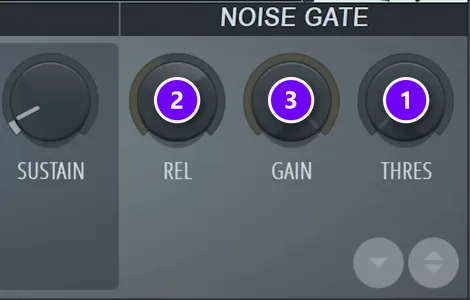
A noise gate mutes the track whenever the level drops below a point you choose, so the gaps between your lines go quiet. FL Studio’s gate is built into Fruity Limiter. Load it on the vocal’s mixer track and look at the NOISE GATE section on the right:
- THRES (1), the threshold: raise it until the hum between phrases disappears.
- REL (2), the release: how fast the gate closes. Too fast, and it chops off the ends of words.
- GAIN (3): how far the gate turns the noise down. It doesn’t have to be total silence; a few dB quieter often sounds more natural.
A gate can only mute the gaps. Hiss that plays while the singer sings is still there when the gate opens, so that’s a job for the denoiser above.
Listen to the ends of words and the breaths before each line. If they drop out, lower THRES or turn REL up a little.
How to cut rumble with an EQ low cut
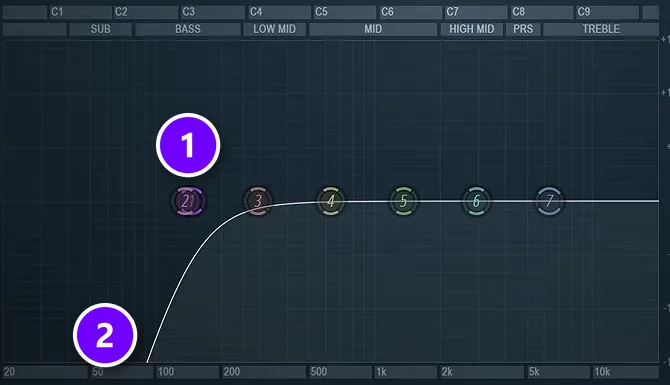
A voice has almost nothing useful in the deep lows, but microphones still pick up rumble there: traffic, footsteps, a desk being bumped. A low cut, also called a high-pass filter, removes everything below a frequency you pick.
The free course uses Fruity Parametric EQ 2 with a steep low cut (1). Start the cut a little under 200 Hz, so nothing is left below about 100 Hz (2). If the voice is very deep, cut less, or it starts to sound thin.
Hear one harsh, ringing spot? Sweep a narrow band to find it and cut only 2 to 3 dB. The de-esser handles the S sounds later, so you don’t need to carve them out here.
How to compress vocals in FL Studio
A compressor turns the loudest moments down so the quiet ones can come up. On a vocal, that means every word lands at about the same volume, and the listener never has to strain.
It works best on a vocal that’s already fairly even. If one verse is far louder than another, level them first with a volume envelope in Edison; our vocal mixing guide shows how. Max’s on-screen note in the video below says why: “We want the compressor to work equally throughout the whole track.”
Fruity Limiter settings for vocals
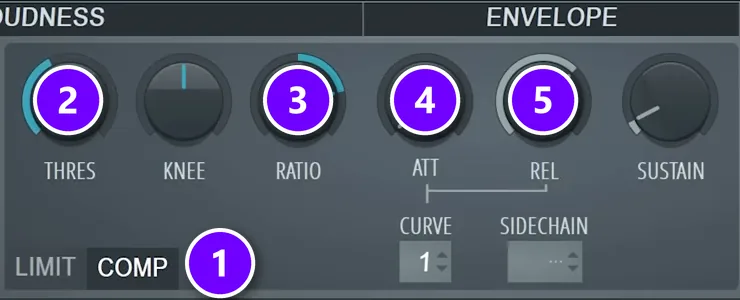
Fruity Limiter is also FL Studio’s go-to compressor, despite the name. Its window has three parts: LOUDNESS (the limiter and its gain), ENVELOPE (attack and release) and NOISE GATE. Switch it to COMP mode (1), then set it up like this:
- Lower THRES (2) until every word is clearly audible. In Mix Elite’s vocal compression video it lands near −20 dB, but every vocal is different.
- Set the RATIO (3). The free course uses about 4:1, and Mix Elite’s vocal compression video calls 6:1 a perfect starting point for modern pop, rap and EDM vocals.
- Set the attack, ATT (4). Up to 8 ms counts as fast, and 25 ms or more as slow. Around 30 ms lets the start of each word through, so the vocal stays clear.
- Keep the release, REL (5), at 100 ms or less. Around 50 ms is a good start.
- Turn up GAIN in the LOUDNESS section 1 dB at a time until the vocal sits just above the beat.
How do you compress vocals without squashing them?
Even out the loud and quiet lines first, then compress gently: a ratio of about 4:1 to 6:1, an attack around 30 ms so the start of each word gets through, and a release near 50 ms. Lower the threshold only until every word is clear. That keeps the vocal loud and steady without flattening it.
Most squashed vocals come from three settings pushed too far. A very fast attack, 8 ms or less, grabs the first sound of every word and makes the vocal mushy. A threshold set too low squeezes every word, not just the loud ones. And a huge ratio flattens the performance. Need a lot of compression? Split it across two compressors in a row, so each one does only part of the work.
Go easy on the ratio. Push it past 10:1, Max says, and your waveform will “basically look like a sausage.” The dynamics get squashed flat, and the vocal loses the life that made the take good. For the full method, with fast and slow attack compared side by side, see how to compress vocals.
Why do S sounds in vocals sound so harsh?
S, SH and T sounds are bursts of air that land in the upper mids, around 4 to 6 kHz, right where our ears are most sensitive. That harshness is called sibilance. Bright microphones, EQ boosts and compression all make it louder. A de-esser fixes it by turning down only the S sounds, so the rest of the vocal stays bright.
A lot of it starts at the microphone. Many vocal mics have a built-in boost around 5 kHz, and the air from an S hits the mic head-on. You can tame it before it’s recorded:
- Place the mic slightly above the mouth, still aimed at it, so the blast of air passes underneath.
- Tape a pencil to the mic, over the middle of the grille. It sounds odd, but it works surprisingly well.
- If a singer is always harsh on one mic, try a darker one, like a dynamic mic.
More tips for the recording side are in our guide to recording vocals like a pro.
Does FL Studio have a de-esser?
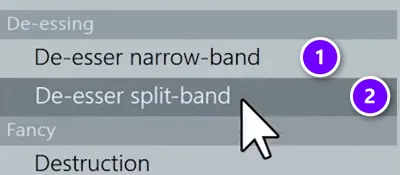
Not as a plugin with that name, but you don’t need one. A de-esser is a compressor that only reacts to harsh S and SH sounds, and Maximus, which comes with FL Studio, has two presets for exactly that: De-esser narrow-band (1) and De-esser split-band (2).
Harshness usually lives around 4 to 6 kHz, sometimes up to 7 to 10 kHz, as the free course explains. The narrow-band preset works on roughly 2.5 to 9.5 kHz, and the split-band preset on everything above about 3.5 kHz. Either one is fine to start with, because the next steps are the same.
How to de-ess vocals with Maximus
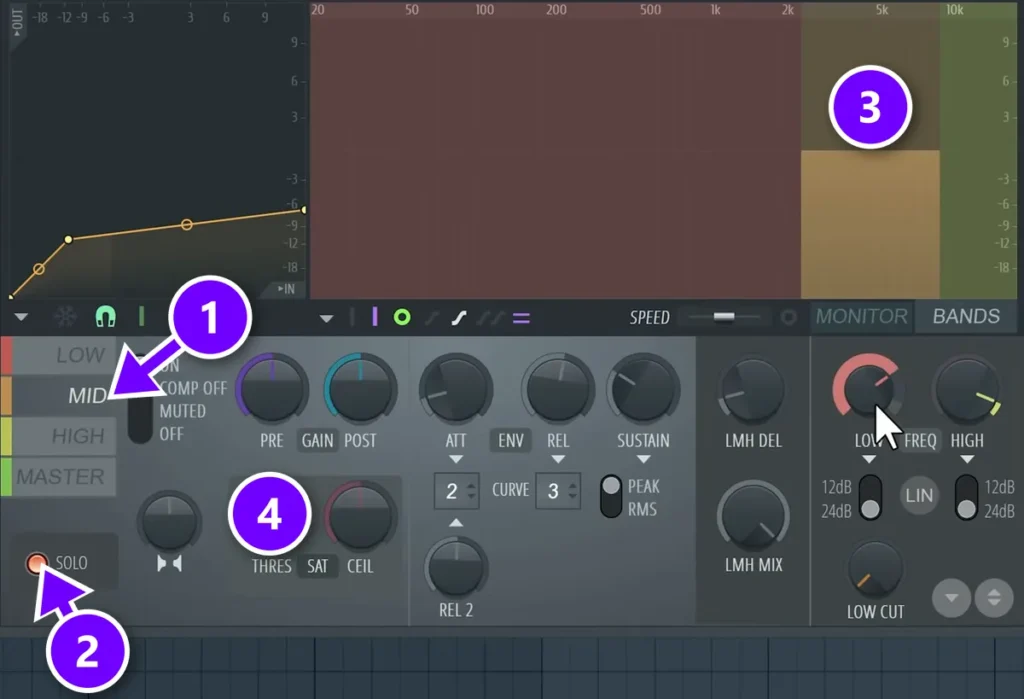
- Load Maximus on the vocal’s mixer track, in the slot after Fruity Limiter.
- Open Presets and choose one of the two De-esser presets.
- Select the MID band (1) and click SOLO (2), so you hear only what that band picks up.
- Move the band (3) with its LOW and HIGH frequency knobs until you hear mostly S sounds and little else.
- Turn SOLO off. Lower the threshold, THRES (4), a step at a time until the S sounds stop jumping out.
Step 4 is the one that matters. In Mix Elite’s Maximus tutorial, Max tells you to solo the band and “search for just the S sound that your singer is having.” Every voice is different, so the preset is only a starting point.
Stop when the S sounds are softer than the rest but still sound like S. Go too far, and the singer starts to sound like they have a lisp.
How do you fix harsh S sounds without losing the high end?
Turn down only the S sounds, never the whole top end. Both Maximus presets compress just the S range, and only while an S plays, so the air and shine of the voice stay. A plain EQ cut at 5 kHz would dull every word, which is why the de-esser does this job instead.
For one or two S sounds that still stab after the de-esser, turn just those spots down by hand. And if you brighten the vocal with an EQ, add the de-esser after that boost, because a high boost lifts the S sounds too.
Should you de-ess before or after compression?
After. A compressor brings the quiet parts up, and the S sounds come up with them. A de-esser placed after the compressor catches them at their final level. Mix Elite’s vocal chain in the free course follows that order: Parametric EQ 2, then Fruity Limiter, then Maximus. Some engineers de-ess earlier instead, before the compressor, so loud S sounds don’t make it clamp down. Either way, listen to the S sounds again once the compressor is on.
How to add reverb and delay to vocals in FL Studio
Reverb (the sound of a room) and delay (an echo) make a dry vocal feel like it belongs in the song. Put them on their own mixer tracks, called send tracks, instead of on the vocal itself. The vocal stays clear, and you can EQ the effect and set its level on its own.
Put reverb on its own send track
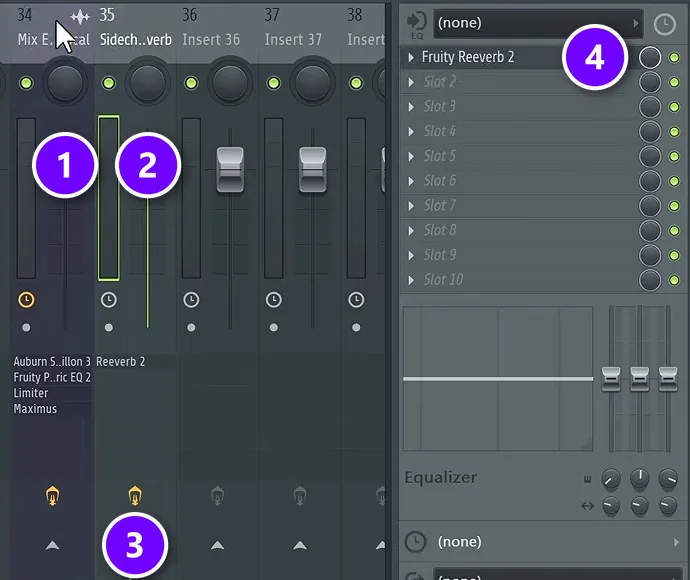
- Pick an empty mixer track next to your vocal and name it Reverb.
- Click the vocal’s track (1) to select it. Then click the small arrow at the bottom of the reverb track (3). The vocal now plays to the Master and to the reverb track at the same time.
- Load Fruity Reeverb 2 on the reverb track (4). Pull its DRY fader all the way down and turn WET up, so the track holds only the effect.
- Set how much reverb you hear with the reverb track’s own fader (2).
Reverb settings for vocals
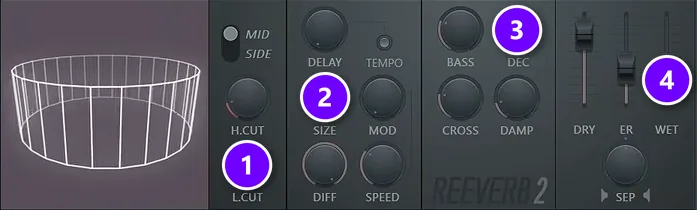
Set the reverb’s low cut, L.CUT (1), to about 700 Hz, so the reverb stays out of the low end. Turn the room SIZE (2) up, keep the decay, DEC (3), moderate (2.5 seconds in the free course’s example) and use WET (4) for the effect alone. Push the decay to 4 seconds and it washes everything out.
The right length depends on the vocal. Fast rap needs a short decay so the words don’t smear together, while slower singing can take more. The test is simple: go by ear and check that you’re not blurring too many words at once.
Add a delay the same way
A delay works the same way on a second send track. Fruity Delay 3 is FL Studio’s stock delay; keep it fully wet and set the amount with the track’s fader. Not sure which effect a line needs? Here’s reverb vs delay, explained. To stop both effects from crowding the words, you can make them duck while the singer sings, a setup our vocal mixing guide walks through.
What order should vocal plugins go in FL Studio?
Clean up first, then EQ, compressor, de-esser, and reverb and delay last on send tracks. In FL Studio that’s Edison for the noise, then Fruity Parametric EQ 2, Fruity Limiter and Maximus on the vocal’s mixer track, with the effects on their own tracks. Here’s the whole chain:
- Edison: Vocal denoise/isolator, or a cleanup with a noise profile.
- Slot 1, Fruity Parametric EQ 2: a steep low cut, with nothing left below about 100 Hz.
- Slot 2, Fruity Limiter: COMP mode at about 4:1, plus its noise gate if the gaps are noisy.
- Slot 3, Maximus: a De-esser preset, tuned to the singer’s S.
- Send tracks: Fruity Reeverb 2 and Fruity Delay 3, fully wet.
If the vocal needs tuning, put the tuner in the first slot and move everything else down one. Mix Elite’s own chain in the free course starts with a pitch-correction plugin.
How do you know a vocal is processed enough?
Play the vocal with the beat and check five things:
- The gaps between lines are quiet, but the breaths and word endings are still there.
- You can understand every word without touching the volume.
- The S sounds are softer than before but still sound like S, not a lisp.
- The reverb shows up on long notes, not as a cloud over every word.
- It sounds right with the music playing, not only on its own.
If one check fails, go back to that one job instead of adding another plugin. Most vocal problems come from one step pushed too hard, not from a missing tool.
DAY 5 OF THE 7-DAY MUSIC PRODUCER COURSE
Day 5 turns these steps into a full vocal chain
Day 5 of the 7-Day course is about recording and mixing vocals: the V.O.C.A.L. mixing formula, the worst mistakes even advanced producers make, and 10 copy-and-paste vocal processing chains with practice acapellas, so you can try them even without a singer. It’s taught in FL Studio (the free trial works), about 45 minutes a day, and on day 7 a pro gives you feedback on your finished track. It’s $27, and you get 60 days to decide if it was worth it.
Frequently asked questions
What order should vocal effects go in?
Clean up first, then EQ, compression, de-essing, and reverb and delay last on send tracks. In FL Studio: Edison to remove noise, Fruity Parametric EQ 2 for a low cut, Fruity Limiter in COMP mode, Maximus with a de-esser preset, then Fruity Reeverb 2 and Fruity Delay 3 on their own tracks. Tuning, if needed, goes first.
Should you de-ess before or after compression?
After, in Mix Elite’s chain. Compression brings quiet sounds up, S sounds included, so a de-esser placed after the compressor catches them at their final level: Fruity Limiter first, then Maximus right after it. Some engineers de-ess before the compressor instead, so loud S sounds don’t make it clamp down.
Why do S sounds in my vocals sound so harsh?
S, SH and T sounds are bursts of air around 4 to 6 kHz, where our ears are most sensitive. A bright mic, singing straight into it, EQ boosts and compression all make them louder. Fix them with a de-esser, which turns down only the S sounds, so the rest of the vocal keeps its high end.
How do I compress vocals without squashing them?
Even out the loud and quiet lines first. Then use Fruity Limiter in COMP mode at about 4:1 to 6:1, an attack around 30 ms and a release near 50 ms, and lower the threshold only until every word is clear. Keep the ratio under 10:1, or the vocal loses its life.
Is there a stock de-esser in FL Studio?
Not as its own plugin, but Maximus, which comes with FL Studio, has two de-esser presets: De-esser narrow-band and De-esser split-band. Load one on the vocal after your compressor, solo the band, move it until you hear only the S sounds, then lower the threshold until they stop jumping out.